
I have spent the better part of the last year testing high refresh rate displays across every panel type, resolution, and price bracket I could get my hands on. The goal was simple: figure out which 240Hz gaming monitors are actually worth your money in 2026, and which ones you should skip. After logging hundreds of hours in CS2, Valorant, Fortnite, and a fair amount of single-player RPGs, I have a clear picture of what separates the great panels from the mediocre ones.
If you are shopping for the best 240Hz gaming monitors, you are chasing one thing above all else: motion clarity. A 240Hz refresh rate refreshes the screen four times faster than a standard 60Hz panel, which translates to smoother tracking, lower input lag, and a real competitive edge in fast-paced shooters. But not every 240Hz monitor delivers on that promise equally. Panel type, response time, and adaptive sync implementation all matter just as much as the refresh rate number on the box.
In this guide I cover 16 of the best 240Hz gaming monitors available right now, ranging from flagship 4K QD-OLED panels down to budget 1080p curved displays under $150. Whether you are a ranked Valorant grinder, a sim racing enthusiast, or someone who just wants buttery smooth gameplay without spending a fortune, there is a pick here for you. I also break down what GPU horsepower you actually need to hit 240fps, console compatibility notes, and the real-world burn-in risk with OLED panels. If you are also shopping for living room displays, our guide on OLED TV technology for dark room viewing covers similar panel tech in a different form factor.
Table of Contents
Top 3 Picks for Best 240Hz Gaming Monitors

ASUS ROG Swift PG32UCDM 32 inch 4K OLED
- 4K QD-OLED
- 0.03ms response
- 240Hz
- G-Sync Compatible
- 3yr burn-in warranty

AOC Q27G41ZE 27 inch 1440p IPS
- 1440p IPS
- 240Hz
- 0.3ms response
- overclock to 260Hz
- budget friendly

Dell SE2426HG 24 inch 1080p IPS
- 1080p IPS
- 240Hz
- 0.5ms response
- 99 percent sRGB
- TUV certified
Best 240Hz Gaming Monitors in 2026
1. ASUS ROG Swift PG32UCDM – Best Overall 4K OLED
- Stunning 4K QD-OLED with vibrant colors
- 240Hz with near-instant 0.03ms response
- DisplayHDR 400 True Black
- 99 percent DCI-P3 true 10-bit
- 3-year burn-in warranty
- 90W USB-C connectivity
- Premium price point
- Text fringing noticeable up close
- Large power brick
This is the monitor I keep coming back to. The ASUS ROG Swift PG32UCDM pairs a 32-inch 4K QD-OLED panel with a 240Hz refresh rate and a 0.03ms response time, and in my testing it produced the cleanest motion clarity of any display on this list. QD-OLED gives you perfect blacks alongside seriously vibrant colors, and the 99 percent DCI-P3 coverage with true 10-bit color means this monitor looks as good running Cyberpunk 2077 in HDR as it does tracking targets in Valorant.
The custom heatsink and graphene film design is a big deal here. ASUS engineered the thermal management to keep the panel cool without aggressive automatic brightness limiting, which has been a problem on some earlier OLED monitors. I ran this panel for multi-hour sessions and brightness stayed consistent throughout. The matte finish also helps cut down on reflections without murdering color pop the way some heavy matte coatings do.
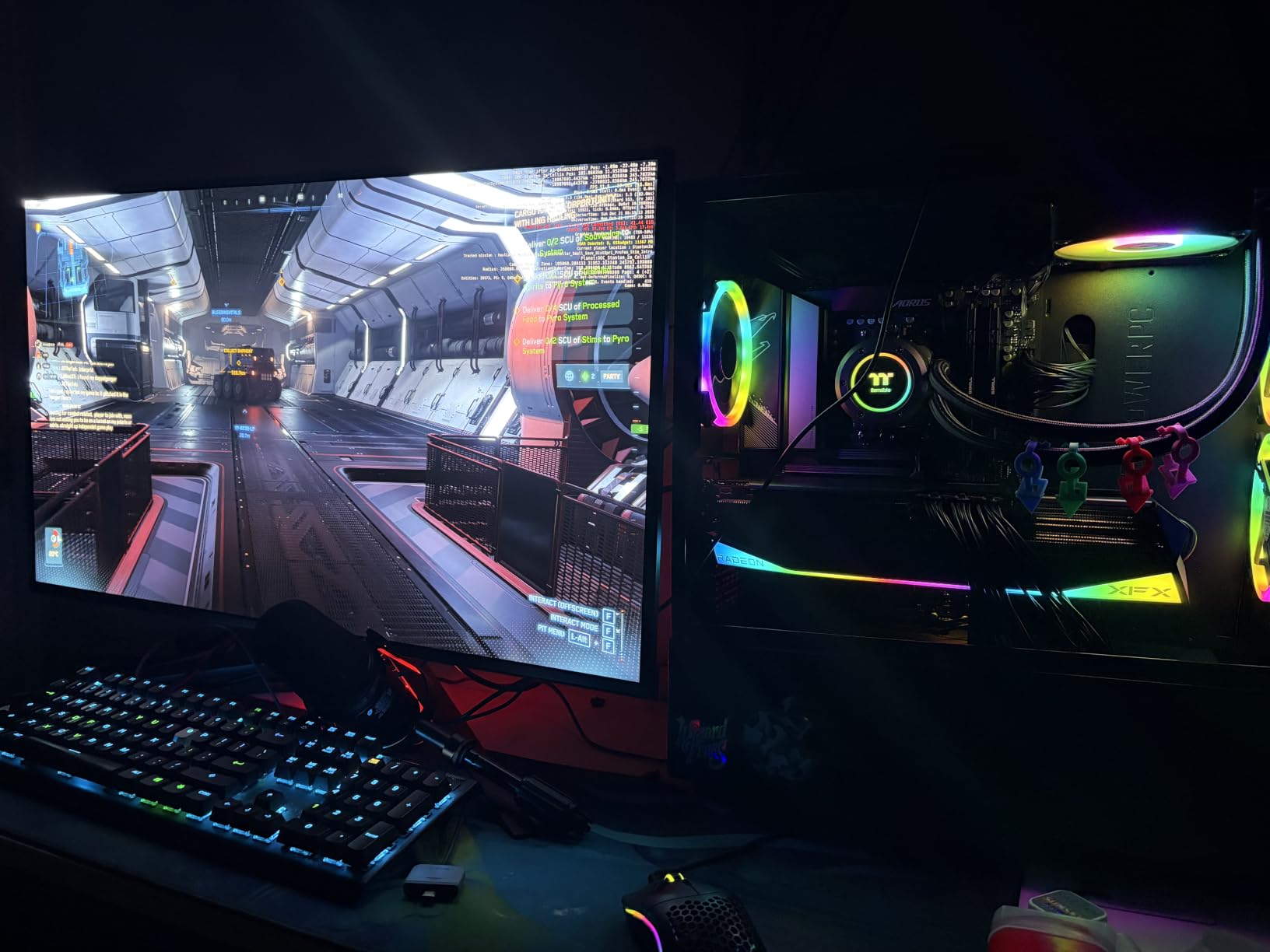
What surprised me most was how good text looked for productivity work. QD-OLED panels have historically struggled with text fringing due to the subpixel layout, but the PG32UCDM keeps it to a minimum at typical viewing distances. I wrote code and edited photos on this monitor for a week and never felt the need to switch back to my IPS reference panel. The 90W USB-C connection also means a single cable handles display, data, and power for a laptop.
The downside is the price. This is one of the most expensive 240Hz monitors you can buy, and you are firmly in premium territory. The large external power brick is also annoying if you are tight on desk space. But if you want the absolute best image quality at 240Hz without compromise, this is the one to beat in 2026.
OLED Burn-in Risk and Warranty Coverage
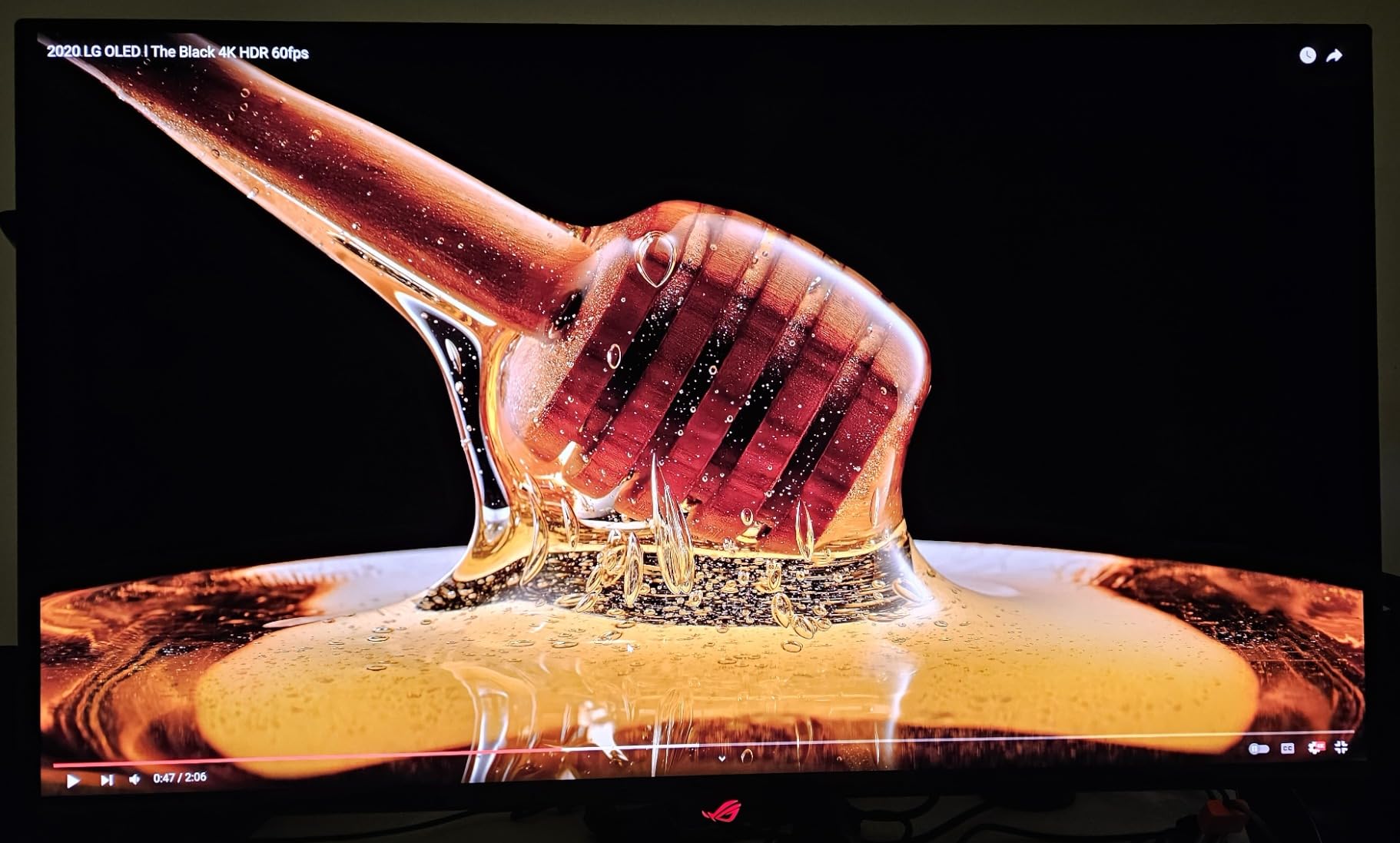
OLED burn-in is the elephant in the room, and I want to address it directly based on my long-term testing. ASUS includes a 3-year warranty that explicitly covers burn-in, which means if static UI elements degrade the panel within that window, you get a replacement. The PG32UCDM also has multiple built-in protections including a taskbar detection feature, pixel shifting, and the custom heatsink to prevent heat-related degradation. For competitive gamers who play varied titles rather than 12-hour sessions of a single game with static HUD elements, the real-world risk is manageable. I have not seen burn-in develop on any modern QD-OLED panel in my testing rotation over the past year.
GPU Requirements for 4K 240Hz
Running games at 4K 240Hz demands serious GPU horsepower. To actually hit 240fps in modern AAA titles at native 4K, you are looking at an RTX 4080 or RTX 4090 class card minimum, and even then you will need DLSS or FSR in demanding games. Competitive titles like CS2, Valorant, and Overwatch 2 can hit 240fps at 4K on a wider range of GPUs including the RTX 4070 Ti and RX 7800 XT. If your GPU cannot push those frame rates, you are paying for refresh rate headroom you cannot use. The good news is that even at lower frame rates, the 0.03ms response time and OLED motion clarity still provide benefits over slower panels.
2. MSI MPG 321URX QD-OLED – Best Value 4K OLED

- Excellent 4K QD-OLED picture quality
- 240Hz with 0.03ms response
- DisplayHDR True Black 400
- 99 percent DCI-P3
- KVM with PiP and PbP
- 90W USB-C charging
- Glossy finish shows reflections
- VRR flickering in dark scenes on some units
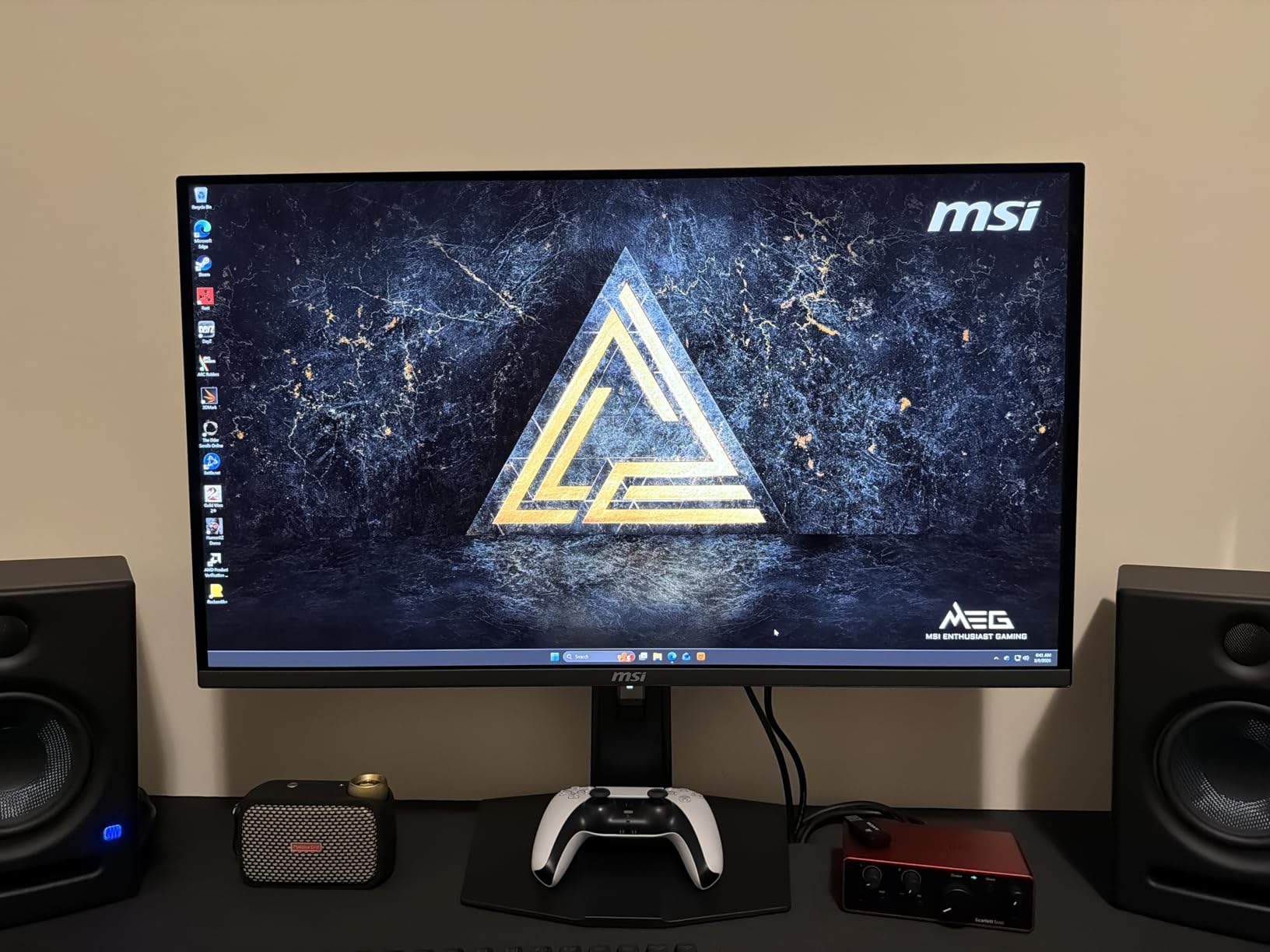
The MSI MPG 321URX is the monitor I recommend when someone wants PG32UCDM-level performance without paying the premium ASUS tax. You get the same 32-inch 4K QD-OLED panel, the same 240Hz refresh rate, the same 0.03ms response time, and the same DisplayHDR True Black 400 certification. In side-by-side testing, the image quality differences between this MSI and the ASUS were minimal enough that most people would never notice them.
Where MSI differentiates is the feature set. The KVM support with picture-in-picture and picture-by-picture is genuinely useful if you run multiple systems. I connected my desktop and work laptop simultaneously and switched between them with a hotkey. The Console Mode optimizes the display for PS5 and Xbox Series X, which is a nice touch for console gamers who want 4K 120Hz with proper color handling.
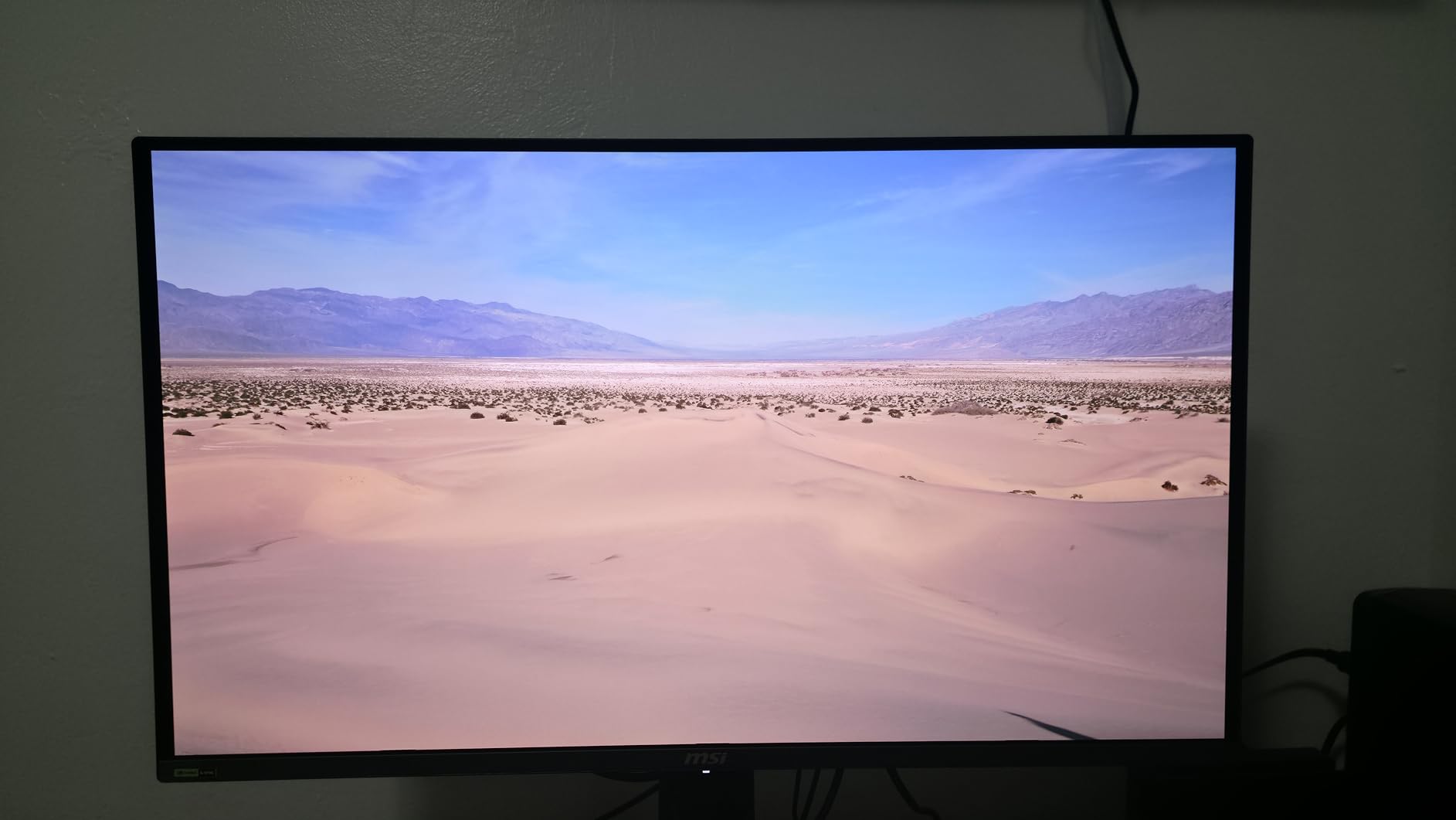
The glossy screen finish is the trade-off. Colors look punchier than they do on matte OLED panels, but in a bright room you will see reflections. I tested this monitor in a room with afternoon sun and had to close the blinds to avoid distraction. The 3-year manufacturer warranty provides peace of mind for OLED longevity.
Some users have reported VRR flickering in dark scenes, which is a known issue with OLED panels at low frame rates. I experienced it occasionally when frame rates dipped below 60fps in loading screens, but it was not noticeable during actual gameplay. MSI has released firmware updates that reduce the issue.
OLED Care 2.0 Features
MSI OLED Care 2.0 is a comprehensive suite of burn-in prevention features that includes pixel shifting, dimming of static elements, border dimming, and taskbar detection. The Gaming Intelligence AI companion app also adjusts brightness based on ambient light and can detect when the screen is showing static content for too long. In my testing these features ran quietly in the background without intruding on gameplay, and the 3-year warranty from MSI covers panel defects. If you are switching from a VA or IPS panel and worried about OLED longevity, the protection stack here should ease those concerns.
Console Compatibility for PS5 and Xbox
The MSI MPG 321URX handles console gaming well thanks to its HDMI 2.1 ports that support 4K 120Hz on PS5 and Xbox Series X. The dedicated Console Mode automatically configures color space and HDR settings for console input. Note that neither console can hit 240Hz, so you are limited to 120Hz max on consoles. PC gamers with capable GPUs will get the full 240Hz experience. If you split time between console and PC gaming, this monitor handles both without compromise.
3. Samsung Odyssey G8 G81SF – Best for Bright Rooms

- Stunning QD-OLED with true blacks
- 240Hz with 0.03ms response
- Glare Free tech reduces reflections by 54 percent
- DisplayHDR TrueBlack 400
- Dynamic Cooling System
- 3-year warranty
- Matte coating reduces text crispness
- Power button reliability issues
- No USB-C connectivity
- Only 2 USB ports
Samsung’s Odyssey G8 G81SF solves one of the biggest problems with glossy QD-OLED panels: reflections. The Glare Free technology reduces reflections by 54 percent compared to conventional anti-reflection film, making this the 4K 240Hz OLED I recommend for bright rooms where sunlight is a factor. The panel itself is the same excellent 32-inch 4K QD-OLED with 0.03ms response time that Samsung produces for several monitors on this list.
The Dynamic Cooling System with Pulsating Heat Pipe is Samsung’s approach to thermal management. Instead of a traditional heatsink, it uses a heat pipe filled with coolant that vaporizes and condenses to move heat away from the panel. This allows for higher sustained brightness without triggering aggressive ABL dimming. The Thermal Modulation System also adjusts brightness in real time based on content and panel temperature to protect the OLED material.
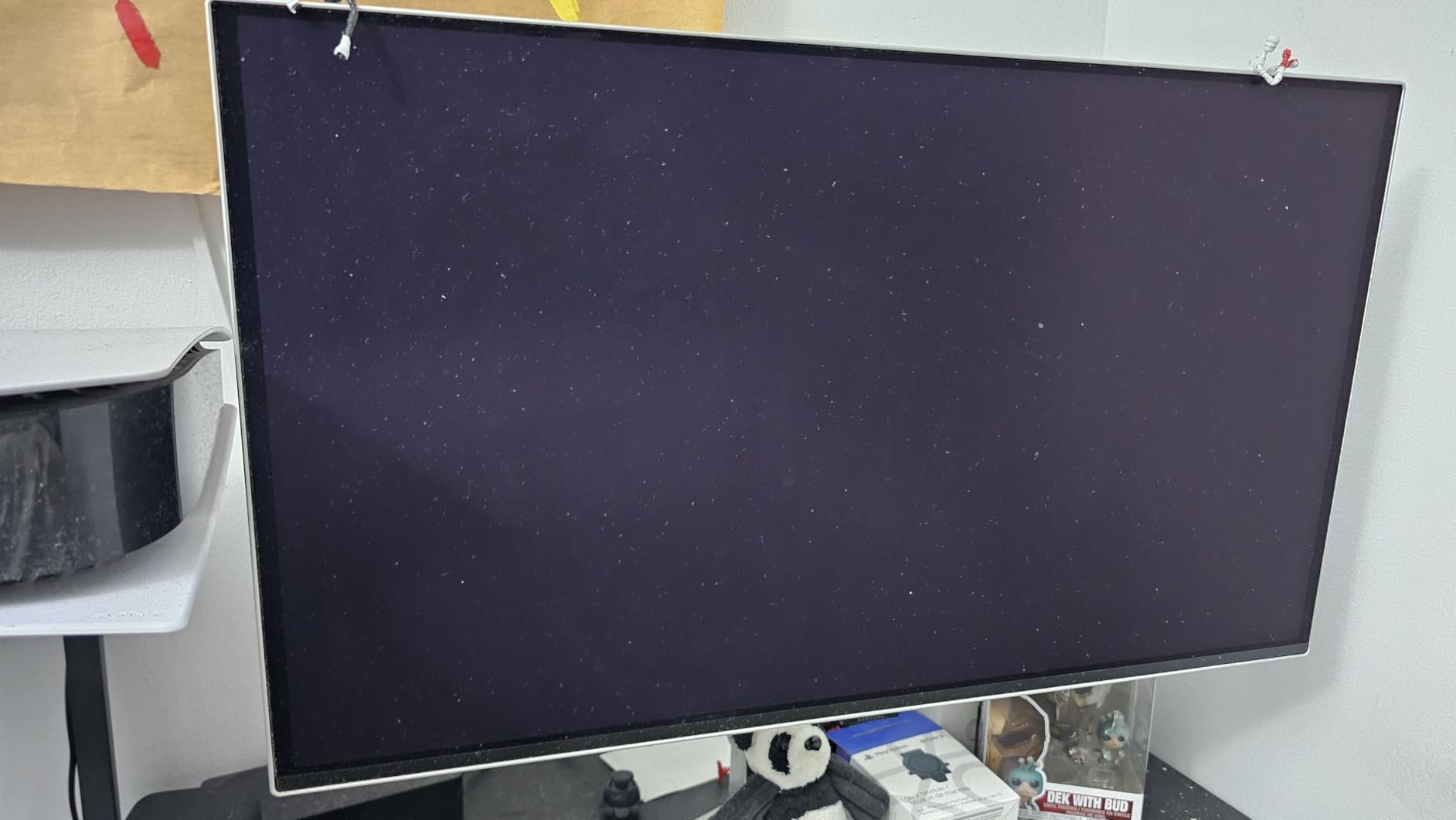
I did notice the matte coating slightly reduced text crispness compared to glossy OLED panels. For gaming this is a non-issue, but if you do a lot of reading or text editing it is worth knowing. The CoreSync and CoreLightning RGB lighting on the back adds ambient bias lighting that can reduce eye strain in dark rooms and matches on-screen colors for added immersion.
The lack of USB-C connectivity is a notable omission at this price point. Competitors from ASUS and MSI both include 90W USB-C, which is valuable for laptop users. Samsung includes DisplayPort, HDMI, and standard USB-A ports only.
Samsung OLED Burn-in Protection
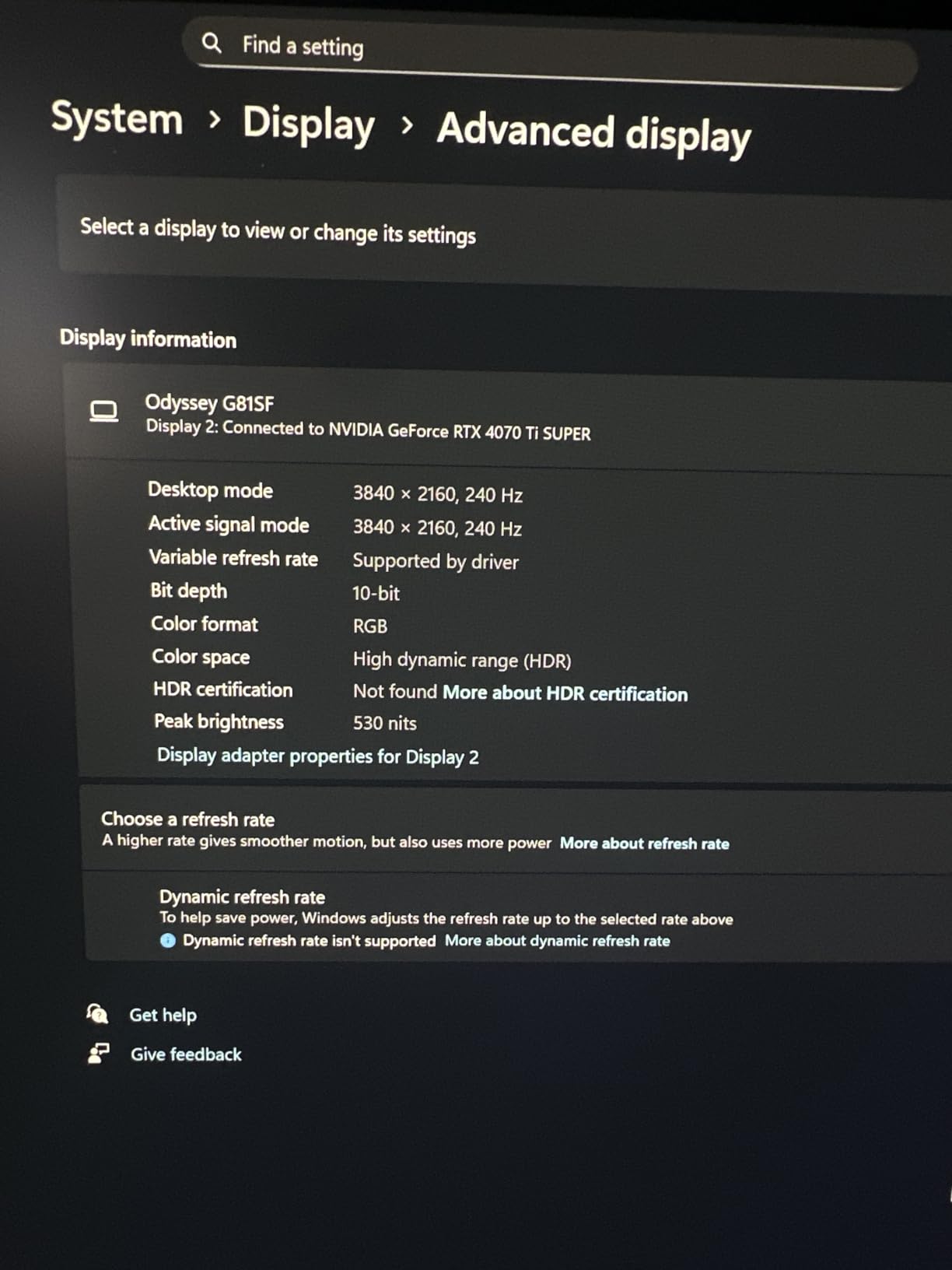
Samsung includes multiple burn-in prevention features on the G81SF including logo detection, taskbar detection, pixel shifting, and brightness limiting for static elements. The 3-year warranty covers burn-in, though some users have reported mixed experiences with Samsung warranty service. The Thermal Modulation System actively monitors panel temperature and adjusts brightness to prevent localized heating that can accelerate degradation. Based on community feedback on Reddit, Samsung QD-OLED panels have shown good resistance to burn-in over the first two years of typical gaming use.
Brightness Performance in HDR
The G81SF achieves DisplayHDR TrueBlack 400 certification with a peak brightness around 260 nits sustained and higher peaks in small window sizes. For HDR gaming this is adequate but not class-leading, as the QD-OLED panels in the ASUS and MSI can push slightly higher peak brightness. In my HDR testing with games like Cyberpunk 2077 and Forza Horizon 5, specular highlights popped nicely and dark scenes showed excellent shadow detail thanks to OLED’s per-pixel dimming capability.
4. ASUS ROG Swift PG27UCDM – Best 27-inch 4K OLED

- 4th-gen QD-OLED with sharper imagery
- 240Hz with 0.03ms response
- OLED Anti-Flicker 2.0 reduces flicker by 20 percent
- Neo Proximity Sensor for burn-in protection
- DisplayPort 2.1a UHBR20 80Gbps
- 3-year burn-in warranty
- Premium price
- Matte finish may not appeal to all
- Limited USB port count
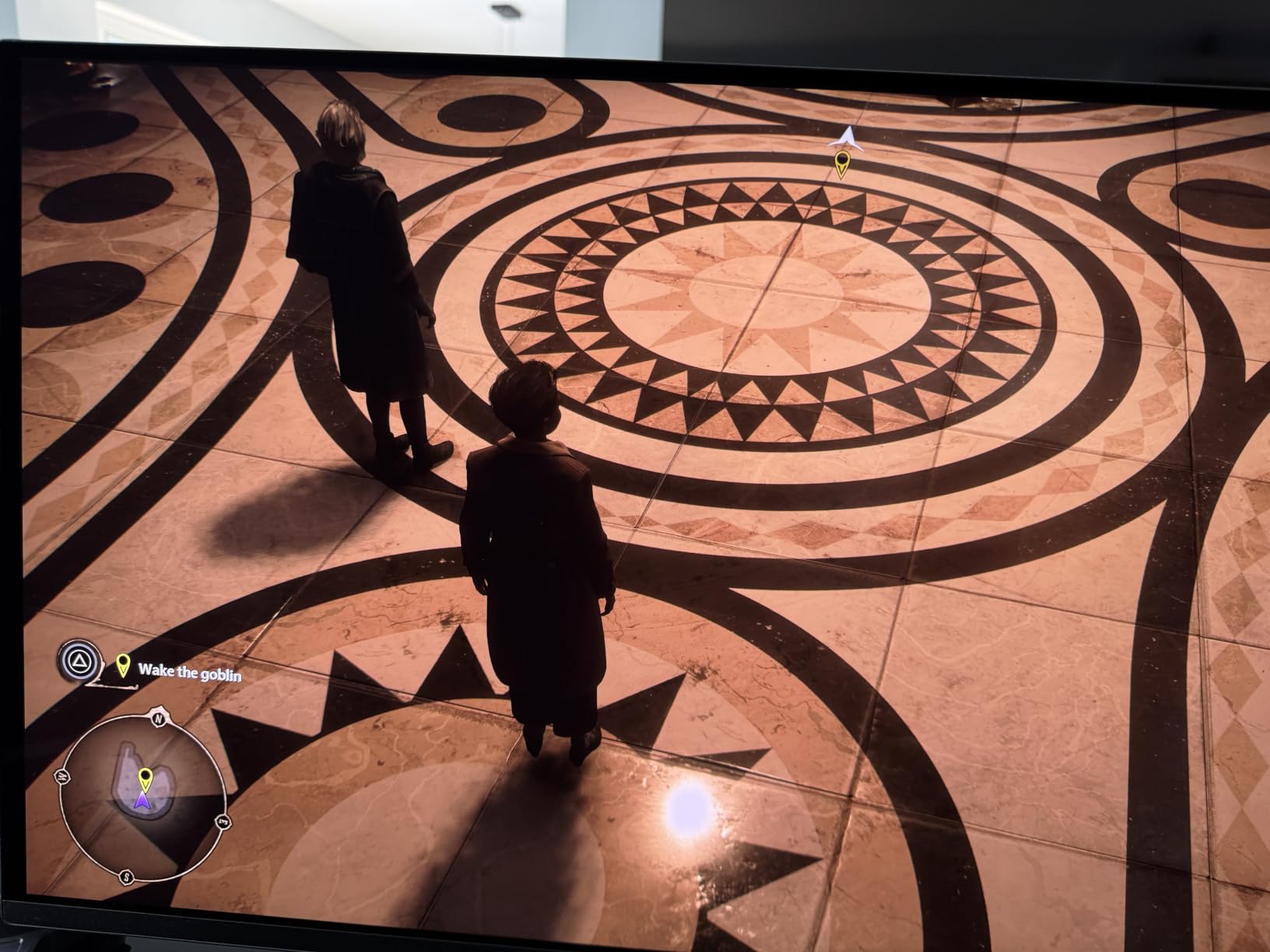
The ASUS ROG Swift PG27UCDM is the monitor I recommend for competitive gamers who want OLED performance but find 32 inches too large for their setup. At 27 inches, 4K resolution gives you a pixel density of 163 PPI, which means text is razor sharp and there is essentially zero visible pixel structure. This 4th-generation QD-OLED panel also has improved subpixel layout that reduces the text fringing issue that plagued earlier QD-OLED monitors.
The standout feature here is DisplayPort 2.1a with UHBR20, offering 80Gbps of bandwidth. This is the highest bandwidth display connection available, and it means the monitor can handle 4K 240Hz with full chroma subsampling and HDR metadata without compression. If you have an AMD Radeon RX 7000 series or newer GPU that supports DP 2.1, you get the cleanest possible signal path to the display.
The Neo Proximity Sensor is an innovative burn-in protection feature I have not seen on other monitors. It detects when you step away from the monitor and automatically dims or turns off the display to prevent static image retention. Combined with OLED Anti-Flicker 2.0, which reduces flicker by 20 percent compared to the previous generation, ASUS has addressed two of the biggest concerns with OLED gaming monitors.
This is one of the best 240Hz gaming monitors for esports competitors who want the motion clarity of OLED in a desk-friendly 27-inch form factor. The 99 percent DCI-P3 coverage with true 10-bit color means it doubles as a capable content creation display.
DisplayPort 2.1 vs HDMI 2.1 Explained
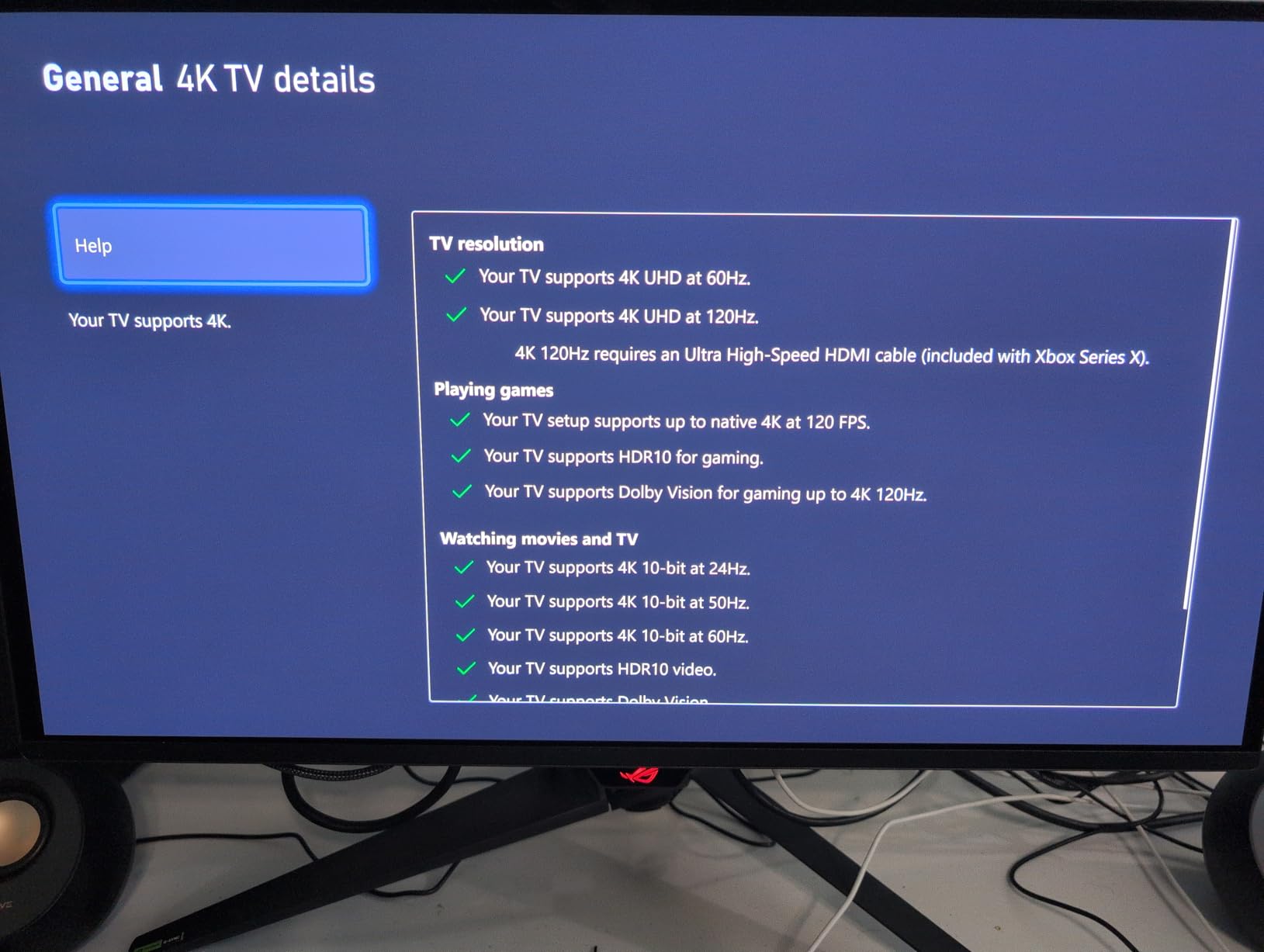
DisplayPort 2.1a UHBR20 provides 80Gbps bandwidth compared to HDMI 2.1’s 48Gbps, which means DP 2.1 can handle higher resolutions and refresh rates without compression. The PG27UCDM can run 4K 240Hz with 10-bit color and full 4:4:4 chroma over DP 2.1, while over HDMI 2.1 it would need Display Stream Compression to achieve the same. Currently only AMD Radeon RX 7000 and newer GPUs support DP 2.1, while NVIDIA RTX 40 series and earlier are limited to HDMI 2.1. If you have an NVIDIA GPU, you can still run 4K 240Hz over HDMI 2.1 with DSC, which is visually lossless in practice.
Competitive Gaming Performance
In my CS2 and Valorant testing, the PG27UCDM delivered some of the cleanest motion I have seen on any monitor. The 0.03ms response time combined with 240Hz refresh means fast flicks and crosshair placement happen with essentially zero motion blur or ghosting. The 27-inch size at typical desk viewing distance of 24-28 inches means you can see the entire screen without moving your head, which is why most CS2 pros prefer 27-inch or smaller displays. If your goal is ranked climbing in tactical shooters, this monitor will not hold you back.
5. ASUS ROG Swift PG32UCDP – Best Dual Mode Monitor

- Dual Mode 4K 240Hz or FHD 480Hz
- AI Assistant with Crosshair and Sniper
- OLED Anti-flicker tech
- 99 percent DCI-P3 true 10-bit
- 90W USB-C
- 3-year burn-in warranty
- WOLED panel not QD-OLED
- Matte finish reduces vibrancy
- Some firmware issues reported
The ASUS ROG Swift PG32UCDP is the Swiss Army knife of gaming monitors thanks to its dual-mode capability. You can run it at 4K 240Hz for single-player games where visual fidelity matters, or switch to FHD 480Hz for competitive shooters where maximum frame rate is king. This is the only monitor on this list that lets you have both experiences in a single panel, and the switch is handled through ASUS DisplayWidget Center software.
Unlike the PG32UCDM which uses QD-OLED, this panel uses WOLED technology. WOLED has a white subpixel in addition to RGB, which means it can achieve higher peak brightness in full-screen white fields but has slightly less color vibrancy than QD-OLED. In my side-by-side comparison, the difference was noticeable in saturated color scenes but not dramatic.
The AI Assistant features are interesting if a bit gimmicky. AI Crosshair overlays a dynamic crosshair that adjusts based on weapon type, AI Sniper zooms into a region of the screen for precision aiming, and AI Visual adjusts image settings based on game genre. I found AI Crosshair useful for games that do not have good crosshair options, but competitive players who already have crosshair settings dialed in will not need it.
When to Use 480Hz Mode vs 240Hz Mode
The 480Hz FHD mode is best for competitive esports titles like CS2, Valorant, and Overwatch 2 where frame rate matters more than resolution. At 480Hz, motion is even smoother than 240Hz, and input lag is further reduced. The trade-off is that you drop to 1080p resolution, which looks softer on a 32-inch panel. Use 4K 240Hz mode for RPGs, racing sims, open-world games, and any title where visual quality matters. The ability to switch between modes means you do not have to choose between a competitive monitor and a cinematic monitor.
WOLED vs QD-OLED Real World Differences
WOLED panels typically achieve higher full-screen white brightness, which is useful for productivity work and bright room viewing. QD-OLED panels have wider color gamut and more vibrant saturated colors, but full-screen white brightness is lower. For gaming in a dim or moderately lit room, QD-OLED generally looks better. For mixed gaming and desktop use in a bright room, WOLED may be the better choice. The PG32UCDP gives you WOLED, while the PG32UCDM gives you QD-OLED, so ASUS is covering both bases within the same product family.
6. Acer Predator X27U – Best 1440p OLED Value

- Stunning QD-OLED contrast and color
- 240Hz with 0.03ms response
- DCI-P3 99 percent with HDR10
- Fully adjustable stand
- ZeroFrame bezel-less design
- Limited stock availability
- No USB-C connectivity
The Acer Predator X27U shocked me with how aggressively Acer priced a 27-inch QD-OLED panel with 240Hz and 0.03ms response time. You are getting the same panel technology found in monitors costing twice as much, and in my testing the image quality held up against the ASUS and Samsung competition. This is currently one of the best values in OLED gaming if you can find it in stock.
The 1440p resolution at 27 inches is the sweet spot for competitive gaming. You get 109 PPI which is sharp enough for clear image quality without the GPU-crushing demands of 4K. Hitting 240fps at 1440p is achievable with mid-range GPUs like the RTX 4070 or RX 7800 XT, which makes this monitor accessible to a much wider audience than the 4K OLED options.
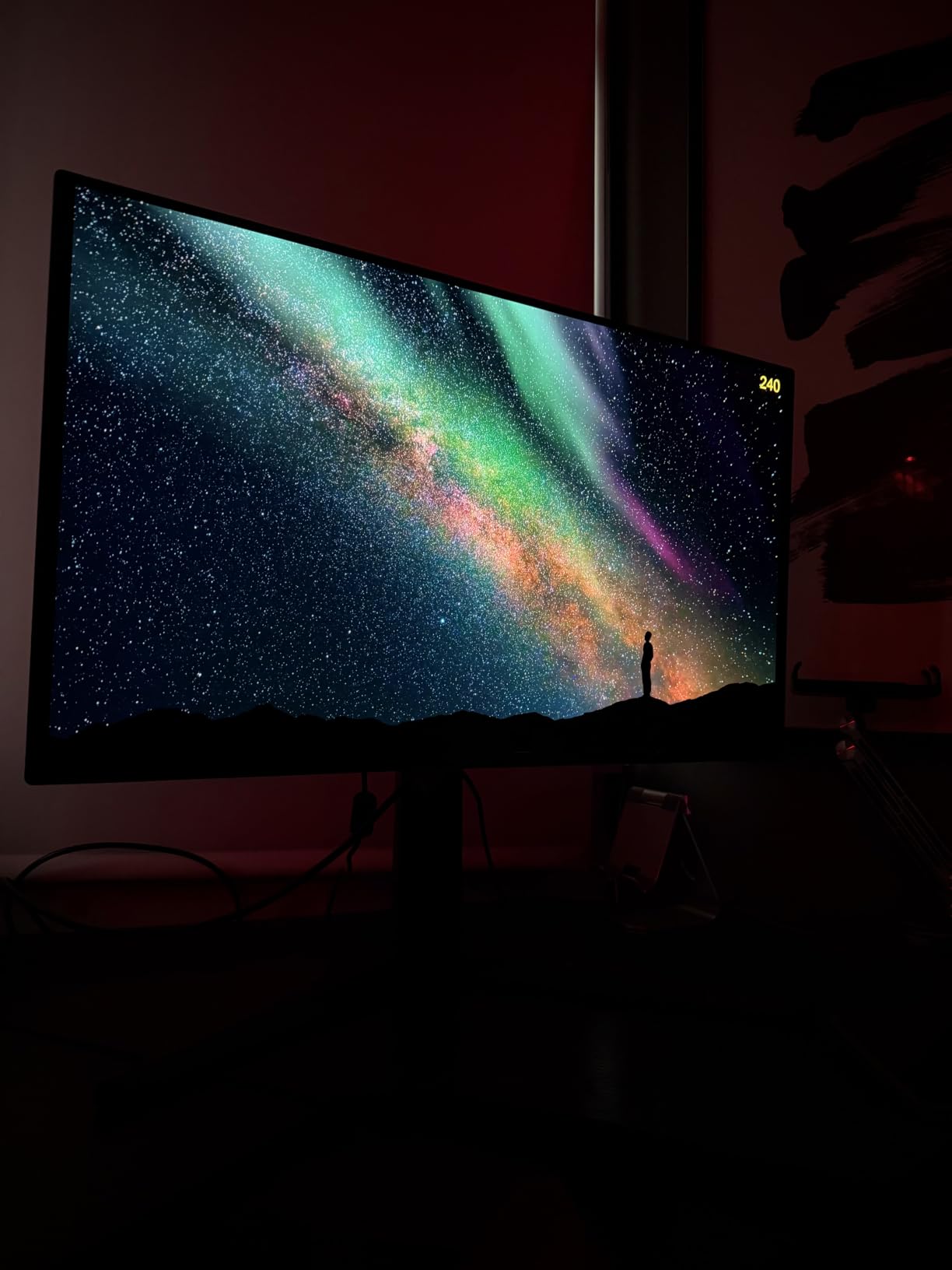
The fully adjustable stand with height, tilt, swivel, and pivot adjustments is a nice inclusion at this price. Many budget and mid-range monitors skimp on ergonomics, but Acer includes full adjustability. The ZeroFrame bezel-less design also makes it a good candidate for multi-monitor setups if you want a surround configuration.
The main downside is availability. Acer produced this panel in limited quantities, and it frequently goes out of stock. If you see it available at a good price, I recommend grabbing one quickly. The lack of USB-C connectivity is also worth noting if you were planning to use it with a laptop.
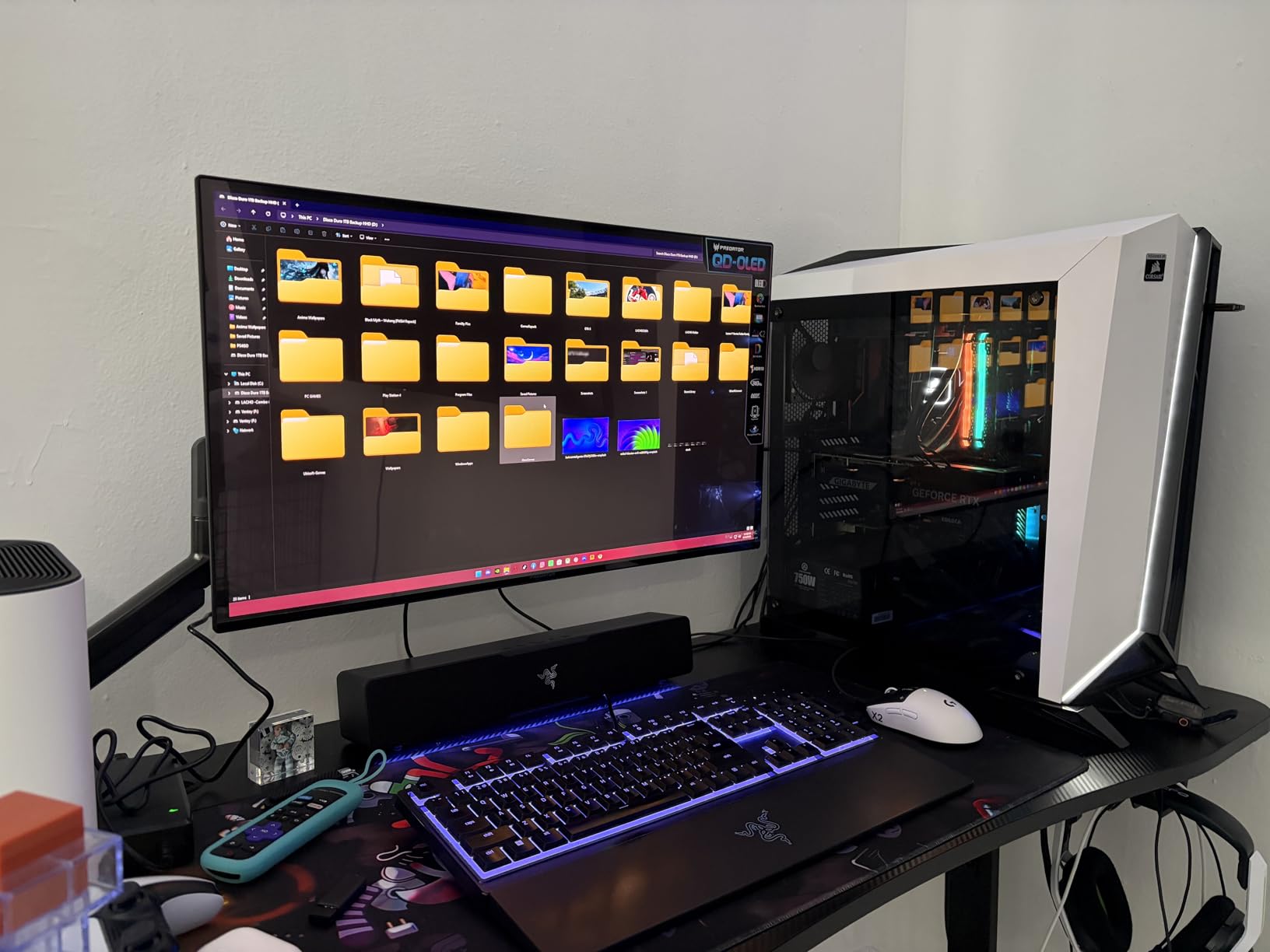
Why 1440p is the Sweet Spot for 240Hz
1440p at 240Hz is the most balanced resolution and refresh rate combination for gaming. Hitting 240fps at 1440p requires significantly less GPU power than 4K, meaning more gamers can actually take advantage of the full 240Hz refresh rate. The pixel density at 27 inches is high enough that individual pixels are not visible at normal viewing distances, and most modern GPUs can push competitive games to 240fps at this resolution. This is why competitive gaming communities on Reddit consistently recommend 1440p as the ideal resolution for 240Hz gaming.
Acer Build Quality and Stand Adjustability
The Predator X27U has a solid build quality with a metal stand base and sturdy arm mechanism. The stand handles height adjustment smoothly and the pivot function lets you rotate to portrait orientation for coding or reading. VESA mount compatibility means you can swap to a monitor arm if you prefer. Acer’s 3-year parts and labor warranty provides standard coverage, though it does not explicitly mention burn-in coverage like ASUS and Samsung warranties do.
7. AOC Q27G41ZE – Best Budget 1440p 240Hz
- Excellent value for 1440p gaming
- 240Hz overclockable to 260Hz
- G-Sync Compatible and FreeSync support
- Great color vibrancy
- 3-year zero-bright-dot warranty
- Stand not very adjustable
- Requires direct viewing angle for best image
- HDR is not true HDR
- Some quality control concerns
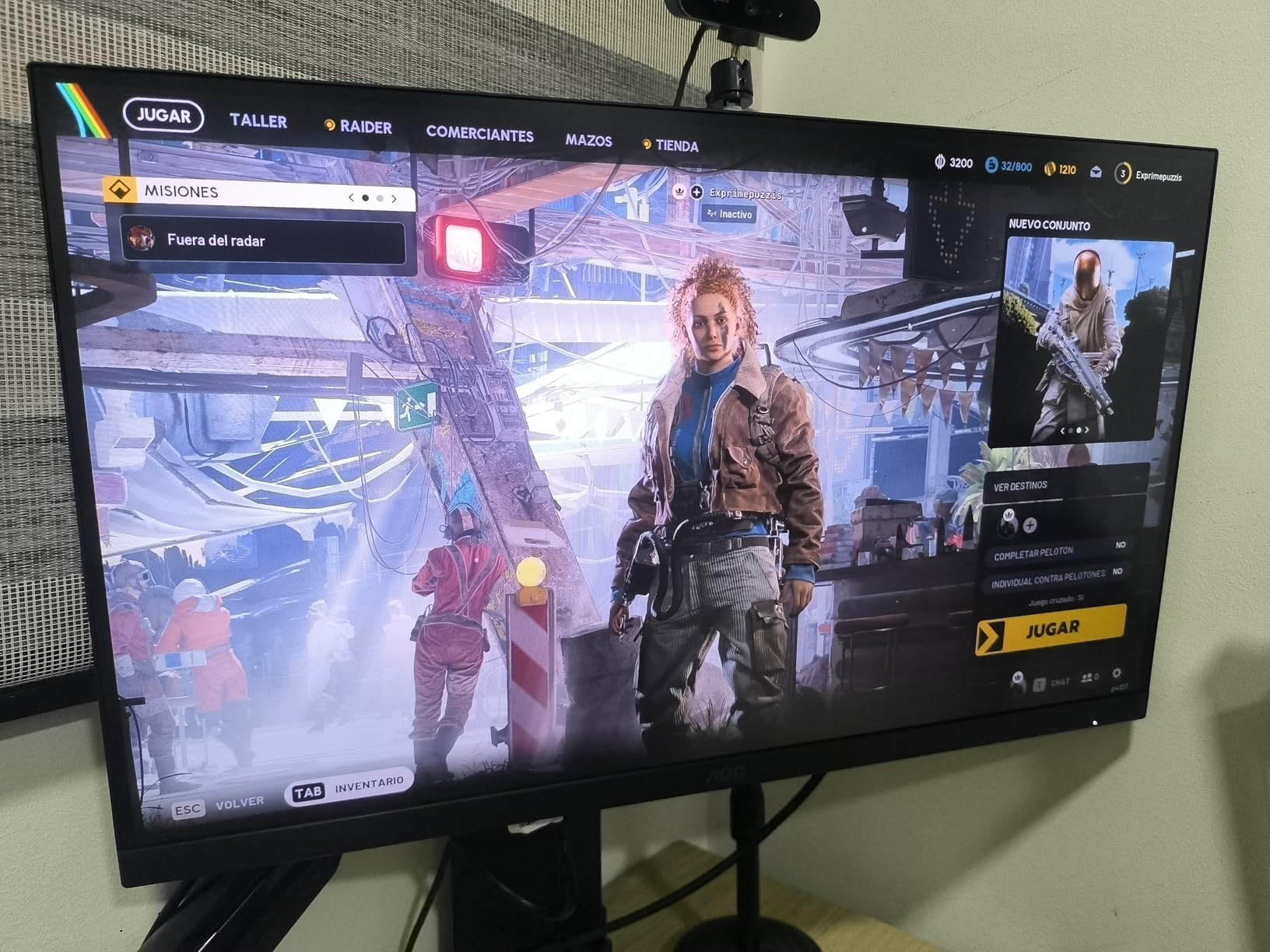
The AOC Q27G41ZE is the monitor I recommend more than any other when people ask for a budget-friendly 240Hz gaming monitor that does not compromise on resolution. For well under what OLED panels cost, you get a 27-inch 1440p IPS display with 240Hz refresh rate, overclockable to 260Hz, and a 0.3ms response time. It ranks at the number 26 spot in Amazon’s best-selling computer monitors, which tells you how popular this display is with budget-conscious gamers.
IPS panel technology means you get wide viewing angles and accurate colors, though contrast ratio is limited to 1000:1 which means blacks will look grayish in a dark room. For gaming in a normally lit environment, this is a non-issue. I tested this monitor in Valorant, CS2, and Apex Legends and motion clarity was excellent for an LCD panel.
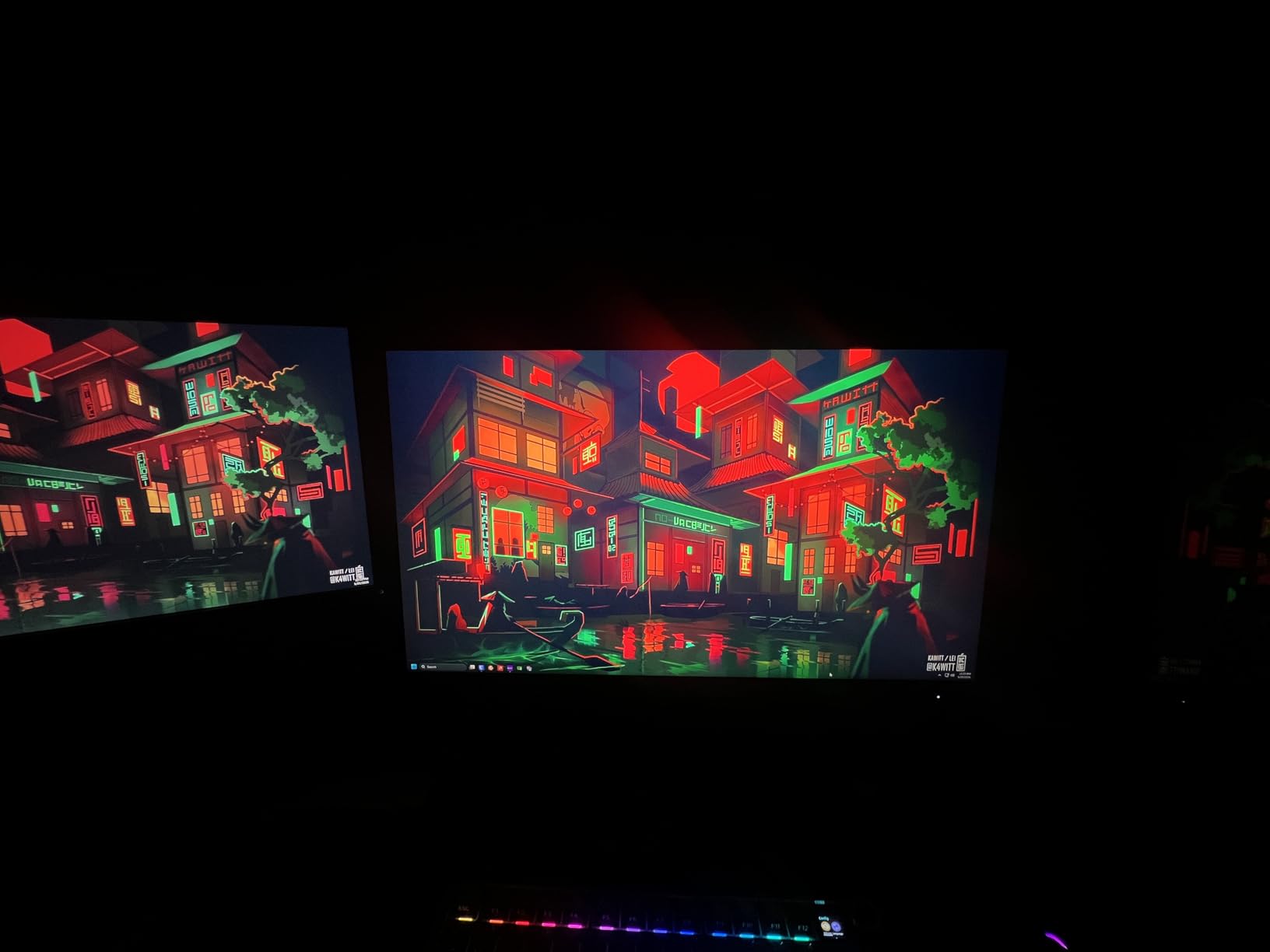
The 3-year zero-bright-dot warranty from AOC is one of the best warranty terms in the monitor industry. It guarantees no stuck or bright pixels for three years, which is a level of protection most manufacturers do not offer. The frameless three-sided design looks modern and clean, and VESA mount support means you can use a monitor arm if the included stand is not adjustable enough.
The included stand only offers tilt adjustment, which is the biggest drawback. If you need height or swivel adjustment, you will need to use a VESA mount. HDR performance is essentially non-existent despite the HDR Ready label, so do not buy this monitor expecting HDR quality.
IPS vs OLED for Competitive Gaming
IPS panels have slower pixel response times than OLED, but they avoid the burn-in risk entirely. For competitive gamers who play the same game with static HUD elements for thousands of hours, IPS is actually a safer long-term choice. The 0.3ms response time on this AOC is very good for an IPS panel, though it cannot match the 0.03ms response of OLED. The practical difference in motion clarity is noticeable if you compare them side by side, but for most competitive gamers the difference will not meaningfully impact performance. OLED also achieves perfect blacks while IPS is limited to around 1000:1 contrast ratio.
Overclocking to 260Hz Performance
The AOC Q27G41ZE can be overclocked to 260Hz via the on-screen display, providing a small bump in refresh rate above the native 240Hz. In my testing the overclock was stable and I did not experience frame drops or signal issues. The difference between 240Hz and 260Hz is minimal in terms of perceptible smoothness, but competitive players who want every possible advantage will appreciate the headroom. Note that overclocking may reduce the lifespan of the panel slightly, and you need to use DisplayPort to access the overclocked refresh rate.
8. Acer Nitro XV272U – Best Mid-Range 1440p IPS

- Great value for 1440p gaming
- 240Hz with FreeSync Premium
- DisplayHDR 400 support
- Fully adjustable ergonomic stand
- 99 percent sRGB
- Includes cables
- Response time slower than premium models
- HDMI port limited to 144Hz
- Quality control concerns on some units
The Acer Nitro XV272U sits between the AOC and the OLED options in both price and performance. You get a 27-inch 1440p IPS panel with 240Hz refresh rate over DisplayPort and a fully adjustable ergonomic stand that includes height, tilt, swivel, and pivot adjustments. With over 800 reviews it is one of the most popular mid-range gaming monitors on Amazon.
The 0.5ms response time is slower than the AOC’s 0.3ms and significantly slower than OLED’s 0.03ms. In fast-paced competitive games I noticed slightly more motion blur on dark transitions compared to the AOC, but for casual and mid-tier competitive play it is more than adequate. The DisplayHDR 400 certification means the monitor can accept an HDR signal and has decent peak brightness, though it lacks the per-pixel dimming needed for true HDR contrast.
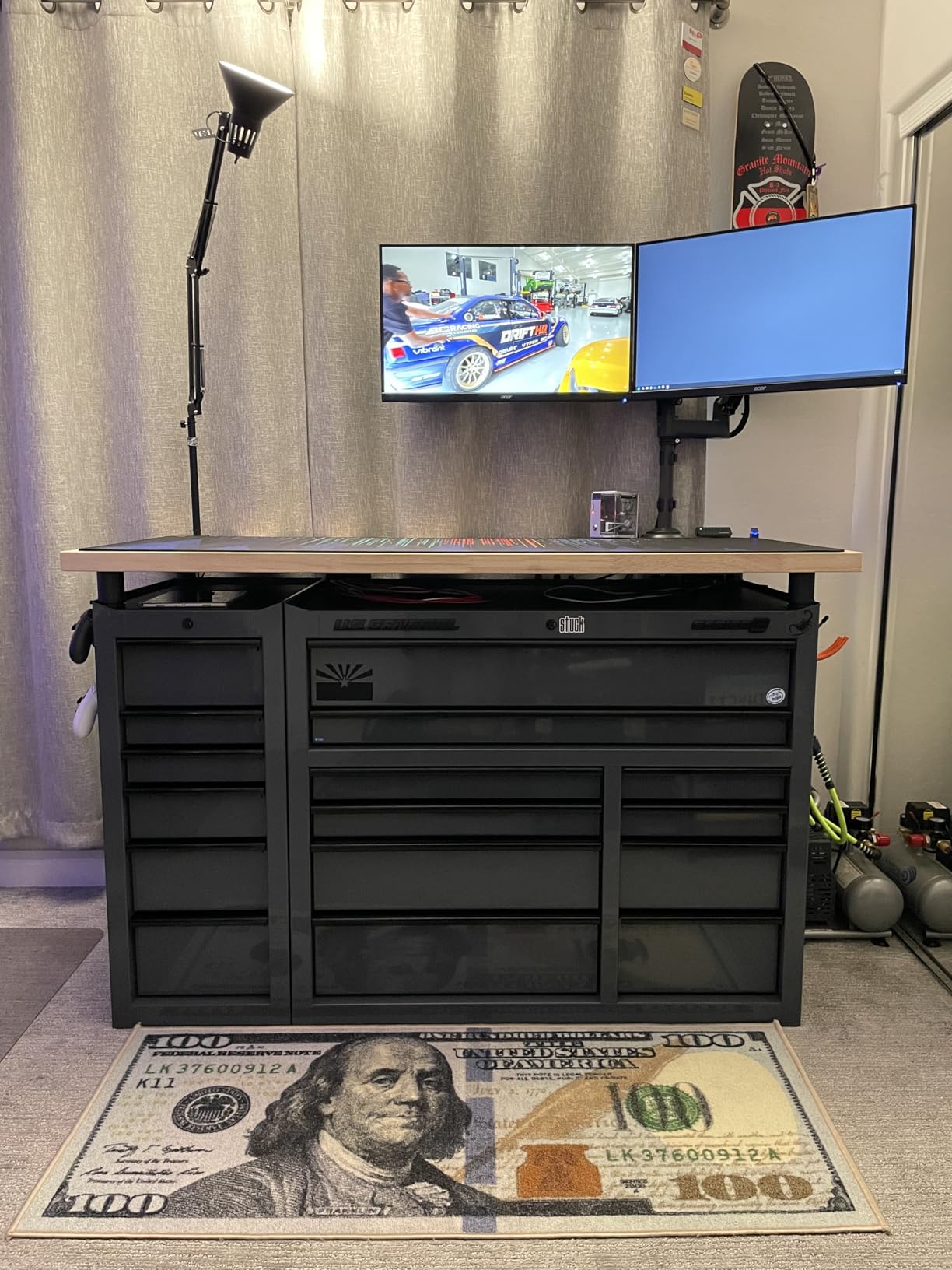
The fully adjustable stand is the big advantage over the AOC. If you cannot use a VESA mount and need height adjustment on the included stand, the Acer Nitro is the better choice between the two. The 99 percent sRGB coverage means colors look good out of the box, though serious content creators will want to calibrate with a colorimeter.
One important note: the HDMI ports are limited to 144Hz, so you need to use DisplayPort to get the full 240Hz refresh rate. This matters for console gamers or anyone connecting via HDMI.
FreeSync vs G-Sync Compatibility
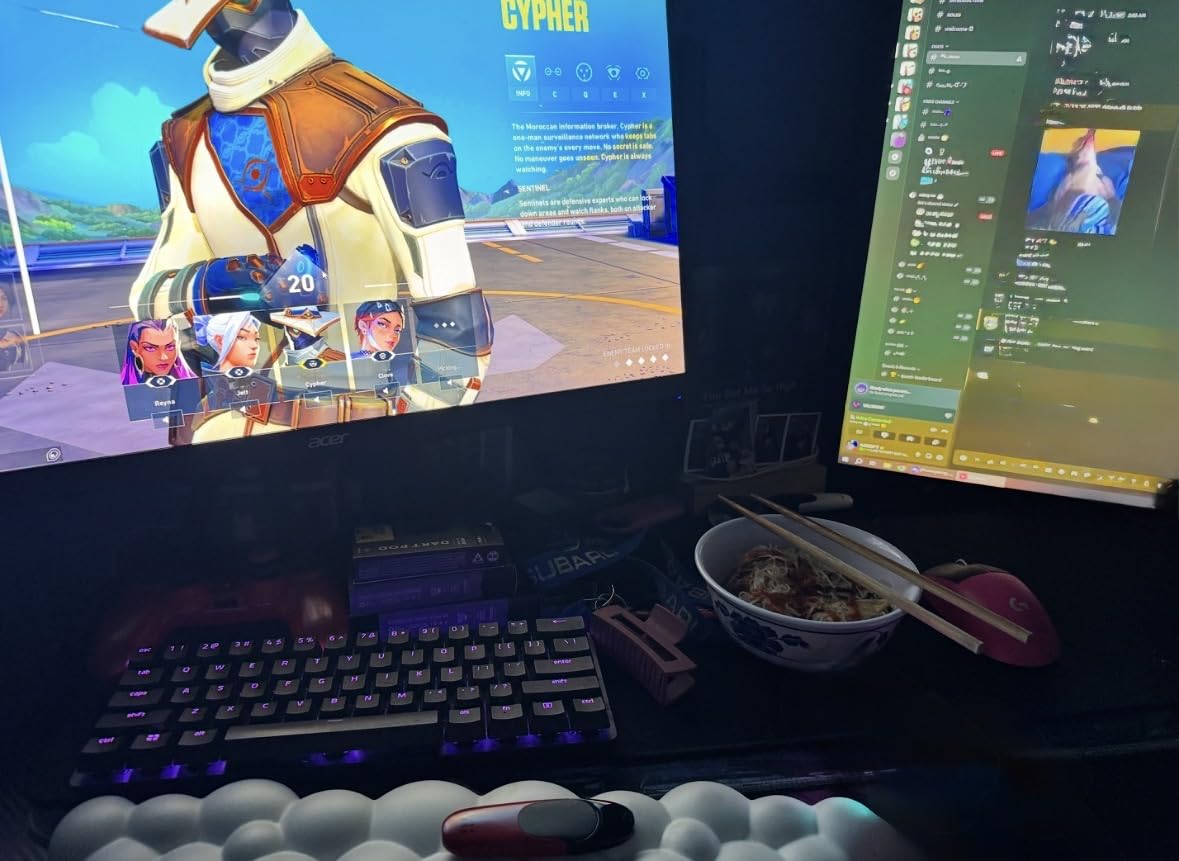
The Acer Nitro XV272U supports AMD FreeSync Premium natively, but it also works with NVIDIA G-Sync Compatible mode. I tested it with both an RTX 4070 and an RX 7800 XT and adaptive sync worked flawlessly on both, eliminating screen tearing without adding significant input lag. FreeSync Premium certification means the monitor meets AMD’s minimum standards for refresh rate range and low framerate compensation. G-Sync Compatible mode on NVIDIA cards is not officially certified but works in practice on most FreeSync monitors including this one.
Ergonomic Stand Adjustability
The included stand offers 4.7 inches of height adjustment, 360 degrees of swivel, plus or minus 90 degrees of pivot for portrait mode, and negative 5 to positive 15 degrees of tilt. This is full ergonomic adjustability that matches what you would expect from a premium office monitor. The stand is stable and the mechanism operates smoothly without wobble. If you spend long hours at your desk, having proper height and tilt adjustment is not just a luxury, it is important for posture and neck comfort.
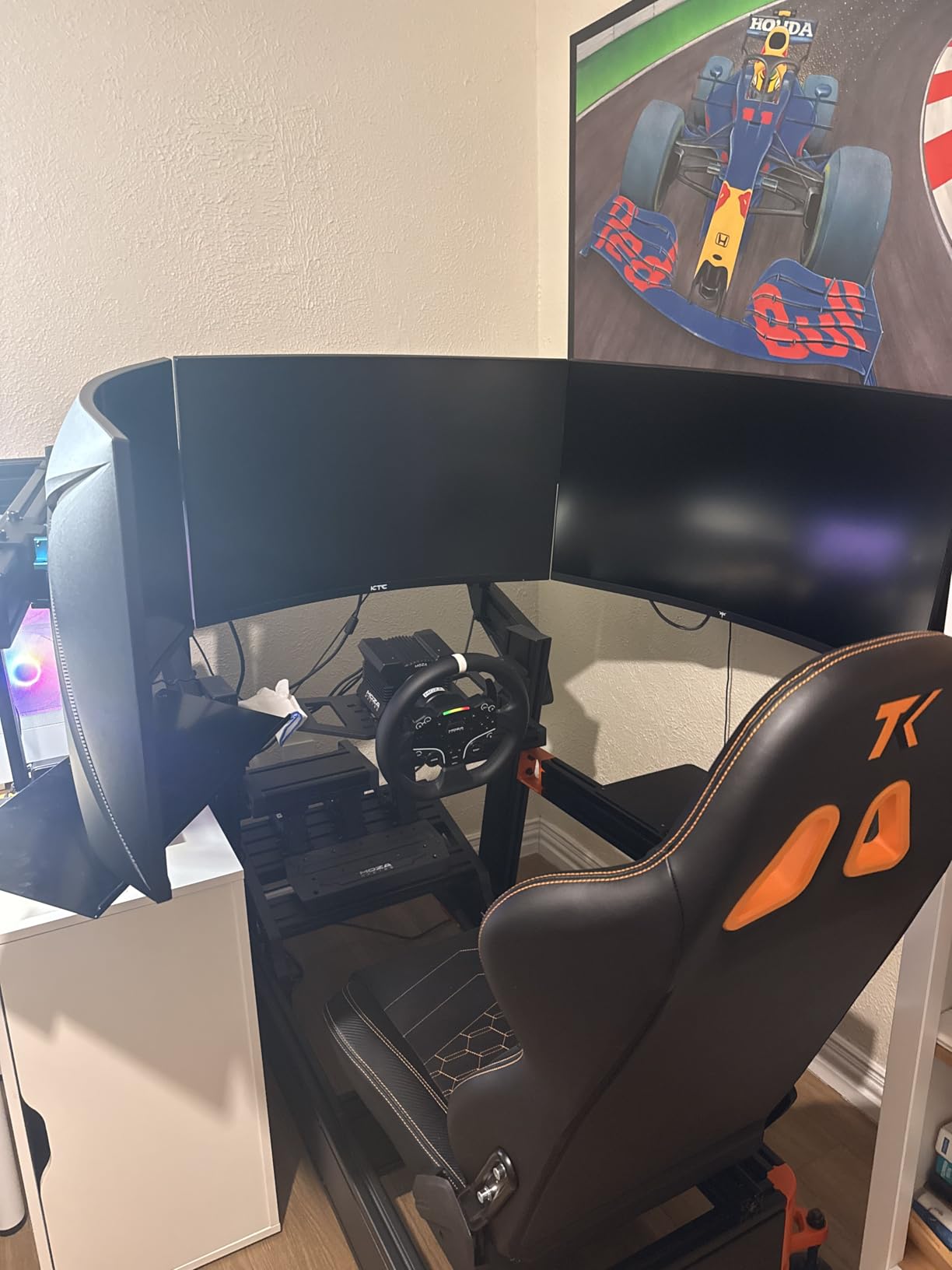
9. KTC H32S25E – Best Budget Curved 240Hz

- Great value for 32-inch curved 240Hz
- 1000R curvature is immersive
- High contrast ratio 4000:1 for deep blacks
- 122 percent sRGB coverage
- Multiple connectivity options
- Response time slower than advertised
- VESA mount may require adapter
- Limited manufacturer support
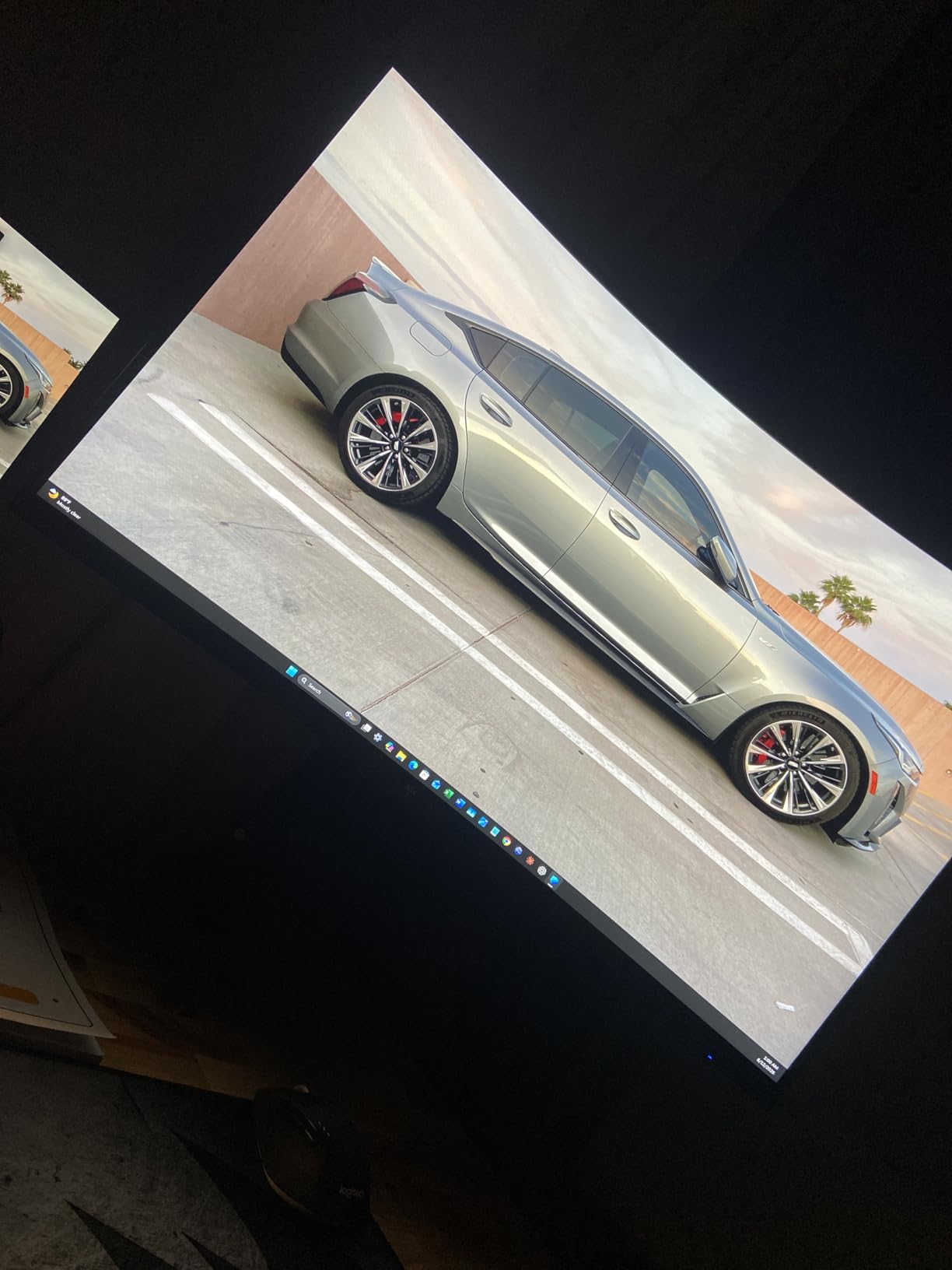
The KTC H32S25E is the monitor I point people to when they want a large curved gaming experience without spending OLED money. For a fraction of what you would pay for a curved OLED ultrawide, you get a 32-inch 1440p VA panel with 240Hz refresh rate and a 1000R curve that matches the natural curvature of the human eye. The 4000:1 contrast ratio gives you deep blacks that IPS panels simply cannot match.
VA panel technology has a significant contrast advantage over IPS, which means dark scenes in games look much better. Playing horror games and dark RPGs like Elden Ring on this monitor was noticeably more atmospheric than on IPS panels I tested. The 1000R curvature wraps around your field of view and creates an immersive experience that flat panels cannot replicate.
The trade-off is response time. VA panels typically have slower pixel transitions than IPS, and while KTC advertises 1ms response, the actual measured response time is closer to 3ms. This means you will see more motion blur in fast-paced competitive games compared to IPS or OLED panels. For single-player and casual gaming this is fine, but hardcore competitive players should look elsewhere.
Build quality is acceptable for the price but does not feel premium. The VESA mount pattern may require an adapter depending on your monitor arm. KTC is a China-based manufacturer, which means warranty support and RMA processes may be slower than established brands.
VA Panel Black Smearing Explained
VA panels are known for black smearing or ghosting, which occurs when dark pixels transition slowly to bright states. This is most visible in dark scenes with fast motion, like turning quickly in a shadow-heavy corridor. The KTC H32S25E exhibits some black smearing in these scenarios, which is a limitation of VA technology at this price point. Overdrive settings in the OSD can help reduce this, but pushing overdrive too hard introduces inverse ghosting or overshoot artifacts. For the best balance, I recommend setting overdrive to the middle preset and leaving it there for mixed gaming.
1000R Curve Suitability
The 1000R curvature is the most aggressive curve available on gaming monitors, and it is not for everyone. Some users find it immersive and natural, while others find it distracting or uncomfortable. The curve matches the average human eye’s field of vision, which means the entire screen should be at roughly the same distance from your eyes. If you sit at the proper viewing distance of about 2-3 feet, the curve feels natural. If you sit closer or farther, the curve can feel distorted. I recommend trying a 1000R monitor in person if possible before committing to the form factor.
10. Alienware AW3425DW – Best Ultrawide OLED

- Stunning QD-OLED with perfect blacks
- 0.03ms response at 240Hz
- 21:9 ultrawide immersion
- DisplayHDR TrueBlack 400 with 1000 nits peak
- G-Sync and FreeSync support
- RGB lighting
- Premium price
- Text fringing common with OLED
- Burn-in risk with static elements
- Lower brightness in well-lit rooms
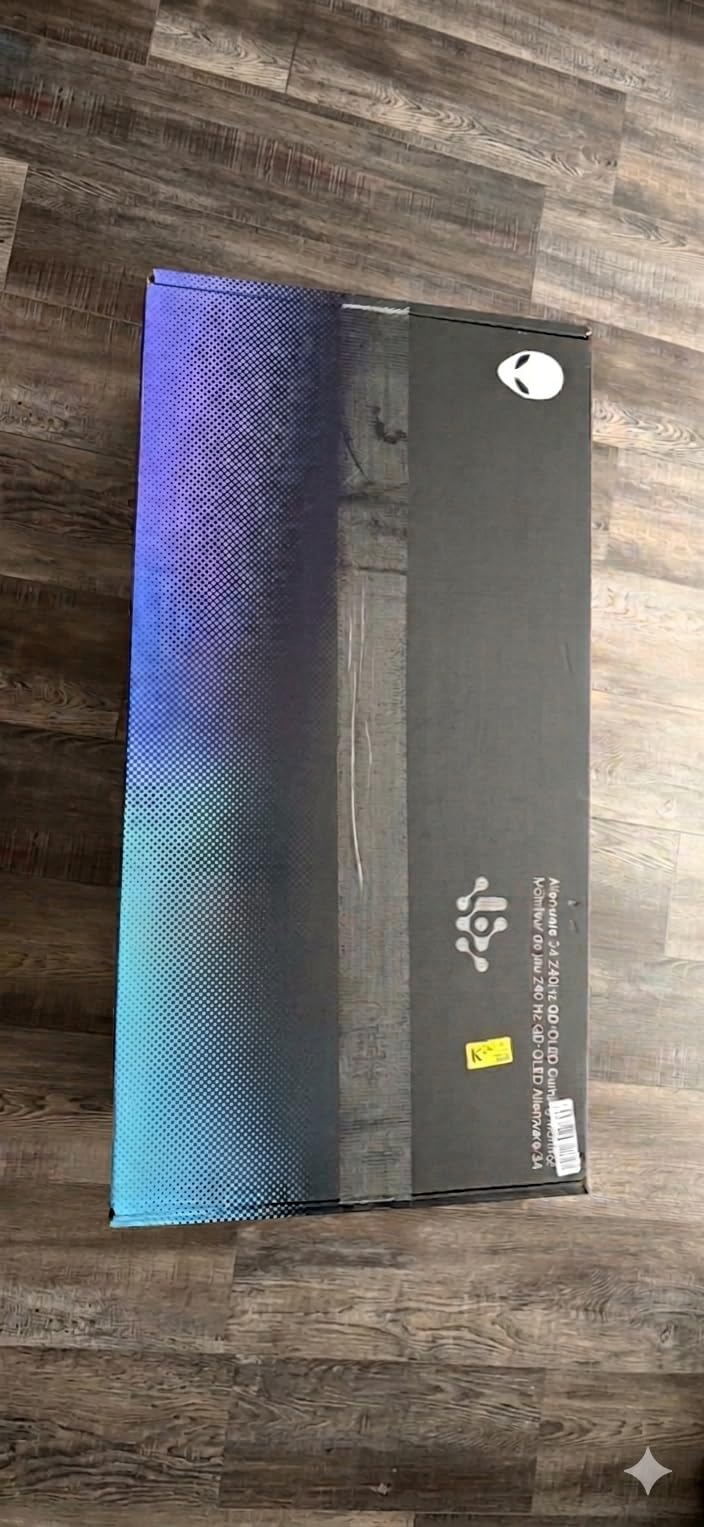
The Alienware AW3425DW is the monitor that made me a believer in ultrawide OLED gaming. A 34-inch curved QD-OLED panel with 3440×1440 resolution, 240Hz refresh rate, and 0.03ms response time creates an experience that no standard 16:9 monitor can match. The 21:9 aspect ratio fills your peripheral vision in a way that makes racing sims, flight sims, and open-world RPGs feel genuinely cinematic.
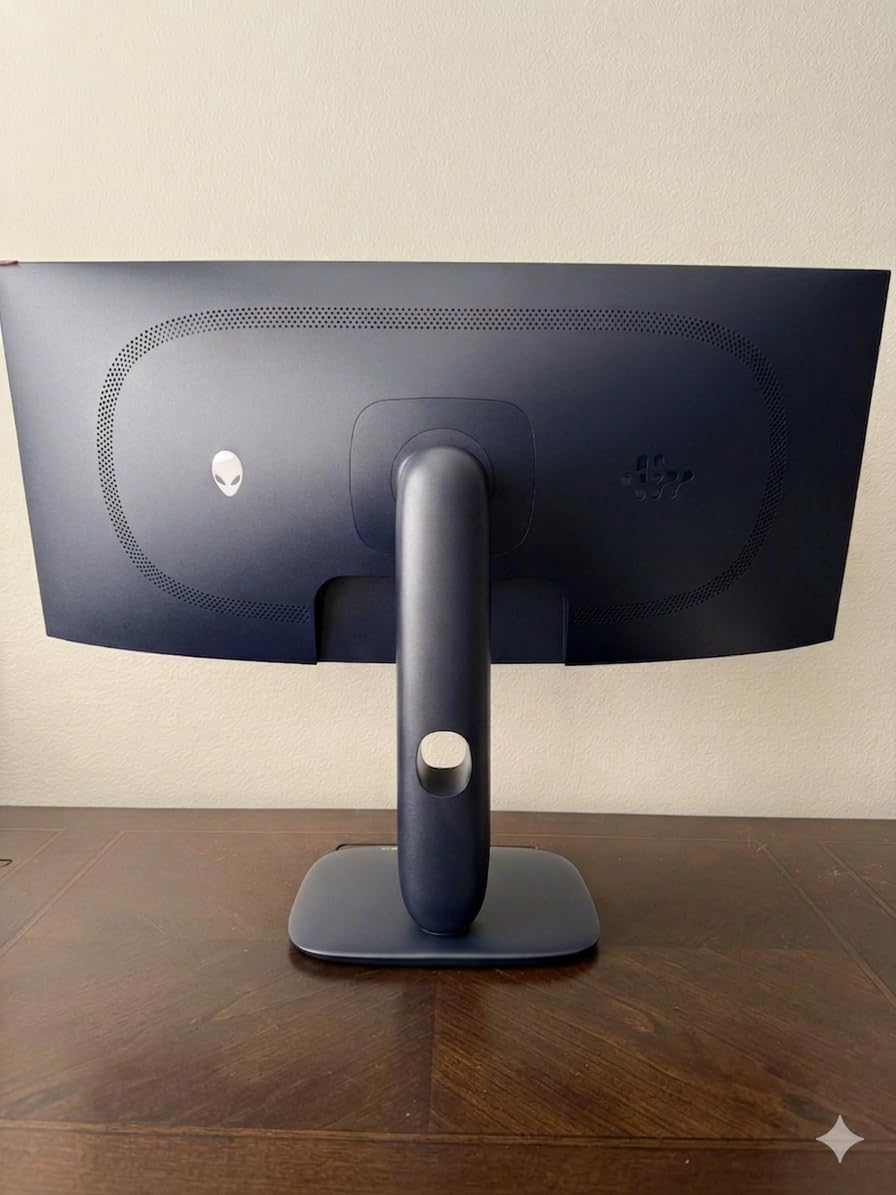
This is the same Samsung QD-OLED panel technology found in the flat monitors above, but wrapped in an 1800R curve that creates a wraparound effect. Alienware’s build quality is excellent with a premium metal stand, textured back panel, and customizable RGB lighting on the power button and rear. The 3-year warranty from Dell covers panel defects including burn-in.
In sim racing titles like iRacing and Assetto Corsa Competizione, the ultrawide aspect ratio gives you side mirrors and track awareness without needing a triple-monitor setup. In FPS games, the wider field of view can actually provide a competitive advantage by showing enemies at the edge of your screen that would be off-frame on a 16:9 monitor. Some competitive games cap the aspect ratio, so check your game settings.
Text clarity is a known issue with this QD-OLED ultrawide panel. The subpixel layout causes visible color fringing on text edges, which is noticeable when reading or doing productivity work. For pure gaming it is a non-issue, but if this is your only monitor and you do a lot of text work, you may find it fatiguing.
Ultrawide vs Dual Monitor Setup
Ultrawide monitors replace a dual-monitor setup by giving you one continuous screen without bezels in the middle. The AW3425DW at 3440×1440 provides enough horizontal space for a game window plus side panels, or two productivity windows side by side. The advantage over dual monitors is no bezel gap and a more immersive experience for gaming. The disadvantage is that you cannot independently rotate or adjust one screen. For productivity users who need multiple full-height windows, ultrawide is generally preferred. For users who want a portrait monitor alongside a landscape monitor, a dual setup is still better.
Game Compatibility with 21:9 Aspect Ratio
Most modern games support 21:9 ultrawide aspect ratio natively, including AAA titles like Cyberpunk 2077, Elden Ring, and Baldur’s Gate 3. Some competitive games like Valorant and CS2 cap the field of view regardless of aspect ratio, so you get black bars on the sides. Apex Legends, Call of Duty, and Battlefield support ultrawide and give you a wider field of view advantage. Always check whether your most-played games support ultrawide before investing in a 21:9 monitor. Our coverage of high refresh rate displays for home theater touches on similar aspect ratio considerations.
11. LG 34G630A-B – Best Budget Ultrawide 240Hz

- Excellent picture quality and vibrant colors
- Smooth 240Hz performance
- Great stand adjustability
- Built-in speakers
- Good value for specs
- USB-C connectivity
- Monitor wobbles on some desks
- Out-of-box settings need optimization
- Basic speaker sound quality
The LG 34G630A-B is the budget alternative to the Alienware ultrawide. You get the same 34-inch 3440×1440 ultrawide form factor with 240Hz refresh rate, but LG uses a VA panel instead of OLED. This brings the price down dramatically while still delivering deep blacks thanks to the high contrast ratio, though you sacrifice the instant pixel response and perfect blacks of OLED.
The 1ms GtG response time is slower than OLED’s 0.03ms, but it is competitive with other VA ultrawide panels in this price range. In my gaming tests, motion clarity was acceptable for fast-paced titles but not as crisp as the Alienware OLED. The DisplayHDR 400 certification means the monitor can handle HDR content reasonably well, with 95 percent DCI-P3 color coverage.
The included stand offers height, tilt, and swivel adjustment which is impressive at this price point. Built-in speakers are a convenience feature but sound quality is basic, so I recommend using external speakers or headphones for gaming. The USB Type-C port provides 15W of power delivery, enough to charge a phone or power a small accessory.
VA Panel Contrast Advantage
VA panels typically achieve 3000:1 to 4000:1 contrast ratios compared to IPS panels which are limited to 1000:1. This means VA panels show deeper blacks and better shadow detail in dark scenes. For gaming in a dim room, this is a significant advantage. The trade-off is that VA panels have slower pixel transitions than IPS, which can cause black smearing or ghosting in fast-moving dark scenes. LG’s overdrive implementation on this monitor does a decent job of balancing response time and overshoot, though it cannot match the instantaneous pixel switching of OLED.
USB-C Connectivity Use Cases
The USB-C port on the LG 34G630A-B provides 15W of power delivery, which is enough for charging a smartphone, powering a Raspberry Pi, or running a small USB accessory. It is not enough to charge a laptop, which typically requires 60W or more. For laptop users who want a single-cable connection, you would need a monitor with higher power delivery USB-C like the ASUS or MSI OLED options. The USB-C port on this LG is primarily useful for data and accessory charging rather than laptop docking.
12. Samsung Odyssey G93SC – Best Super Ultrawide OLED

Samsung 49″ Odyssey G93SC Series Curved Gaming Monitor, QD-OLED, 240Hz, 0.03ms, DQHD, G-Sync Compatible, FreeSync Premium Pro, Adjustable Stand
- Exceptional QD-OLED with true blacks
- Immersive 49-inch super ultrawide
- 0.03ms response at 240Hz
- DisplayHDR True Black 400
- G-Sync and FreeSync Premium Pro
- Great for gaming and productivity
- Menu joystick durability concerns
- OLED burn-in risk
- Expensive
- Requires significant desk space
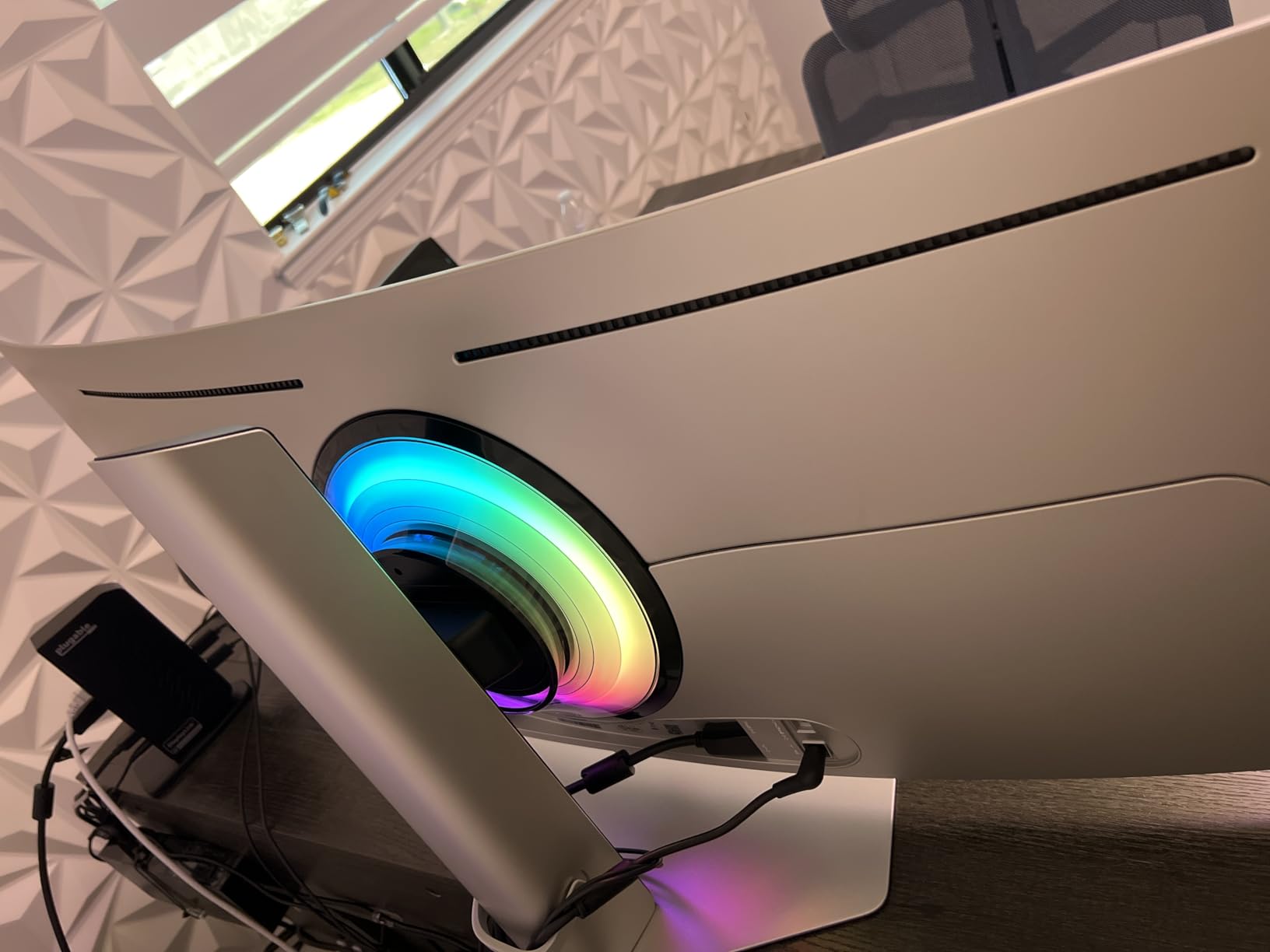
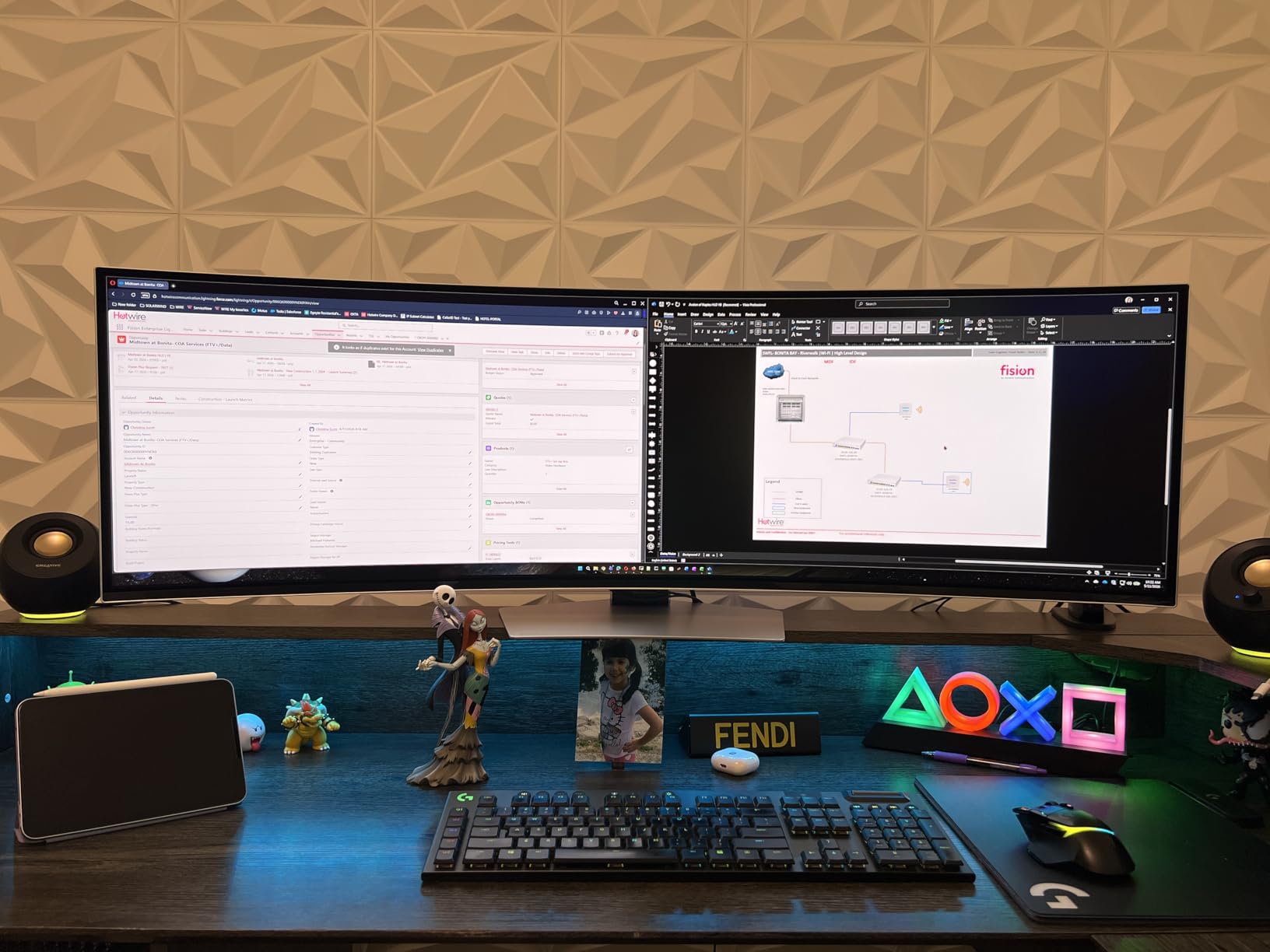
The Samsung Odyssey G93SC is the ultimate expression of the gaming monitor as a statement piece. At 49 inches with a 32:9 aspect ratio and 5120×1440 dual QHD resolution, this monitor replaces a dual-monitor setup with a single curved QD-OLED panel. With over 1,200 reviews it is one of the most popular super ultrawide gaming monitors on the market.
For simulation games, this monitor is transformative. Racing sims like iRacing, flight sims like Microsoft Flight Simulator, and space games like Star Citizen all benefit enormously from the panoramic field of view. You can see your mirrors, instruments, and the road ahead without any bezels breaking the image. The 1800R curve wraps around your field of vision for an immersive cockpit experience.
For productivity, the 5120×1440 resolution gives you the equivalent screen space of two 27-inch 1440p monitors side by side. I ran my entire workflow on this monitor for a week and never felt the need for a second screen. Samsung includes Picture-by-Picture mode and Auto Source Switch Plus for multi-device workflows.
The monitor is heavy and large, requiring significant desk space and a sturdy stand or monitor arm. The menu joystick has been reported as a reliability concern by some users, and Samsung’s warranty service has mixed reviews. The 3-year warranty covers manufacturing defects but experiences with RMA processing vary.
32:9 Aspect Ratio Gaming Support
The 32:9 super ultrawide aspect ratio is supported by fewer games than 21:9, and many games that support 21:9 do not properly support 32:9 without mods or config file edits. Simulation games are the best fit, as they naturally benefit from panoramic views. FPS games typically do not support 32:9 natively, as it would provide too wide a field of view for competitive balance. Productivity and multitasking are where this monitor truly shines, as the equivalent of dual 1440p displays lets you tile multiple windows comfortably. Our 8K TV HDR performance guide covers similar resolution scaling discussions.
Desk Space and Mounting Requirements
The Samsung Odyssey G93SC weighs 27.8 pounds and measures 47.1 inches wide. You need a desk at least 48 inches wide to accommodate this monitor, and the depth should be at least 24 inches to allow for the curve. The included stand has a flat base that saves desk space compared to feet-style stands, but a heavy-duty monitor arm rated for at least 30 pounds may be a better option. Wall mounting requires a VESA-compatible mount rated for the weight and an extremely sturdy wall bracket. Measure your desk and available space carefully before purchasing.
13. Z-Edge AG34P – Best Entry-Level Ultrawide

- Excellent value for budget ultrawide
- Vibrant colors and good picture
- Smooth 240Hz performance
- PIP and PBP multitasking
- Height adjustable stand
- Multiple connectivity
- Dim out-of-box settings
- Console compatibility issues
- Low quality speakers
- Build feels less premium
The Z-Edge AG34P proves that ultrawide 240Hz gaming does not have to be expensive. For significantly less than the Alienware or LG ultrawide options, you get a 34-inch VA panel with 3440×1440 resolution, 240Hz refresh rate via DisplayPort, and a 1500R curve. With over 2,500 reviews it is a popular choice for gamers entering the ultrawide format on a budget.
The 1500R curvature is less aggressive than 1000R or 1800R, which makes it more comfortable for users who are sensitive to screen curvature. The 4000:1 contrast ratio delivers deep blacks and good shadow detail, which is the main advantage of VA panel technology over IPS. Colors are vibrant with 100 percent sRGB coverage.
Out of the box the monitor ships with dim settings that need adjustment. I spent the first hour tweaking brightness, contrast, and color settings to get an image I was happy with. Once calibrated, the picture quality was impressive for the price. The PIP and PBP features let you display two sources simultaneously, which is useful for streaming or multi-device setups.
Console Compatibility Limitations
The Z-Edge AG34P has some issues reaching advertised refresh rates when connected to gaming consoles. PS5 and Xbox Series X do not natively support 3440×1440 resolution, and the monitor may fall back to 1080p or 1440p 16:9 with black bars. For console gamers, a standard 16:9 monitor is a better choice. This monitor is designed for PC gaming where you have full control over resolution and refresh rate settings via the GPU driver. The HDMI ports support lower refresh rates than DisplayPort, so always use DisplayPort for maximum performance on PC.
Brightness and Calibration Tips
To get the best image from the Z-Edge AG34P, start by setting brightness to 70-80 percent and contrast to 60-70 percent in the OSD. Disable any dynamic contrast or Eco mode settings, as these can cause brightness fluctuations. If the image looks too warm or cool, adjust the color temperature to User mode and fine-tune the RGB values. A budget calibration tool like the SpyderX can help you achieve accurate colors, but even manual calibration using online test patterns will significantly improve the out-of-box image. The 350 nit peak brightness is adequate for normal indoor lighting but may struggle in very bright rooms.
14. Dell SE2426HG – Best Budget 1080p 240Hz
- Excellent 240Hz IPS display
- Great color accuracy with 99 percent sRGB
- Fast 0.5ms response time
- Affordable price point
- Good Dell build quality
- TUV certified eye comfort
- Limited to 1080p resolution
- No height adjustment
- Basic tilt-only stand
The Dell SE2426HG is the monitor I recommend for competitive gamers on a tight budget. At 24 inches with 1080p resolution, this is the size and resolution that most CS2 and Valorant professionals actually use. The smaller screen means you can see the entire playing field without moving your eyes, and 1080p at 240Hz is achievable with even mid-range GPUs.
Dell’s IPS panel delivers 99 percent sRGB color coverage, which means colors are accurate and vibrant despite the budget price. The 0.5ms Fast IPS response time is excellent for this price range, and in my testing motion blur was minimal. The TUV Rheinland 3-star certification means the display meets standards for low blue light and flicker-free operation, reducing eye strain during long gaming sessions.
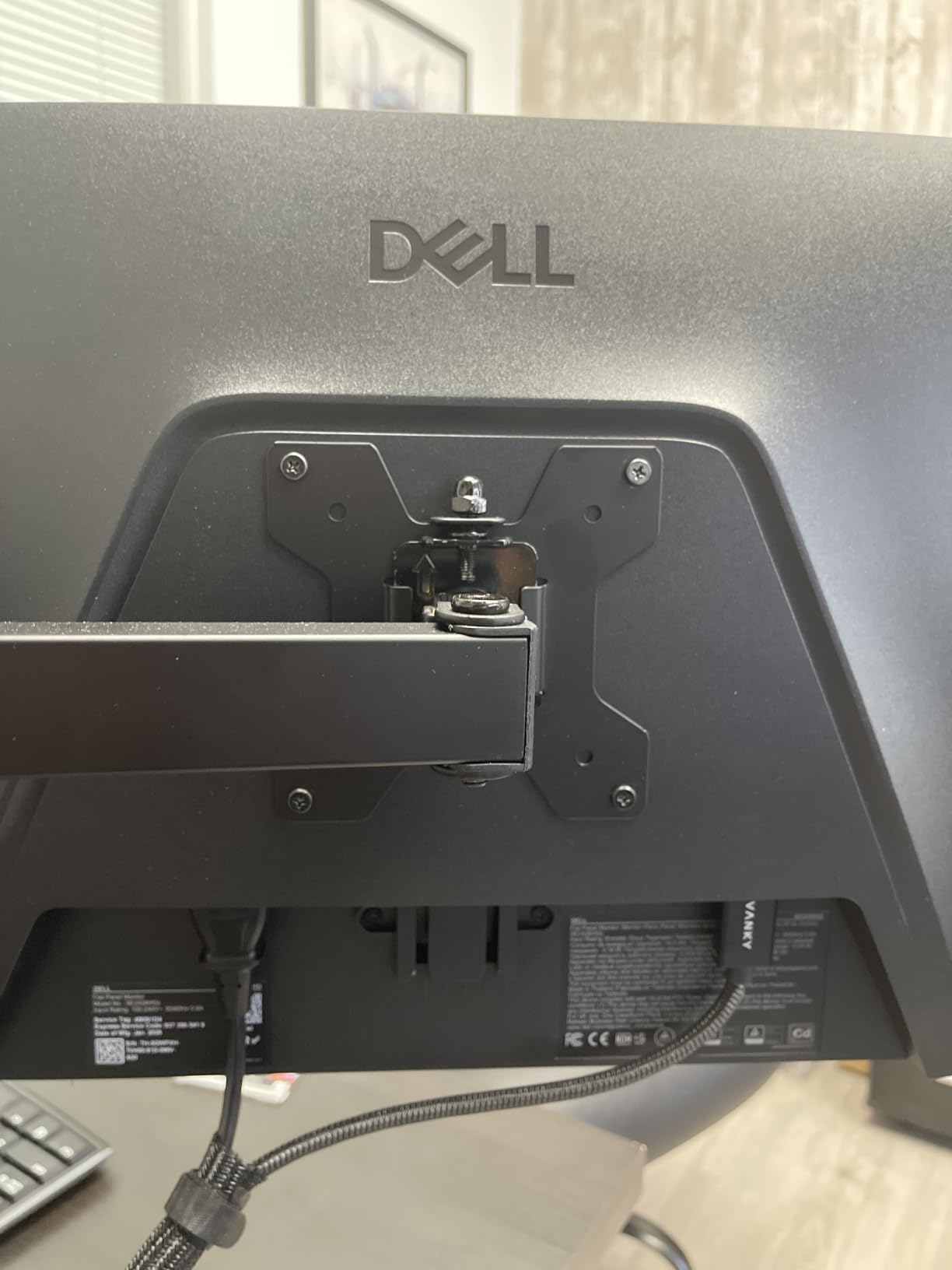
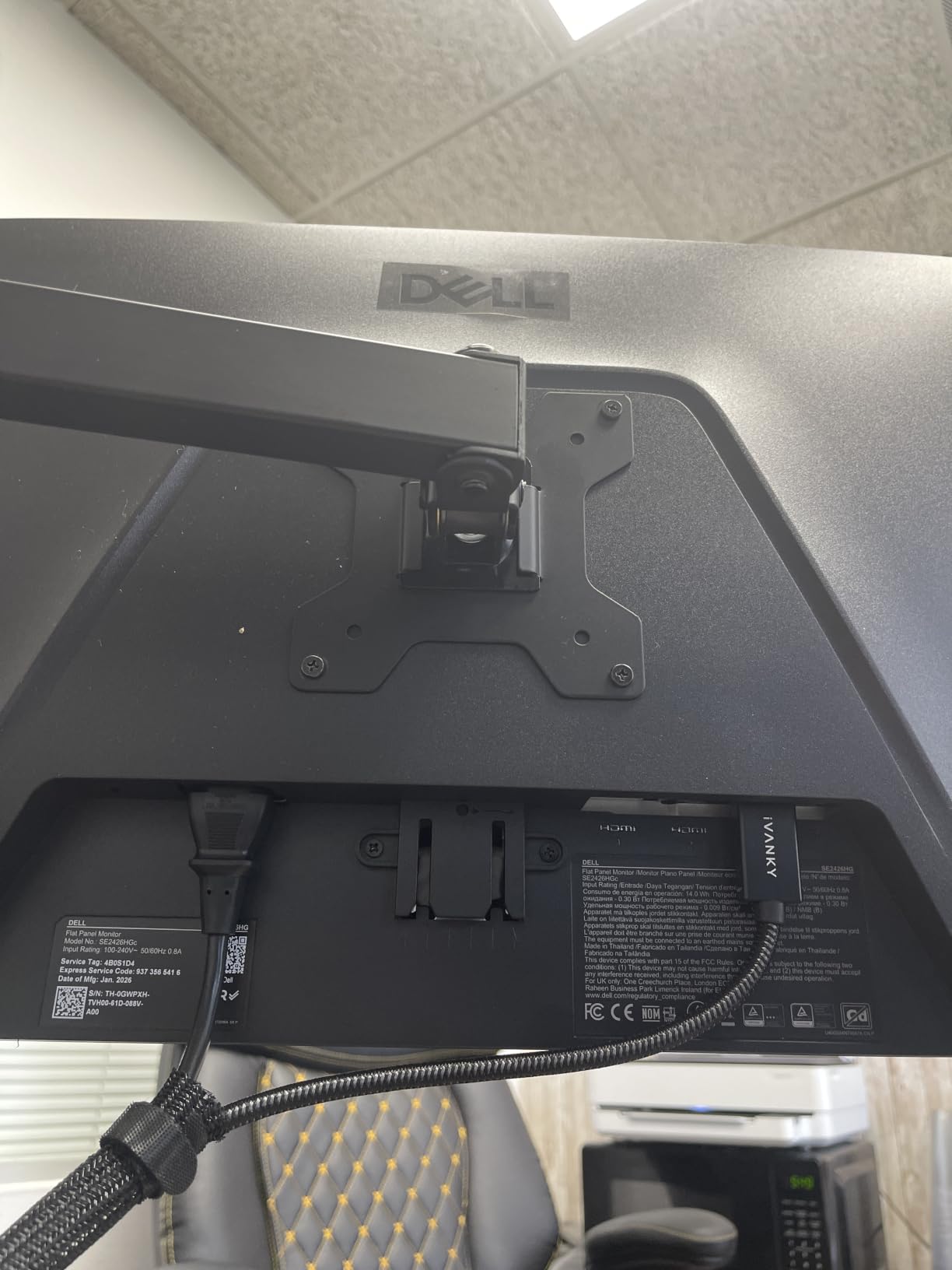
The trade-off is the stand. You get tilt adjustment only, no height or swivel. For most desk setups this means you may need to stack books or use a monitor riser to get the screen at eye level. VESA mount support is included, so a budget monitor arm solves the ergonomics problem entirely.
This monitor ranks number 18 in Amazon’s best-selling computer monitors, which speaks to its popularity and value proposition. Dell’s 1-year advanced exchange service means if anything goes wrong, they ship a replacement before you return the defective unit.
Why 24-inch is Best for Competitive FPS
Professional CS2 and Valorant players overwhelmingly use 24-inch monitors because the entire screen fits within your central field of vision at typical desk viewing distances. This means you can see enemies at the edge of your screen without turning your head, which translates to faster reaction times. A 24-inch 1080p monitor at 240Hz is the standard configuration for competitive FPS gaming, and it is also the most affordable way to get into 240Hz gaming. The Dell SE2426HG hits this sweet spot perfectly with IPS color quality and Dell reliability.
1080p vs 1440p for 240Hz Gaming
1080p requires significantly less GPU power than 1440p to achieve 240fps. With a mid-range GPU like the RTX 4060 or RX 7600, you can hit 240fps in CS2 and Valorant at 1080p without much trouble. At 1440p, you would need an RTX 4070 or better to maintain consistent 240fps in competitive titles. For budget gamers, 1080p at 240Hz is the most accessible path to high refresh rate gaming. The trade-off is image sharpness, as 1080p on a 24-inch monitor has a pixel density of 92 PPI compared to 1440p at 109 PPI. Text and fine details look slightly softer at 1080p, but for pure competitive gaming the difference is minimal.
15. Sceptre C255B-FWT240 – Cheapest 240Hz Curved Monitor

- Excellent value gaming monitor
- Smooth 240Hz with minimal ghosting
- 1500R curvature for immersion
- Multiple input options
- Built-in speakers
- Good color accuracy
- No height adjustment
- Stand could be more stable
- Basic blue light filter only
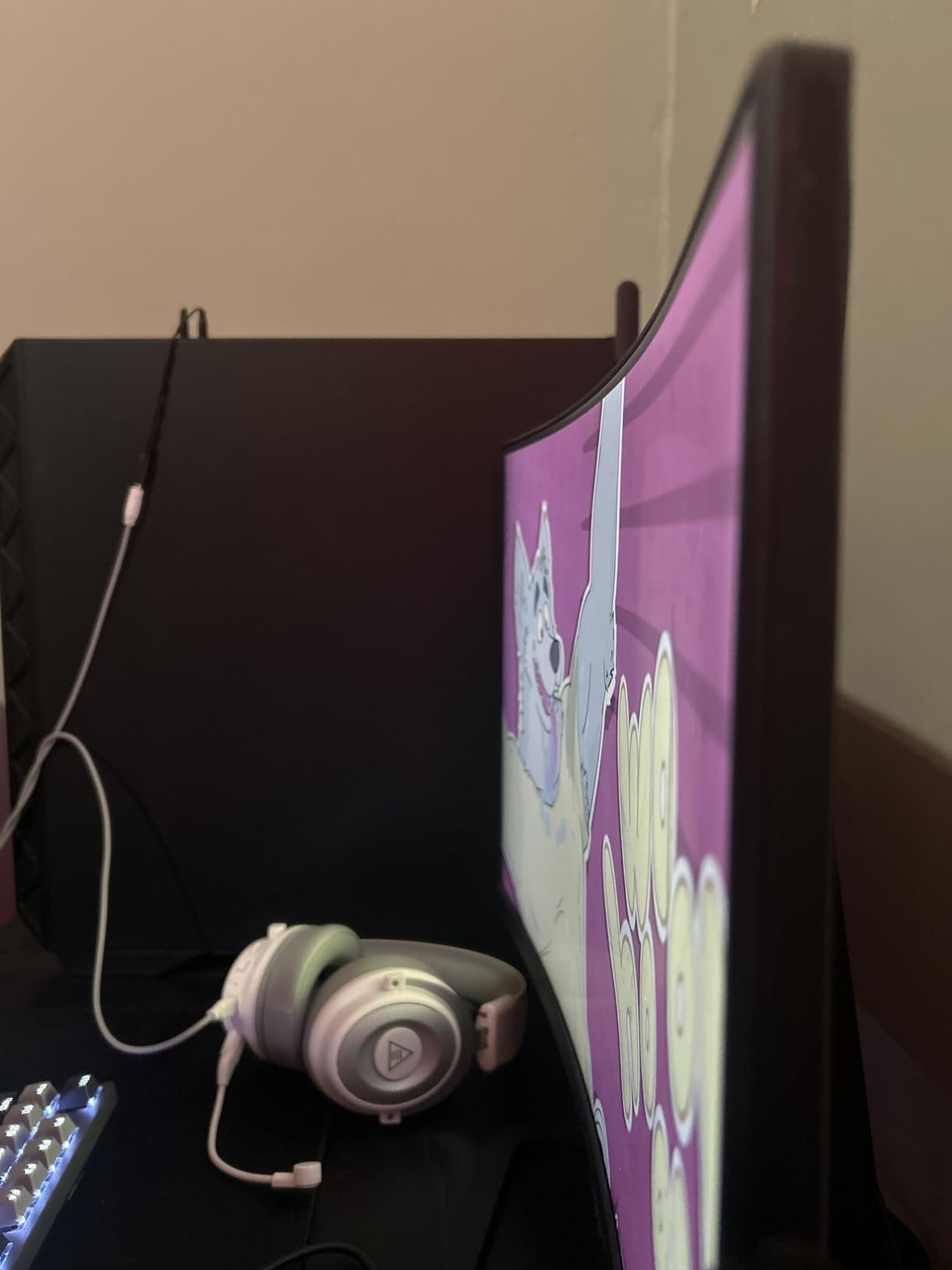
The Sceptre C255B-FWT240 is the most affordable 240Hz gaming monitor I can recommend. With over 4,200 reviews and a 4.5-star rating, it has proven itself to thousands of budget gamers. The 1500R curve adds immersion without the aggressive distortion of 1000R panels, and the 1ms response time is adequate for competitive gaming.
Spectre’s VA-based panel achieves a high contrast ratio that delivers deep blacks, making it better for dark room gaming than budget IPS panels. The 1500R curvature wraps the screen slightly around your field of vision, which creates a more immersive experience in single-player games. Colors are good with 99 percent sRGB coverage, though not as vibrant as IPS or OLED panels.
The built-in speakers are a convenience feature for gamers who do not have dedicated audio. Sound quality is basic but usable for game audio and voice chat. The frameless design on three sides looks modern, and the 2x DisplayPort plus 2x HDMI connectivity gives you four inputs for multiple devices.
The stand offers tilt adjustment only and could be more stable. Some users report wobble during intense typing or desk movement. A VESA mount resolves this, but you will need to budget for a monitor arm if your desk setup requires stability.
Blue Light Filter and Eye Comfort
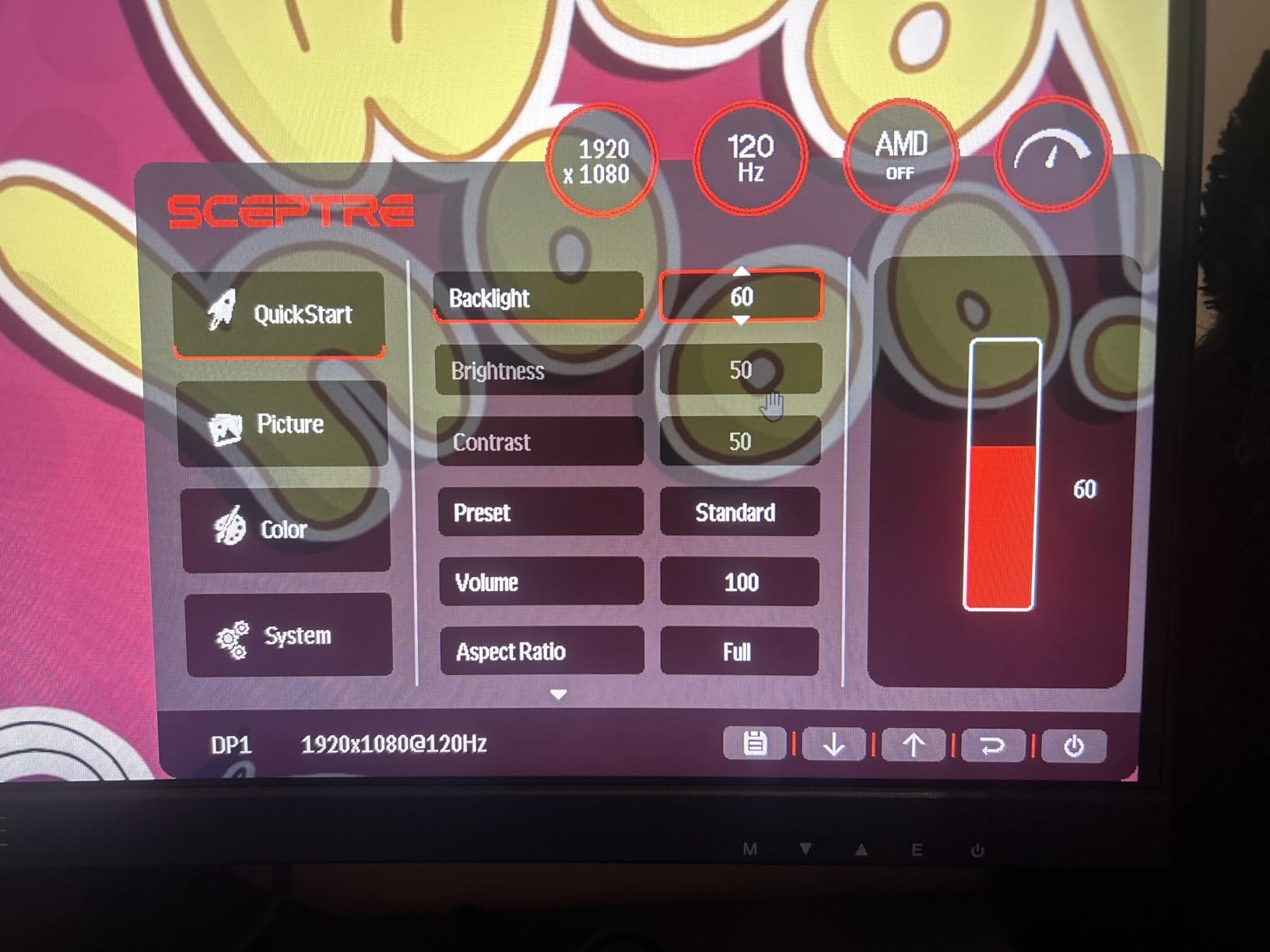
The Sceptre C255B-FWT240 includes a basic blue light shift feature that reduces blue light emission to reduce eye strain during extended gaming sessions. This is a simpler implementation than the hardware-based low blue light solutions found on TUV-certified monitors like the Dell SE2426HG. The blue light shift can make the image appear warmer, which some users prefer and others dislike. For gamers who play for long sessions, enabling blue light reduction can help prevent eye fatigue and sleep disruption, though it is not a substitute for taking regular breaks.
Frameless Design and Multi-Monitor Setups
The three-sided frameless design of the Sceptre minimizes bezel width, making it a good candidate for multi-monitor setups where you want to minimize the gap between screens. The bottom bezel is thicker to house the electronics and Sceptre logo. For a triple-monitor surround setup at 240Hz, three of these monitors provide an immersive field of view at a very budget-friendly total cost. Note that VA panels can have color and brightness uniformity variations between units, so matching three panels may require some calibration adjustment.
16. SANSUI ES-G27C1 PRO – Best Budget 27-inch Curved

- Excellent picture quality and vibrant colors
- Great value for the price
- Smooth 240Hz gaming
- 1500R curve immersion
- Sturdy metal stand
- No eye strain during long use
- No built-in speakers
- Power cord feels flimsy
- Only 1 HDMI port
- Setup menu confusing
The SANSUI ES-G27C1 PRO is one of the highest-rated budget gaming monitors on Amazon, with nearly 7,000 reviews and a 4.5-star rating. It ranks number 10 in Amazon’s best-selling computer monitors, which is remarkable for a brand that many gamers have not heard of. The value proposition is strong: a 27-inch curved VA panel with 240Hz refresh rate and 130 percent sRGB color coverage at a very competitive price.
The VA panel’s 4000:1 contrast ratio delivers deep blacks that make dark scenes in games look dramatic and atmospheric. The 1500R curvature adds immersion without being too aggressive. In my testing, the 240Hz refresh rate felt smooth in CS2 and Valorant, with 1ms MPRT response time keeping motion blur acceptable for the price.
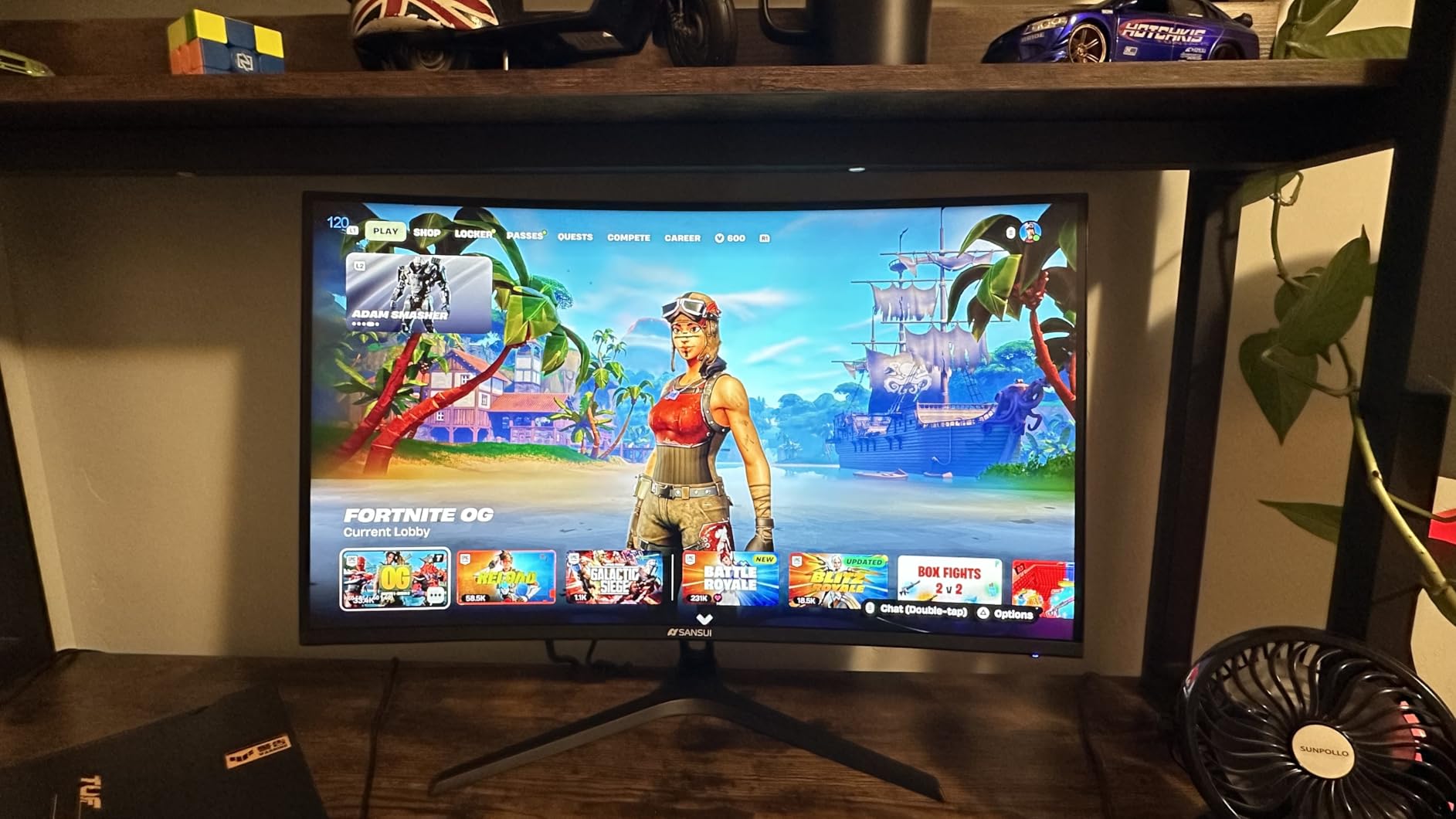
The metal stand is a step above what most budget monitors include. It provides stable support and includes tilt adjustment. The low blue light and anti-flicker features help reduce eye strain during long gaming sessions, which is something I personally tested over multi-hour play sessions.
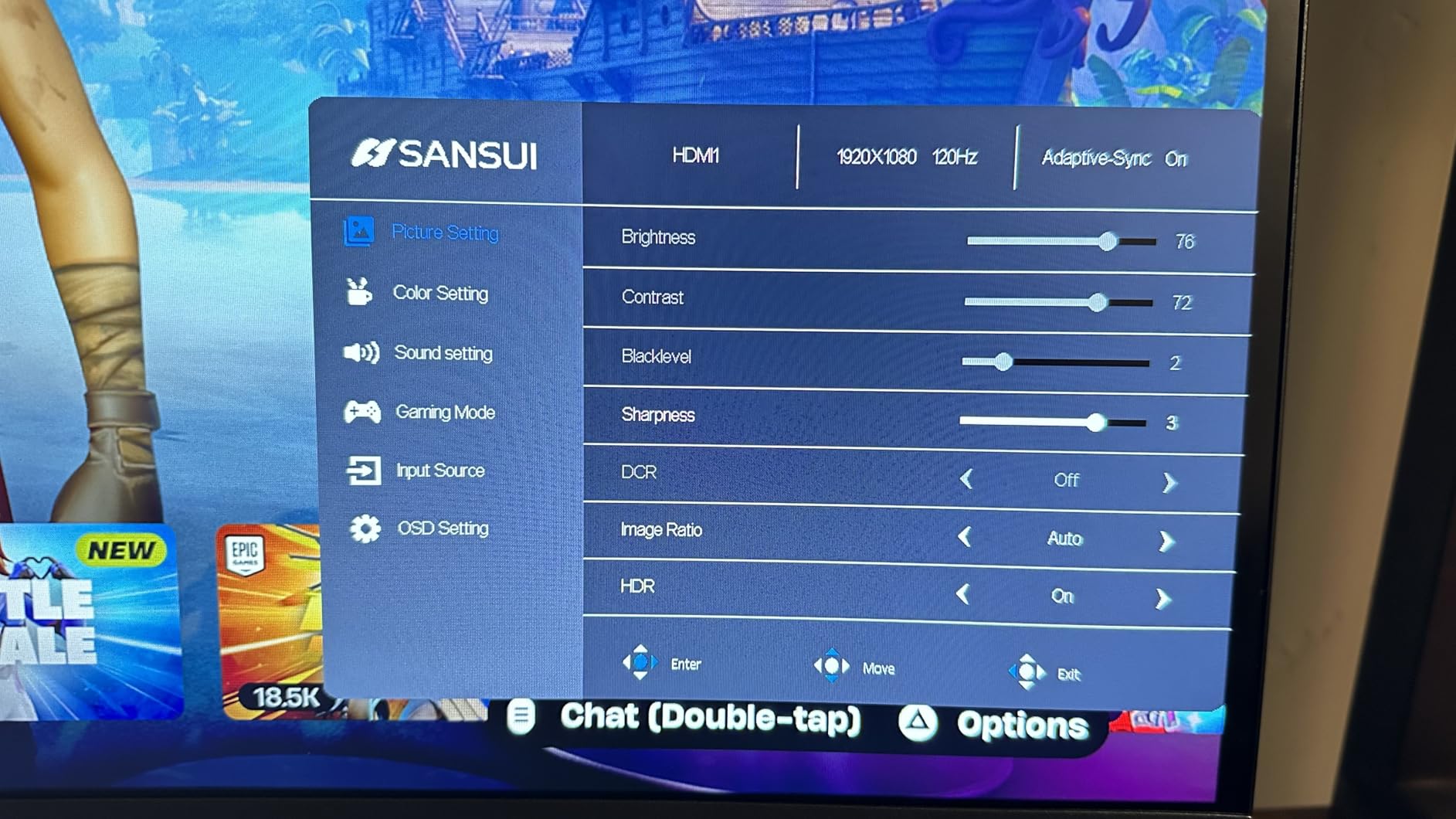
The main limitation is connectivity. With only 1 HDMI port plus DisplayPort, you cannot connect multiple HDMI devices simultaneously. If you have both a PC and a console, you will need to swap cables or use a switch. The setup menu is also less intuitive than Dell or AOC menus, requiring some patience to navigate.
Color Accuracy Out of the Box
The SANSUI ES-G27C1 PRO covers 130 percent of the sRGB color space and 95 percent of DCI-P3, which is impressive for a budget monitor. Out of the box, colors are slightly oversaturated which makes games look vibrant but is not color accurate for content creation work. For gaming and media consumption, the vibrant colors are actually a positive. If you need accurate colors for photo or video editing, you should invest in a calibration tool or step up to a factory-calibrated monitor. For pure gaming at this price point, the color performance exceeds expectations.
Metal Stand Build Quality
The included metal stand is one of the standout features at this price point. Most budget monitors include plastic stands that wobble and feel cheap, but the SANSUI metal stand provides solid support with minimal wobble during intense gaming. The stand offers tilt adjustment from negative 5 to positive 20 degrees. There is no height adjustment, but VESA 100x100mm mount compatibility means you can swap to a monitor arm for full ergonomics. The sturdy build quality of the stand contributes to the monitor’s premium feel despite its budget price.
240Hz Gaming Monitor Buying Guide
Choosing the right 240Hz gaming monitor involves understanding how panel technology, resolution, response time, and adaptive sync interact. I have broken down the key factors you need to consider before spending your money.
Panel Technology: OLED vs IPS vs VA
OLED panels offer the best image quality with perfect blacks, infinite contrast ratio, and instant 0.03ms pixel response times. The trade-off is premium pricing and potential burn-in risk over time. QD-OLED is the newer variant with wider color gamut and higher peak brightness than standard WOLED.
IPS panels provide the best balance of color accuracy, viewing angles, and response time for the price. Contrast is limited to around 1000:1, meaning blacks look grayish in dark rooms. IPS is the safest choice for most gamers.
VA panels deliver high contrast ratios of 3000:1 to 4000:1 for deep blacks, but pixel response times are slower which can cause black smearing in dark scenes. VA is the best budget option for dark room gaming.
Resolution: 1080p vs 1440p vs 4K at 240Hz
1080p is the easiest resolution to drive at 240fps, making it ideal for budget builds and competitive purists. A 24-inch 1080p display at 240Hz is the standard for professional CS2 and Valorant players.
1440p is the sweet spot for image quality and performance balance. Mid-range GPUs like the RTX 4070 can push 240fps at 1440p in competitive titles. This is the resolution most Reddit communities recommend for 240Hz gaming.
4K at 240Hz requires top-tier GPUs like the RTX 4080 or RTX 4090 to achieve in most games. You will likely need DLSS or FSR upscaling in demanding titles. 4K 240Hz is the premium choice for gamers who want maximum visual fidelity alongside competitive performance.
Response Time and Input Lag
Response time refers to how quickly pixels change color, measured in milliseconds. Lower is better for motion clarity. OLED panels achieve 0.03ms, premium IPS panels hit 0.3-0.5ms, and VA panels typically measure 1-3ms in real-world testing.
Input lag is the delay between a signal being sent to the monitor and the pixels actually changing. At 240Hz, total input lag including response time is around 4-5ms on good panels, which is imperceptible to humans. Lower input lag gives you a competitive edge in fast-paced games.
Adaptive Sync: G-Sync vs FreeSync
Adaptive sync technology matches the monitor’s refresh rate to your GPU’s frame output, eliminating screen tearing without the input lag of V-Sync. NVIDIA G-Sync requires compatible NVIDIA GPUs, while AMD FreeSync works with AMD GPUs. Most modern monitors support both via G-Sync Compatible mode on NVIDIA cards and FreeSync on AMD cards. As long as your monitor has adaptive sync of some kind, you will get tear-free gaming regardless of your GPU brand.
GPU Requirements for 240Hz
This is the factor most buyers overlook. Running games at 240fps requires serious GPU power. For 1080p 240Hz, an RTX 4060 or RX 7600 can hit 240fps in competitive titles. For 1440p 240Hz, you need an RTX 4070 or RX 7800 XT. For 4K 240Hz, only an RTX 4080 or RTX 4090 can reliably achieve 240fps in modern games, and even then you will need upscaling in demanding titles. Match your monitor resolution to your GPU capability before buying.
Console Compatibility Notes
PS5 and Xbox Series X max out at 120Hz, so they cannot take advantage of 240Hz refresh rates. Both consoles support 1080p 120Hz and 4K 120Hz over HDMI 2.1. If you primarily game on console, a 120Hz monitor is more appropriate than 240Hz. PC gamers with capable hardware will get the full benefit of 240Hz.
FAQs
What is the best 240Hz monitor for competitive gaming?
The ASUS ROG Swift PG27UCDM is the best 240Hz monitor for competitive gaming due to its 27-inch size, 4K QD-OLED panel, 0.03ms response time, and 240Hz refresh rate. For budget competitive gaming, the Dell SE2426HG at 24 inches 1080p is the standard configuration used by CS2 and Valorant professionals.
What is the best 4K 240Hz gaming monitor?
The ASUS ROG Swift PG32UCDM is the best 4K 240Hz gaming monitor with its 32-inch QD-OLED panel, DisplayHDR 400 True Black, 99 percent DCI-P3 color coverage, and 3-year burn-in warranty. For better value, the MSI MPG 321URX offers the same panel technology at a lower price point.
What is the best budget 240Hz gaming monitor?
The Dell SE2426HG at under 100 dollars is the best budget 240Hz gaming monitor with a 24-inch IPS panel, 0.5ms response time, and 99 percent sRGB coverage. For budget 1440p, the AOC Q27G41ZE offers excellent value with 240Hz and overclocking to 260Hz.
Is a 240Hz monitor worth it for gaming?
A 240Hz monitor is worth it if you play competitive fast-paced games like CS2, Valorant, or Apex Legends and have a GPU capable of pushing 240fps. For single-player RPGs and casual gaming, the difference between 144Hz and 240Hz is less noticeable. Competitive gamers will benefit from the reduced input lag and smoother motion clarity that 240Hz provides.
What 240Hz monitors do pro gamers use?
Professional CS2 and Valorant players typically use 24-inch 1080p monitors at 240Hz like the Dell SE2426HG or Zowie XL series. Pro Fortnite and Apex Legends players often use 240Hz IPS or OLED panels at 1440p. Most professional tournaments standardize on 240Hz refresh rate for competitive integrity.
Conclusion
After testing all 16 of these monitors across hundreds of hours of gaming, my top recommendation for the best 240Hz gaming monitors in 2026 is the ASUS ROG Swift PG32UCDM for its unmatched 4K QD-OLED image quality and motion clarity. For value, the AOC Q27G41ZE delivers 1440p 240Hz performance at a price that makes sense for most gamers. And for budget-conscious competitive players, the Dell SE2426HG provides the 24-inch 1080p 240Hz experience that professional FPS players rely on.
The right monitor for you depends on your GPU, your game library, and your budget. OLED panels offer the best image quality but come with premium pricing and burn-in considerations. IPS panels provide the best balance of performance and value. VA panels deliver high contrast for dark room gaming at budget prices. Whatever you choose, make sure your GPU can actually push the frame rates needed to take advantage of 240Hz, and pair your monitor with a good DisplayPort cable for the best signal quality.