
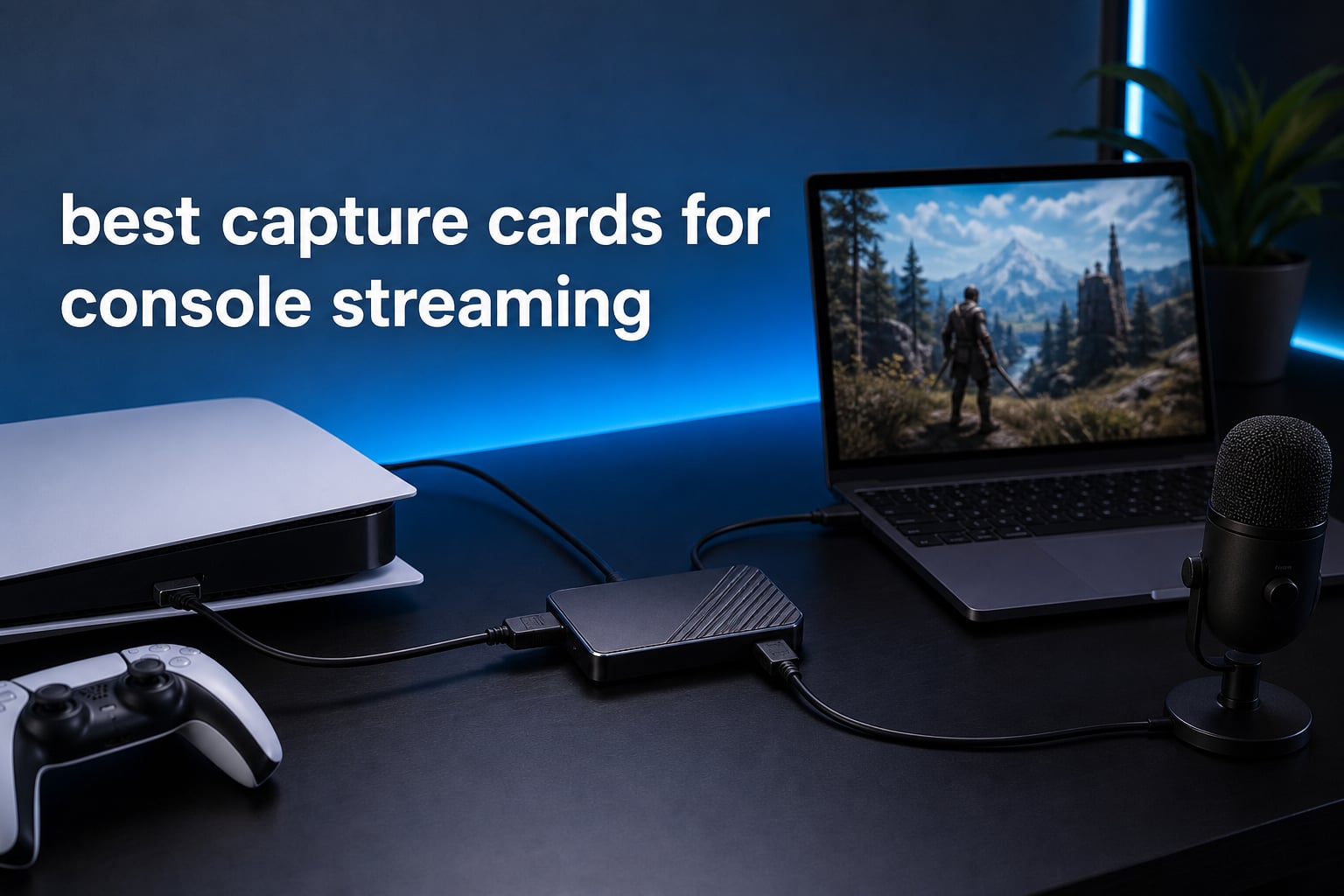
A capture card is good for streaming when you want console gameplay on a computer without asking the console to do every job. It takes the HDMI video and audio from a PS5, Xbox, or Switch, sends a copy to the streaming computer, and passes the picture through to your display.
The best capture cards for console streaming balance three things: the resolution you record, the refresh rate you can still play at, and the connections your computer actually supports. I would not buy an HDMI 2.1 model just for the label; it matters only if your console, display, and preferred high-refresh mode can take advantage of it.
This guide compares eight real devices from Elgato, AVerMedia, UGREEN, Guermok, and Portta. My first choice for a broadly capable external unit is the Elgato 4K S, while the AVerMedia Live Gamer Ultra 2.1 is the more specialized pick for 4K144 HDR/VRR passthrough and built-in party-chat support.
A capture card does not replace a monitor or solve a weak USB port. Pair it with one of our gaming monitors with USB-C if you are building the display side of a streaming desk, and see our guide to capture cards for video editors if local post-production matters as much as going live.
For a direct answer, most console streamers should start with an external USB card that records at the quality they intend to publish and has passthrough that preserves their usual play mode. The internal Elgato 4K Pro is different: it is for a Windows desktop with a PCIe slot and a serious dual-PC workflow, not a quick laptop setup.
Table of Contents
Top 3 Picks for 2026
These three choices separate the common needs cleanly: rounded 4K capture, feature-rich high-refresh passthrough, and uncomplicated 1080p60 recording. Ratings below reflect the product data available for each listing, rather than a score we created.


These are the best capture cards for console streaming in 2026
The comparison below puts all eight options in one place. Read the capture figure as the file your computer receives, and read passthrough as the signal your gaming display receives while you play.
| Product | Specifications | Action |
|---|---|---|
 Elgato 4K S Elgato 4K S |
|
Check Latest Price |
 Elgato 4K Pro Elgato 4K Pro |
|
Check Latest Price |
| AVerMedia Live Gamer Ultra 2.1 |
|
Check Latest Price |
 AVerMedia Live Gamer Extreme 3 AVerMedia Live Gamer Extreme 3 |
|
Check Latest Price |
| AVerMedia StreamLine MINI+ |
|
Check Latest Price |
 Guermok USB 3.0 Capture Card Guermok USB 3.0 Capture Card |
|
Check Latest Price |
 UGREEN 2K30 Capture Card UGREEN 2K30 Capture Card |
|
Check Latest Price |
 Portta HDMI Capture Card Portta HDMI Capture Card |
|
Check Latest Price |
The Elgato 4K S is the best all-around external capture card
- 4K60 capture
- HDR10 support
- High-refresh passthrough
- USB-C connection
- Analog audio input
- Needs a capable computer for best results
I would choose the Elgato 4K S when the goal is to record crisp console footage without moving to a PCIe card. Its advertised 4K60 capture is joined by 1440p120 or 1080p240 passthrough, so it gives a PS5, Xbox Series X/S, or Switch 2 setup useful room to grow.
The 4K S has a 4.5 rating from 1,579 reviews in the supplied product data, the largest review base in this lineup. That scale does not prove every setup will be trouble-free, but it gives its listing more feedback depth than the newer, lower-volume alternatives here.
HDR10 support is a key dividing line between this card and basic 1080p units. On Windows, Elgato specifies tone mapping for HDR content, while the analog 3.5 mm audio input can serve game chat or commentary in a more involved audio workflow.
Its host requirements deserve a close look before checkout: Elgato lists Windows 11, macOS 13 or later, or iPadOS with USB-C, plus a USB 3.0 Type-C port and a relatively modern Intel, AMD, or Apple processor. That is more useful than guessing from the connector shape alone.
The 4K S fits players who want 4K files and fast play
This is the balanced choice for someone playing at 1440p120 or 1080p240 and wanting a clean feed for a stream or recording. It also makes sense when you expect to swap between PS5, Xbox Series X/S, and Switch 2 rather than dedicate a card to one console.
I would also favor it over a simple dongle when analog audio input is part of the plan. That input is specifically listed, so it is a real capability rather than an assumed audio feature.
The 4K S is less suitable for a weak or older host computer
A 4K capture workflow asks more from the computer than a 1080p60 workflow. If your computer misses the listed operating-system, USB-C, or processor expectations, a less demanding 1080p60 card is the safer direction.
It is external rather than internal, which is ideal for portability but does not replace a dedicated PCIe solution in a fixed dual-PC studio. Choose based on the system you already own, not a theoretical maximum spec.
The Elgato 4K Pro is the right internal card for a desktop studio
- 8K60 passthrough
- 4K60 HDR10 capture
- VRR support
- 1080p240 recording
- Dual-PC ready
- Needs PCIe desktop installation
- Windows 10 listed
The Elgato 4K Pro is the clearest specialist in this group because it is an internal PCIe card. I would put it at the top of a desktop-based dual-PC setup where a free PCIe slot, internal installation, and HDMI 2.1 support are already part of the build.
It captures at 4K60 HDR10 while allowing up to 8K60 passthrough, with recording up to 1080p240. The card also lists VRR support, which matters to players who dislike giving up variable refresh rate just to route a console through streaming hardware.
“Low latency” is not a measurement, so I treat that label carefully. Elgato lists ultra-low latency, but the practical lesson is to play through the HDMI passthrough to the gaming display instead of playing from the preview window in your broadcasting software.
The product data lists Windows 10, a PCIe slot, and a 1080p video-capture-capable computer as minimum requirements. That makes this a poor fit for Mac users, laptop streamers, or anyone who does not want to open a computer case.
The 4K Pro serves fixed dual-PC and HDMI 2.1 installations
Use this card when the capture computer is a Windows desktop and the gaming display needs the highest passthrough headroom. Its HDMI 2.1 in/out and VRR support are meaningful for a performance-oriented console or PC setup.
For a creator whose equipment never leaves the desk, the internal format removes one more box and cable from the surface. The dual-PC compatibility is explicitly listed, which matches that intended workflow.
The 4K Pro does not suit portable or Mac-first streaming
There is no simple USB handoff here: installation needs a desktop PCIe slot. Moving between rooms, consoles, or computers is therefore less convenient than it is with an external USB capture card.
The stated Windows 10 platform also narrows the fit. An external card with listed macOS support is the more sensible starting point for a Mac-based streaming station.
The AVerMedia Live Gamer Ultra 2.1 is the strongest choice for party chat
- 4K144 HDR VRR passthrough
- 4K60 capture
- Party chat support
- 5.1 audio
- USB-C
- No Linux support listed
The AVerMedia Live Gamer Ultra 2.1 is the feature-forward external choice for a PS5, PS5 Pro, Xbox, or Switch setup. I would pick it when 4K60 capture is required but the gaming side also needs 4K144 HDR/VRR passthrough.
Its unusual advantage is live party-chat support: the listing says you can connect a gaming headset directly to the device and manage game/chat volume without an extra party-chat cable. It also lists 5.1-channel audio capture, a useful detail for streamers who care about more than a basic stereo feed.
The device uses HDMI 2.1 input/output and USB 3.2 Gen 2 Type-C. Those connections align with its 4K144 passthrough claim, although every link in the chain still has to support the mode you want to use.
AVerMedia lists OBS Studio and Streamlabs compatibility on Mac and PC along with Twitch, YouTube, and live-gaming use. A 4.2 rating across 282 reviews suggests more mixed listing feedback than the Elgato 4K S, so I would update software and test your chat routing before an important broadcast.
The Ultra 2.1 answers high-refresh gaming and chat-routing needs
This is the logical selection when you play on a high-refresh display and want HDR and VRR passthrough alongside 4K60 capture. It is also the rare option here that names a direct headset-based party-chat workflow.
That combination can reduce the number of adapters in a console stream. Still, audio paths differ by console settings, headset, and source, so run a short private recording before you go live.
The Ultra 2.1 is not the answer for Linux-only setups
The supplied product information lists Windows-only support and does not list Linux support. Do not assume an HDMI 2.1 device will work with every operating system merely because the physical connection fits.
If your published output is only 1080p60, its extensive passthrough feature set may be more than you need. A simpler 1080p60 recorder can be easier to match with an entry-level host computer.
The AVerMedia Live Gamer Extreme 3 is the flexible high-refresh middle ground
- 1080p240 support
- VRR passthrough
- Plug-and-play setup
- PS5 Xbox and Switch support
- USB-C
- Limited to 4K30 capture
The AVerMedia Live Gamer Extreme 3 makes sense when your priority is fast 1080p gameplay rather than 4K60 recording. It captures 4K30 and supports up to 1080p240, while its passthrough supports VRR at 1440p120 or 1080p120.
I see this as a good bridge between basic 1080p60 dongles and the 4K60 cards above. Its stated plug-and-play design, supplied USB Type-C-to-Type-A cable, HDMI 2.0 cable, and quick-start guide reduce the number of extras a new streamer must find.
It is compatible with PS5, Xbox One X/S, Switch, and several streaming platforms according to the product information. The word “zero latency” describes the passthrough experience, but it should not be read as a promise that a software preview has no delay.
The review data shows a 4.1 average across 164 reviews. For me, that makes feature fit more important than brand preference: choose it for its listed high-refresh passthrough and cross-console support, not just because it carries the AVerMedia name.
The Extreme 3 works for 1080p240 and 1440p120 players
Competitive players who publish at 1080p or 1440p but value responsiveness can benefit from its high-frame-rate and VRR passthrough specifications. It is an external unit, so it is far easier to move than a PCIe solution.
This is also a reasonable choice for someone who wants cables in the box. That does not eliminate setup, but it removes two common first-day omissions.
The Extreme 3 is limited when 4K60 recording is non-negotiable
Its 4K capture ceiling is 30 frames per second. If smooth 4K60 video is the deliverable, select the Elgato 4K S, Elgato 4K Pro, or Live Gamer Ultra 2.1 instead.
Pay attention to the difference between capture and passthrough. The card can preserve a faster play mode than the file it records, which is often useful but is not the same as recording that fast mode.
The AVerMedia StreamLine MINI+ is the straightforward 1080p60 starter
- 4K60 HDR passthrough
- 1080p60 recording
- No drivers needed
- Flexible formats
- OBS and Streamlabs listed
- Does not record in 4K
The AVerMedia StreamLine MINI+ targets the streamer who wants to play in 4K60 HDR while recording a conventional 1080p60 stream. I would make it the uncomplicated pick for a first serious console setup when 4K recording itself is not part of the brief.
Its passthrough specification covers 4K60 HDR and up to 1440p144 or 1080p240, while the capture specification remains 1080p60. That split is practical because many live platforms and viewers still see a 1080p feed even when the player uses a higher-resolution display.
AVerMedia says no drivers are needed and includes its beginner-oriented Streaming Center software, while also naming OBS, Streamlabs, CameraFi, and Camo Studio. It also lists NV12, YUY2, and MJPEG format choices, which gives experienced users more control over how the source is presented to an application.
The card has a 4.0 average from 88 reviews in the available data. That smaller, more mixed record does not disqualify it, but it does support a sensible habit: test resolution, audio, and format settings with your exact host application before scheduling a stream.
The MINI+ fits 1080p broadcasts with a better gameplay display
Choose it if you want 1080p60 recording while maintaining 4K60 HDR, 1440p144, or 1080p240 play as listed. This separation is especially helpful for a console player who values display responsiveness more than a large 4K archive.
The flexible capture formats may also help when one application prefers a different input format than another. Check the settings in your streaming software rather than leaving every option at its default.
The MINI+ does not create 4K recordings
Its recording limit is 1080p60, even though the passthrough can carry 4K60 HDR. People often confuse those two specifications, and they describe different parts of the signal path.
If you want 4K60 gameplay recording for YouTube edits or local archives, this is not the correct model. Step up to one of the cards that explicitly lists 4K60 capture.
The Guermok USB 3.0 card is a basic option with useful analog ports
Guermok USB 3.0 HDMI Capture Card, 1080P 60FPS & 2K30 Video Capture Device
- 1080p60 and 2K30
- 4K60 passthrough
- Mic and audio ports
- No driver required
- Wide app compatibility
- Mic input is TRS only
The Guermok USB 3.0 HDMI Capture Card is aimed at uncomplicated 1080p60 or 2K30 capture with a 4K60 HDMI passthrough path. I would consider it for a basic console stream where mic input, headphone monitoring, and speaker output are more useful than 4K recording.
It lists compatibility with PS5, Switch 2, Xbox consoles, Steam Deck, handheld PCs, Windows PCs, Macs, iPads, Android tablets, and several camera types. It also lists UVC/UAC operation with no driver requirement and support for OBS, Streamlabs, VLC, and XSplit.
The analog ports are a meaningful difference in this tier: mic in, audio in, headphone monitoring, and speaker output are all stated. There is one firm limitation, however: the microphone input supports standard 3.5 mm TRS microphones and may not support TRRS or USB microphones.
Its listed 4.6 rating comes from 36 reviews, which is a small sample compared with the better-known cards. I would treat that rating as encouraging rather than decisive and put compatibility tests ahead of star averages for a card at this level.
The Guermok card helps simple audio-routing and 1080p60 workflows
It fits a beginner who records or streams at 1080p60 and wants an all-in-one box with analog monitoring options. The 4K60 passthrough specification lets the console send a higher-resolution image to the display while the computer receives a more manageable capture feed.
The broad device list also makes it tempting for camera capture or handheld use. Confirm the source output and the capture resolution you want before connecting everything.
The Guermok card is not for 4K recording or TRRS microphone plans
It captures at 1080p60 or 2K30, not 4K. The presence of 4K60 HDMI passthrough should not be mistaken for a 4K60 recording specification.
Its 3.5 mm microphone limitation is specific enough to plan around. A creator with a USB microphone or a TRRS headset mic should not assume that port will accept the signal.
The UGREEN 2K30 card is a broadly compatible USB-A and USB-C option
- USB-A and USB-C support
- 1080p60 capture
- 2K30 option
- Linux listed
- Aluminum casing
- Needs HDCP disabled on consoles
- iPad requires iPadOS 17 or later
The UGREEN capture card is the most flexible basic adapter here for host connections because it lists both USB-A and USB-C. I would look at it for 1080p60 streaming, 2K30 capture, and a setup that may move between Windows, macOS, Linux, and compatible iPad hardware.
UGREEN specifies a 4K30 input and 2K30 output, with 1080p60 backward compatibility and a 5 Gbps transfer rate. Its aluminum alloy housing is also specified for heat dissipation and EMI shielding, a more useful practical detail than cosmetic finish claims.
The supported-device list includes Switch and Switch 2, Xbox, PS5, PS4, PCs, and Meta Quest devices. Its application compatibility includes OBS, XSplit, PotPlayer, and QuickTime, making it one of the clearer choices for people who use different software across different computers.
There are two setup details I would handle before a stream: the listing says an iPad needs iPadOS 17 or later, and it says Switch, Xbox, PS5, and PS4 require HDCP to be turned off. Check the console’s HDMI setting before assuming the card is faulty.
The UGREEN card supports mixed-device and Linux-aware workflows
This is a compelling fit when USB-A and USB-C host support matters, or when Linux compatibility needs to be on the shortlist. It is also appropriate for a standard 1080p60 console broadcast rather than a high-bandwidth 4K capture project.
Its stated 4.5 rating from 785 reviews gives it a substantial feedback base for a compact adapter. Even so, resolution and HDCP settings should be confirmed on the exact console you use.
The UGREEN card does not offer 4K60 capture or passthrough
The listed top input is 4K30, and its capture path tops out at 2K30 or 1080p60. It is not the choice for someone who needs 4K60 recording or a 4K120/144 passthrough display.
HDCP must be disabled for the named consoles according to the listing. Build that step into your setup checklist, since protected HDMI output can prevent a normal capture signal.
The Portta HDMI capture card is a simple loop-out choice for 1080p60
- 1080p60 capture
- 4K60 loop-out
- No drivers required
- Includes cables
- Mic input
- No HDR support
- Audio-routing restrictions
- No CEC
The Portta HDMI Video Capture Card is for a no-frills 1080p60 stream with HDMI loop-out to a display. I would select it only when the specified limits work for your console setup, because its product data is unusually clear about what it does not support.
It takes HDMI input and loop-out up to 4K60 in YUV 4:2:0, captures 1080p60 over USB 3.0, and has 3.5 mm audio out plus mic in. The package is listed with an HDMI cable, USB-A data cable, USB-C adapter, and user manual, reducing the need to source basics separately.
The key limitations are HDCP 1.4 input only, no HDR support, and no CEC support. It also says that headphones or speaker and HDMI out cannot receive microphone audio, so plan your audio route rather than expecting every port to carry every signal.
With a 4.2 average from 439 reviews, it has more available feedback than several niche alternatives in this article. The more important point is that its stated restrictions are easy to understand before installation, which can prevent a mismatch with HDR-based console play.
The Portta card fits standard SDR 1080p60 streams with loop-out
This card works for a creator who wants to capture a standard 1080p60 feed, play through a separate HDMI output, and avoid driver installation. The included cables and adapter help keep a simple desk setup simple.
It also names OBS Studio compatibility, so it belongs in a basic PC streaming plan. Use the HDMI output for play and the USB capture feed for your broadcast application.
The Portta card excludes HDR, CEC, and some microphone routing
Do not choose it for HDR gaming capture, because HDR is explicitly unsupported. Its HDMI specification is also limited to HDCP 1.4 input, a constraint worth checking against your source settings.
The audio-routing limitation may matter if you need a microphone in headphones, speakers, and HDMI output at once. A more dedicated audio workflow or a different capture card is a better fit in that case.
The right card matches your console, display, and recording goal
Start with the output you will actually publish. If your stream and recordings are 1080p60, a 1080p60 capture card can be the sensible choice even when your display runs at 4K or high refresh; passthrough protects the play experience while capture sets the file quality.
Passthrough is the display signal, while capture is the computer feed
HDMI passthrough means the card forwards the console signal to your TV or monitor. Capture is the separate signal delivered to the host computer, and it can have a different resolution or frame rate from the one you play.
For example, the StreamLine MINI+ lists 4K60 HDR passthrough but 1080p60 recording. That is not a missing feature; it is a deliberate match for players who want a sharp game display and a standard live-stream resolution.
High-refresh modes matter only when the whole signal chain supports them
For PS5 or Xbox Series X/S players using 120 Hz modes, check both the card and the display. The Elgato 4K S lists 1440p120 or 1080p240 passthrough, while the Live Gamer Ultra 2.1 lists 4K144 HDR/VRR passthrough and the 4K Pro lists up to 8K60 passthrough.
VRR is variable refresh rate, which can reduce visible tearing by letting the display track the source frame delivery. It is listed on the Elgato 4K Pro, AVerMedia Live Gamer Ultra 2.1, and Live Gamer Extreme 3, but it should be confirmed in your exact console and display settings.
External USB cards suit flexibility, while PCIe cards suit a fixed desktop
An external capture card works well for laptops, switching between consoles, and keeping installation simple. The Elgato 4K S, AVerMedia options, and basic adapters in this guide follow that model.
A PCIe internal card, such as the Elgato 4K Pro, belongs in a desktop computer and is better suited to a dedicated dual-PC desk. The trade-off is less portability and a platform requirement that excludes many hosts.
Audio routing should be decided before you choose the card
Game audio is only one part of a console broadcast; party chat, commentary, and headphone monitoring can complicate the path. The Live Gamer Ultra 2.1 lists direct headset party-chat support and 5.1-channel capture, while the Elgato 4K S and Guermok list analog audio inputs.
The Portta card has specific mic-routing restrictions, and the Guermok card specifies TRS microphone support rather than TRRS or USB microphone support. Those details make the difference between a neat setup and a last-minute tangle of adapters.
OBS and a capture card work together rather than competing
OBS is broadcasting software, while a capture card is hardware that gives OBS a console video source. You can stream directly from some consoles without a card, but a capture card becomes useful when you want overlays, scenes, camera inputs, computer-based recording, or a separate streaming workflow.
Forum discussions repeatedly point to OBS compatibility, Mac support, latency, and setup difficulty as real concerns. Start with the card’s stated operating-system and application support, use the passthrough display for gameplay, and make a local test recording before relying on it live.
Each console fits a slightly different shortlist
For PS5 and Xbox players who need 4K60 capture, the Elgato 4K S, Elgato 4K Pro, and Live Gamer Ultra 2.1 are the direct choices in this list. For 1080p60 publishing with a higher-end display, the StreamLine MINI+ offers a clearer split between play and recording.
For Switch or Switch 2 streaming, the UGREEN, Guermok, Portta, Live Gamer Extreme 3, StreamLine MINI+, Elgato 4K S, and Live Gamer Ultra 2.1 all list compatible console support. If you are also collecting footage from older hardware, our retro gaming consoles guide can help you plan the source side of that project.
Your broader desk setup affects stream quality too
Capture hardware handles the console signal, but clear commentary needs a separate audio plan. Our recommendations for podcasting equipment can be useful when multiple voices need dedicated microphones and monitoring.
I would test video and audio together, not in isolation. A short unlisted broadcast will show whether game sound, chat, commentary, and video remain synchronized in the software you plan to use.
FAQs
Is a capture card good for streaming?
Yes. A capture card sends console video and audio to a computer for streaming or recording while forwarding the gameplay signal to a display. It is especially useful for creators who want OBS scenes, overlays, a camera source, or computer-based recordings.
Do you need a capture card to stream from console?
No. Modern consoles can stream directly, but a capture card is useful when you want more control over overlays, scenes, audio routing, camera inputs, local recording, or a dual-PC workflow. Use passthrough to play on the display rather than from a software preview.
Is it better to use OBS or a capture card?
They do different jobs. A capture card is hardware that brings the console signal into a computer; OBS is software that arranges and broadcasts that signal. For a computer-based console stream, you commonly use both together.
Is Elgato or AVerMedia better?
Neither is better for every setup. Elgato’s 4K S is the rounded external choice here for 4K60 capture, HDR10, and listed macOS support, while AVerMedia’s Live Gamer Ultra 2.1 stands out for 4K144 HDR/VRR passthrough and listed party-chat support. Match the feature set to your console, display, audio path, and host computer.
The Elgato 4K S is the balanced pick for most streamers
The Elgato 4K S is my all-around recommendation because its 4K60 capture, HDR10, high-frame-rate passthrough, analog audio input, and listed PS5, Xbox Series X/S, and Switch 2 support cover the needs of many console creators. Choose the Live Gamer Ultra 2.1 instead when 4K144 HDR/VRR passthrough and party-chat support lead your list.
For the best capture cards for console streaming in 2026, the right answer is the card that preserves how you play while recording what you genuinely plan to publish. Check your console output, display mode, host port, operating system, and audio path, then make a short local recording before your first broadcast.