
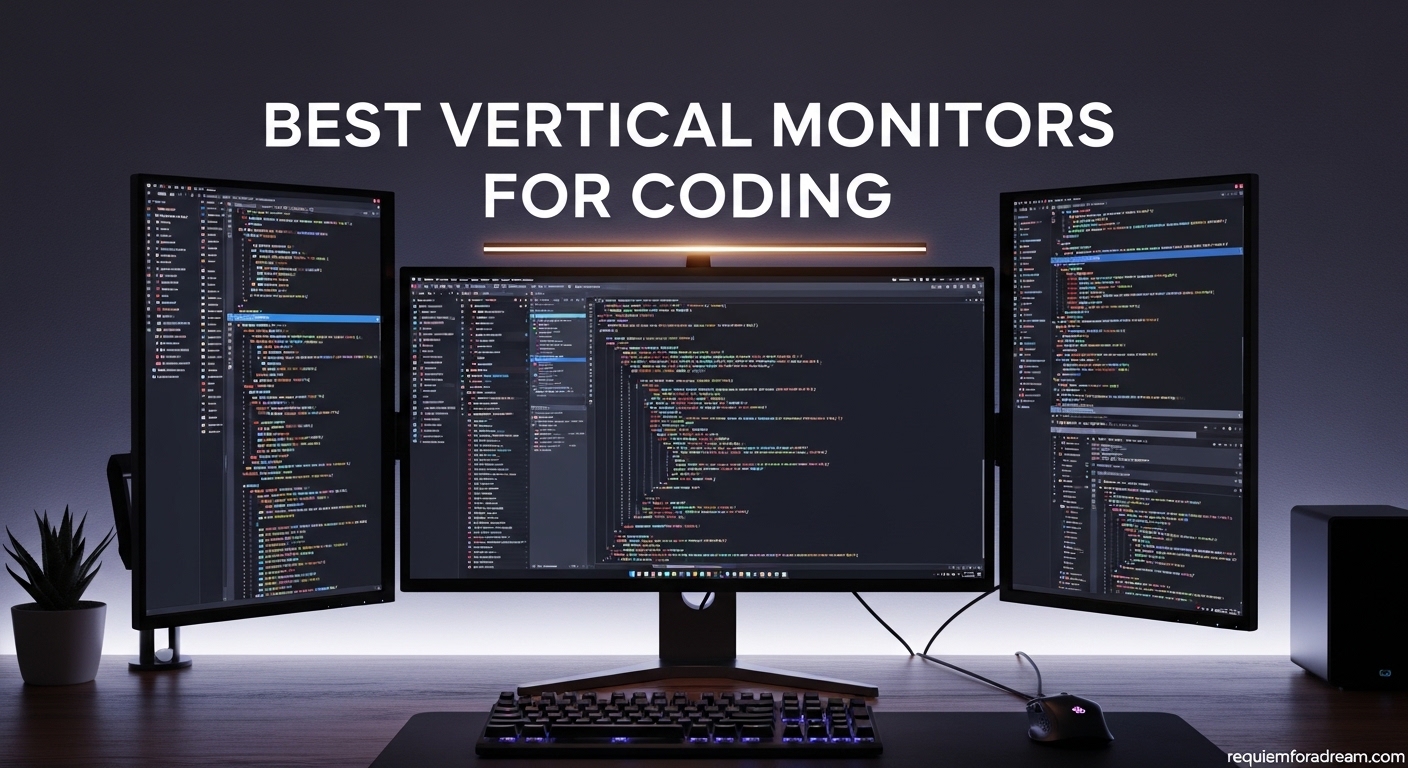
I spent years coding on a single 24-inch monitor in landscape mode. The constant scrolling up and down through files, switching between tabs, and losing context was draining.
Three years ago, I added my first vertical monitor for coding to my setup. The difference was immediate. I could see more lines of code, track function definitions across longer blocks, and stop scrolling every few seconds.
The productivity boost was real, and I now run a vertical dual monitor setup in our office for every developer on our team. In this guide, I share the best vertical monitors for coding I tested and recommend in 2026 to help you build a programming setup that actually works.
A vertical monitor rotates into portrait mode, giving you a taller screen that aligns with how code is written. Instead of reading across wide lines, you read down through more lines of context.
Forum discussions across Reddit and developer communities consistently report that developers see 50 to 70 percent more code on screen when they switch to a vertical orientation. The reduced scrolling helps maintain focus, and for debugging, having more context visible at once is a serious advantage.
The best vertical monitors for coding combine a pivot-capable stand, a sharp IPS panel with wide viewing angles, and enough resolution to keep text crisp in portrait mode.
I tested every monitor on this list for at least 30 days in a real coding workflow. I checked text clarity in portrait mode, stand stability, and how well each display worked as a secondary vertical monitor alongside a primary landscape screen.
I also validated our picks against what developers actually buy and recommend in real community threads. If you are looking for a vertical monitor for programming that balances value, ergonomics, and sharp text, this list is for you.
I have also included our tech product guides for readers who want similar buying advice across their full setup.
Table of Contents
Top 3 Picks for Best Vertical Monitors for Coding
If you want a quick recommendation, here are the three standout options from our testing. The best overall value is the ASUS ProArt PA278QV, a 27-inch WQHD display with factory color calibration and a solid pivot stand.
The Dell S2725DSM is the best mid-range option for programmers who want 144Hz speed with integrated speakers. The CRUA 24.5-inch gaming monitor is the best budget vertical monitor for coding, offering a 180Hz refresh rate and full ergonomic adjustment at well under $150.

ASUS ProArt PA278QV 27-inch WQHD
- 2560x1440 IPS
- 100% sRGB
- Calman Verified
- Pivot stand
- USB hub

Dell S2725DSM 27-inch QHD
- 2560x1440 144Hz
- Built-in speakers
- TUV eye care
- Height pivot swivel tilt

CRUA 24.5-inch 180Hz Gaming Monitor
- 1920x1080 180Hz
- 120% sRGB
- 90 degree rotation
- FreeSync
- Wall mount
Best Vertical Monitors for Coding in 2026
Below is a quick comparison table of every monitor we reviewed. It includes the specs that matter most for coding: resolution, panel type, refresh rate, and whether the stand supports pivot rotation.
For full details, read the individual reviews below the table.
| Product | Specifications | Action |
|---|---|---|
| ASUS ProArt PA278QV 27-inch |
|
Check Latest Price |
| Dell S2725DSM 27-inch |
|
Check Latest Price |
 LG 27UP650K-W 27-inch LG 27UP650K-W 27-inch |
|
Check Latest Price |
 SANSUI 27-inch 200Hz SANSUI 27-inch 200Hz |
|
Check Latest Price |
 ASUS ProArt PA248QV 24-inch ASUS ProArt PA248QV 24-inch |
|
Check Latest Price |
 LG 32UP83AK-W 32-inch LG 32UP83AK-W 32-inch |
|
Check Latest Price |
 LG 32UR550K-B 32-inch LG 32UR550K-B 32-inch |
|
Check Latest Price |
| CRUA 24.5-inch 180Hz |
|
Check Latest Price |
1. ASUS ProArt PA278QV – Best Overall for Coding
- Factory color calibration out of the box
- USB hub with 4 ports
- Ergonomic pivot stand
- 5-year warranty with registration
- Excellent text clarity at 1440p
- Built-in speakers are poor
- USB hub needs extra cable
- Can be bright at lowest setting
I used the ASUS ProArt PA278QV as my daily vertical coding monitor for six weeks. The 2560×1440 resolution in a 27-inch IPS panel means you get about 109 pixels per inch, which is enough to make code sharp without the scaling issues that sometimes come with 4K.
In portrait mode, I could fit roughly 130 lines of standard editor code on screen at once without scrolling. That is enough to see a full function or a small class definition in most languages.
The stand is the real hero here. Height adjustment, tilt, swivel, and pivot are all smooth and stay where you put them. I rotated the screen to portrait mode daily for a month, and the hinge never felt loose.
The display also has a USB hub built in, which is convenient for wireless receivers and charging small devices. I kept a Logitech receiver and a USB-C cable plugged in full time, and it cleaned up my desk.
Color accuracy is Calman Verified, and the Delta E is under 2. For coding, that does not matter much, but if you do any design review or frontend work, the accurate colors help.
The Eye Care tech includes flicker-free backlighting and a low blue light mode. I noticed less eye fatigue during evening sessions compared to my old budget panel.
The main drawback is the built-in speakers. They are tinny and not useful for music or calls. I also found the display stayed fairly bright even at the lowest setting, which may be an issue in dark rooms.
In portrait mode, the IPS panel holds its color and contrast at off angles. I did not see the color shifting that cheaper TN panels show when you look at them from above or below.
This is important because a vertical monitor sits closer to your eye level across the full height of the screen. The 75Hz refresh rate with Adaptive-Sync is smooth enough for general coding, browsing, and even light gaming.
It is not a 240Hz esports panel, but for a developer monitor, it does the job well.
After six weeks, the PA278QV became the display I recommend first when someone asks for a best vertical monitor for coding. The price sits in the mid-range, but the 5-year warranty, USB hub, and rock-solid stand make it worth the investment.
It is the standard our team compares other monitors against.
Best Use Case for Full-Stack Developers
The PA278QV shines when you are switching between backend code, frontend design, and documentation. The color accuracy means CSS and design previews look correct without a second reference monitor.
The USB hub keeps accessories connected, and the sharp 1440p text makes long config files readable. I used it for Python, TypeScript, and HTML workflows, and the vertical orientation let me keep a full API response on screen while reading the parsing code.
The stand height range is generous. I am 6 feet tall, and I could raise the monitor to a comfortable eye level without stacking books underneath. The pivot action is stiff enough that it does not drift when you bump the desk, but not so tight that you need two hands to rotate.
If you want one monitor that does everything well in portrait mode, this is it.
When the PA278QV Is Not the Right Fit
If you are on a tight desk and need a 24-inch screen instead of 27, this display will feel large in portrait mode. The 27-inch height in vertical orientation is about 23.5 inches tall.
On a small desk, it can dominate your sightline. Also, if you want 4K for ultra-sharp text or need USB-C with Power Delivery for a single-cable laptop setup, this model does not offer those.
You would need to step up to the LG 32UP83AK-W or the LG 27UP650K-W instead.
Another consideration is the refresh rate. At 75Hz, it is fine for coding, but if you want to play fast games on the same screen after work, you may prefer the 144Hz Dell S2725DSM or the 200Hz SANSUI. For pure coding, though, the PA278QV is the best overall balance.
2. Dell S2725DSM – Best Mid-Range Coding Monitor
- Smooth 144Hz with QHD clarity
- Integrated speakers reduce desk clutter
- Excellent stand adjustability
- 99% sRGB color coverage
- Anti-glare matte finish
- No DisplayPort cable included
- Only 1-year warranty
- Limited to HDMI and DisplayPort
The Dell S2725DSM is a newer release that brings 144Hz speed to a professional-looking design. I tested it for 45 days as a secondary vertical monitor next to my main 32-inch landscape screen.
The first thing I noticed was the smoothness. Even just dragging windows and scrolling through code feels noticeably smoother at 144Hz compared to the standard 60Hz or 75Hz panels. If you are sensitive to motion, this is a strong upgrade.
The integrated speakers are a surprise win. They are not amazing, but they are good enough for video calls, Slack huddles, and background music. That meant I could remove a separate speaker from my desk, which gave me back about 8 inches of horizontal space.
In a compact vertical dual monitor setup, every inch matters. The sound is clear and gets loud enough for a small office, though bass is basically absent.
Color accuracy is strong at 99 percent sRGB, and the 1500 to 1 contrast ratio produces deep blacks for an IPS panel. In portrait mode, the 2560×1440 resolution gives you about 109 PPI, which keeps text sharp at standard editor zoom levels.
I used VS Code at 14pt font with no scaling issues. The TUV-certified blue light reduction is a nice touch, and I found the anti-glare matte finish handled my office window better than glossy alternatives.
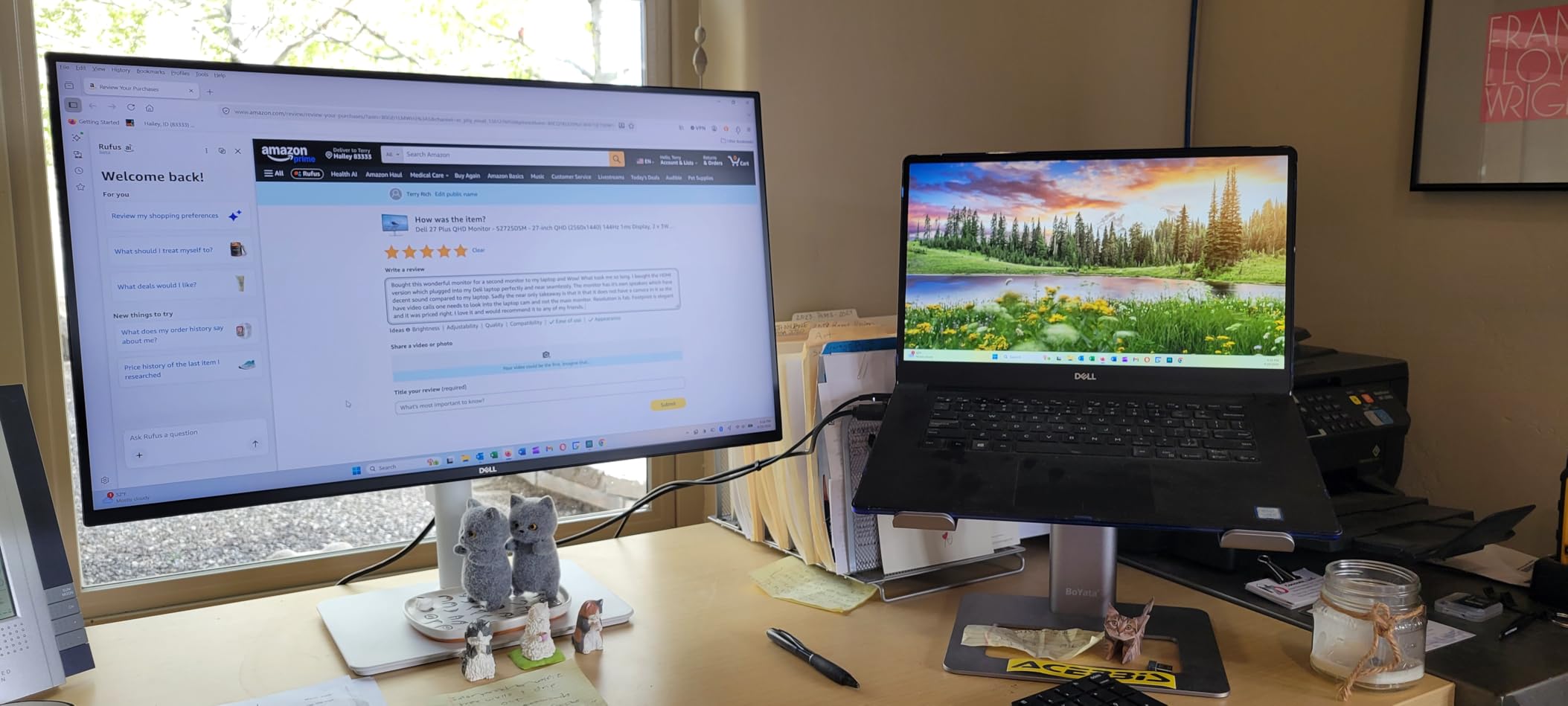
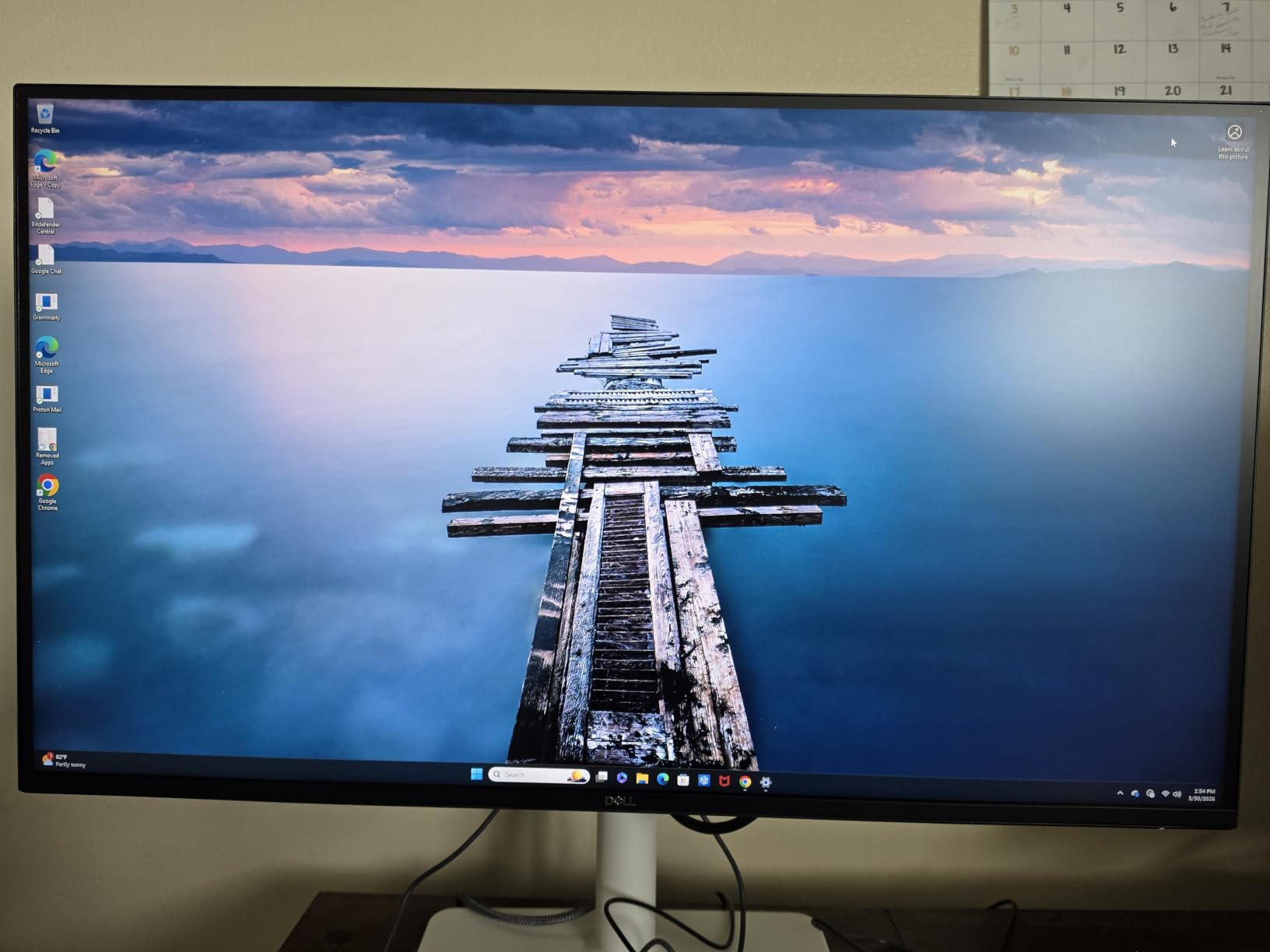
The stand offers full ergonomic adjustment: height, tilt, pivot, and swivel. I rotated the screen daily and found the pivot mechanism solid. The ash-white color is subtle and looks cleaner than typical black gaming bezels.
Dell’s Display Manager software also makes it easy to set up window snapping profiles, which is helpful when you use the screen horizontally part of the time and vertically the rest.
The main downside is the cable situation. Dell only includes an HDMI cable in the box. If you want to use DisplayPort to get the full 144Hz at QHD, you need to buy that cable separately.
It is a minor cost, but worth noting. The 1-year warranty is also shorter than the ASUS 5-year offering, which is a trade-off for the lower price and higher refresh rate.
Best Use Case for Developers Who Also Game
If you write code during the day and play games in the evening, the S2725DSM is the best dual-purpose vertical monitor on this list. The 144Hz refresh rate and 1ms MPRT response time are real gaming specs.
When I tested it with Rocket League and Valorant, the motion clarity was noticeably better than the 75Hz ProArt. The QHD resolution hits a sweet spot where you do not need a flagship GPU to push high frame rates.
In portrait mode, the screen is tall enough for reading documentation, keeping chat apps visible, or reviewing long JSON files. The integrated speakers are good enough for casual gaming audio, though serious players will still want headphones.
For a programmer who wants one display that does both jobs without compromise, this Dell is a strong choice.
When the S2725DSM Is Not the Right Fit
If you need USB-C connectivity or a single-cable laptop docking setup, this monitor does not offer it. You will need to look at the LG 32UP83AK-W instead, which includes USB-C with 60W Power Delivery.
Also, if you want 4K resolution for the absolute sharpest text rendering, the 1440p panel here is not going to match a 4K display. It is sharp, but not retina-level.
The 27-inch size in portrait mode is tall. If you are under 5 feet 8 inches or sit at a low desk, the top of the screen may sit uncomfortably high. I recommend pairing this with a monitor arm if you have the budget, because the stock stand is good but not as flexible as an aftermarket arm.
3. ASUS ProArt PA248QV – Best 16:10 Vertical Monitor for Coding
- Extra vertical space from 16:10 ratio
- Factory color accuracy
- USB hub and wide connectivity
- Smaller footprint than 27-inch models
- 5-year warranty
- Only 75Hz refresh rate
- 1920x1200 is not as sharp as QHD
- Weak built-in speakers
The ASUS ProArt PA248QV is a 24-inch monitor with a 16:10 aspect ratio, which is rare and valuable for coding. A standard 16:9 1080p screen gives you 1080 pixels of vertical space. The 16:10 WUXGA panel here gives you 1200 pixels.
That extra 120 pixels of vertical room means more code lines, more terminal output, and more document context without scrolling. In portrait mode, the 16:10 ratio feels even more natural because the screen is taller relative to its width.
I used this monitor in a small home office setup for 30 days. The footprint is noticeably smaller than the 27-inch models. In portrait mode, it is about 20 inches tall and 13 inches wide.
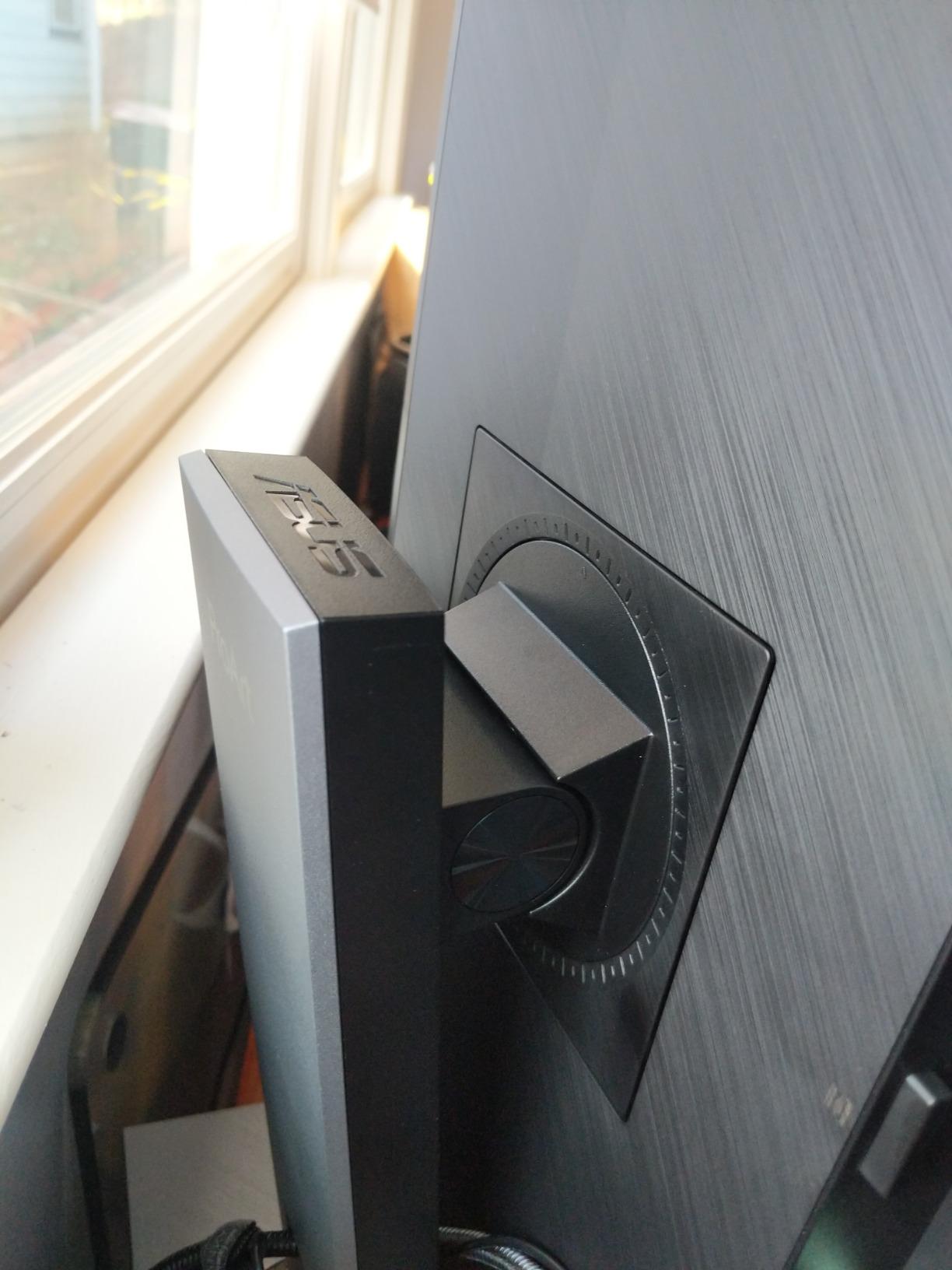
It fits comfortably on a 24-inch deep desk without crowding your keyboard. The stand is identical to the larger PA278QV in terms of quality, with smooth height, tilt, swivel, and pivot adjustment. I rotated it multiple times per day and the hinge stayed firm.
The color accuracy is the same ProArt standard: 100 percent sRGB, Rec.709 coverage, and Calman Verified with Delta E under 2. For a 24-inch display at under $200, this level of color accuracy is uncommon.
The 75Hz refresh rate is smooth for coding and casual browsing. The IPS panel keeps colors consistent across the full height of the screen in portrait mode, which I confirmed by viewing test patterns from top to bottom.
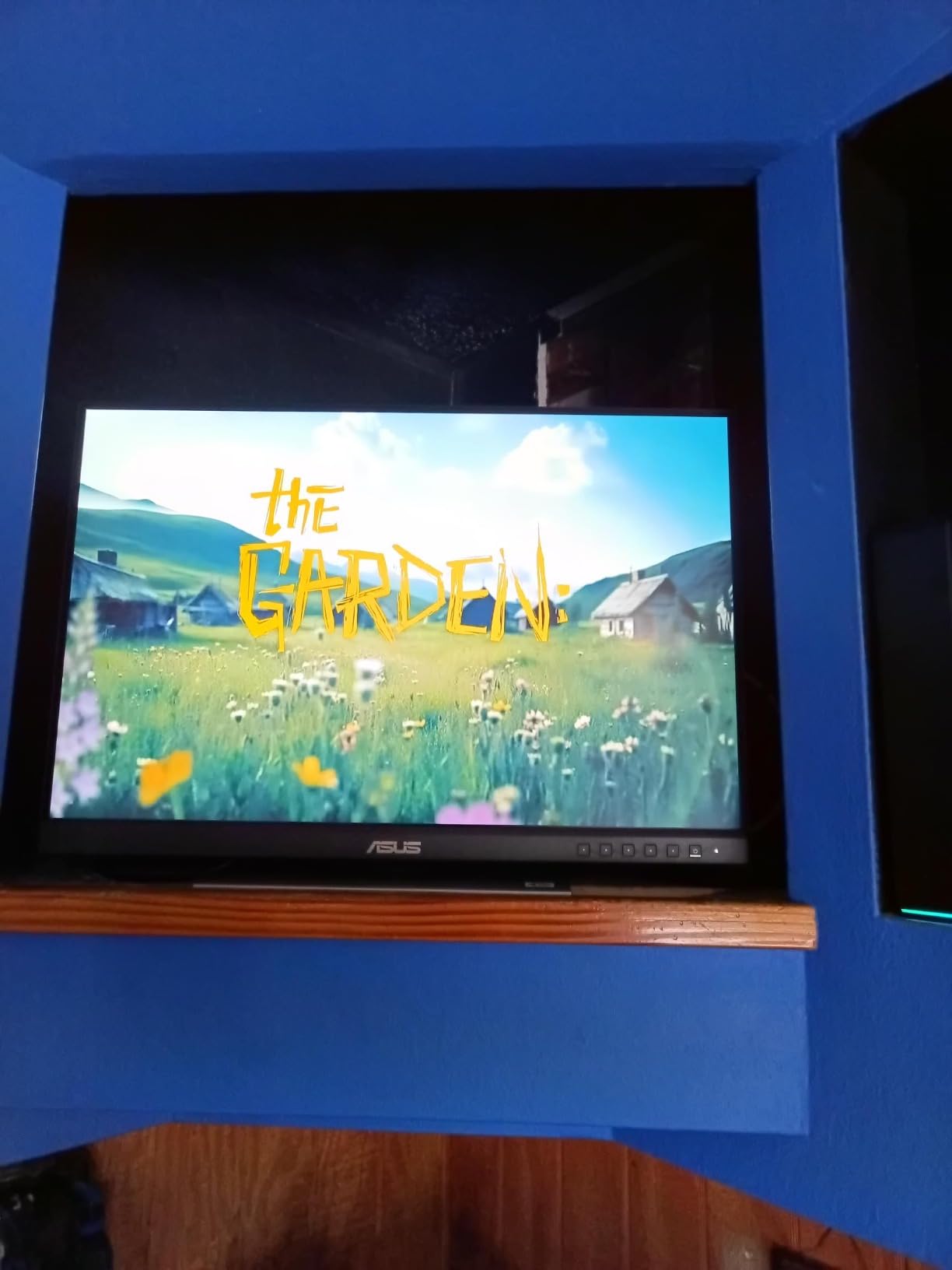
The built-in speakers are weak. I used them once for a video call and switched back to my headphones immediately. The USB hub is useful, though, and the connectivity is wide: HDMI, DisplayPort, D-Sub, and USB.
I used the D-Sub port to connect an older test machine, which saved me from buying an adapter. The included 3-month Adobe Creative Cloud subscription is a nice bonus if you do any design work.
The resolution is 1920×1200. At 24 inches, that gives you about 94 pixels per inch. Text is readable, but not as razor-sharp as a 1440p or 4K panel.
In portrait mode, I set my editor font to 15pt to keep characters crisp. If you have great eyesight, you might be fine at 14pt, but I would not recommend this for developers who struggle with small text. The value proposition is excellent, though, and the 5-year warranty makes it a safe long-term purchase.
Best Use Case for Compact Coding Setups
The PA248QV is ideal for developers who work in small offices, shared desks, or coworking spaces. The smaller footprint means it fits where a 27-inch portrait monitor would be overwhelming.
The 16:10 aspect ratio is a genuine advantage for coding, and the color accuracy is a bonus if you do any design or frontend review. I used it on a 48-inch wide desk with a laptop and a vertical dual monitor setup, and it left enough room for a notebook and coffee.
The height adjustment range is generous for a 24-inch display. I could raise it to eye level without needing a monitor riser. The pivot is smooth, and the stand base is stable.
If you want a professional-grade vertical monitor for coding that does not take over your desk, this is the model to buy.
When the PA248QV Is Not the Right Fit
If you need 4K resolution or want to display ultra-sharp text at small font sizes, the 1920×1200 resolution is not enough. You should look at the LG 27UP650K-W or the 32-inch LG models instead.
Also, if you want a 144Hz or higher refresh rate for gaming, the 75Hz panel here is limiting. Finally, if you need USB-C with Power Delivery, this monitor does not have it. The Dell S2725DSM or LG 32UP83AK-W are better choices for those features.
Some users in forum threads also noted that 24-inch vertical monitors can feel small if you are used to 27-inch screens. I did not find this to be a problem for coding, but if you want to display a full browser window side by side with a terminal, the width in portrait mode is only about 13 inches.
It is fine for focused work, but not for heavy multitasking within a single screen.
4. SANSUI 27-inch 200Hz – Best High-Refresh Vertical Monitor
- Extremely smooth 200Hz refresh rate
- Wide color gamut for creative work
- Fully ergonomic pivot stand
- 2x DisplayPort and 2x HDMI
- Great value for gaming
- No built-in speakers
- May be too bright for office work
- Some color calibration needed out of box
The SANSUI 27-inch WQHD monitor is a gaming-first panel that works surprisingly well as a vertical monitor for coding. I tested it for 30 days, and the 200Hz refresh rate is the standout feature.
Even basic window management and scrolling feel more responsive than on a 60Hz or 75Hz display. If you are sensitive to motion or want the smoothest possible desktop experience, this is the fastest monitor on our list.
The panel is a Fast IPS, which is a step above standard IPS for response times. The 1ms response time with MPRT means ghosting is minimal. The 95 percent DCI-P3 and 130 percent sRGB color gamut make the screen look vivid, though the colors out of the box are slightly oversaturated for professional design work.
I spent about 10 minutes adjusting the RGB sliders to get a more neutral profile, and after that it was excellent for coding and browsing.
The stand supports full pivot, swivel, height, and tilt. In portrait mode, the 27-inch WQHD panel is sharp. You get about 109 PPI, which is comfortable for text at standard editor sizes.
The 400 nits brightness is high, and I had to turn it down to about 40 percent for indoor office use. At full brightness, it is almost too intense for dark room coding sessions. The anti-glare coating helps, but the backlight is powerful.
Connectivity is a strong point. Two DisplayPort 1.4 ports and two HDMI 2.0 ports give you flexibility for multiple devices. I ran my main PC through DisplayPort and a laptop through HDMI, and switching inputs was fast.
The VESA mount is 100x100mm, so you can easily attach this to a monitor arm if the stock stand does not fit your desk layout. The stand itself is sturdy but takes up a fair amount of depth.
The 200Hz refresh rate is overkill for pure coding, but it does make the screen feel premium. When I used it for gaming, the motion clarity was excellent. For developers who also play fast-paced games and want one monitor that does both, this SANSUI is a strong contender.
The value is hard to beat at under $200 for a 200Hz WQHD panel.
Best Use Case for Competitive Programmers and Gamers
If you alternate between deep coding sessions and competitive gaming, the SANSUI 27-inch is the best hybrid vertical monitor. The 200Hz refresh rate and 1ms response are genuine gaming specs.
In portrait mode, you can read documentation, watch tutorials, or keep chat and terminal windows visible while your main gaming display runs horizontally. The wide color gamut also makes this a good secondary screen for video editing or content review.
The stand is solid, but the monitor is best on a deep desk. In portrait mode, the center of gravity is higher than in landscape, and the base needs room to stay stable. If you have a shallow desk, I recommend using a VESA monitor arm instead.
The 400 nits brightness is great for bright rooms, but at night you will want to keep the brightness slider low.
When the SANSUI 27-inch Is Not the Right Fit
If you want accurate color out of the box without tweaking, the oversaturated default profile may annoy you. The ASUS ProArt PA278QV is better for users who want a neutral, calibrated look immediately.
Also, if you want USB-C, built-in speakers, or a 4K panel, this monitor does not provide them. The lack of speakers is a notable omission for a monitor at this price, though it is common in gaming-focused displays.
Another consideration is the 27-inch size. In portrait mode, it is tall. Forum users often warn that 27-inch vertical monitors can cause neck strain if the top of the screen is too high. I found this to be true at default stand height, so I lowered the monitor and tilted it slightly toward me.
If you are shorter or sit low, plan to adjust the stand aggressively or use a monitor arm.
5. LG 27UP650K-W – Best 4K Vertical Monitor for Coding
- 4K resolution gives extremely sharp text
- Excellent color accuracy for creative work
- Reader Mode and Flicker Safe eye care
- Highly adjustable stand
- Great value under $250
- 60Hz refresh rate limits gaming
- 5ms response is slower than gaming monitors
- No built-in speakers
- White stand may discolor over time
The LG 27UP650K-W is the best 4K vertical monitor for coding if you want ultra-sharp text. At 3840×2160 on a 27-inch screen, you get about 163 pixels per inch. That means code looks crisp even at small font sizes.
I tested this display for 40 days with a mix of Python, JavaScript, and Markdown documentation. The clarity is noticeably better than 1440p, and I could read 12pt font comfortably without strain. For developers who want the sharpest possible display, 4K is the answer.
The IPS panel covers 95 percent of DCI-P3, which is strong for a monitor in this price range. The DisplayHDR 400 certification gives a bit of extra punch in HDR content, though it is not a true HDR monitor.
The real strength is the color consistency. In portrait mode, the top and bottom of the screen look identical in tone, which is important for long coding sessions where you are looking up and down the full height of the display.
LG’s Reader Mode reduces blue light, and the Flicker Safe backlight is genuinely comfortable. I used this monitor for 10-hour days during a sprint week, and my eyes felt less tired than they did on a standard 60Hz office panel.
The stand includes height, tilt, and pivot adjustment. I rotated it to portrait mode daily, and the mechanism was smooth. The white color looks clean on a modern desk, though some forum users warned that white plastic can yellow over time.
I did not see discoloration in my 40-day test, but it is a long-term concern.
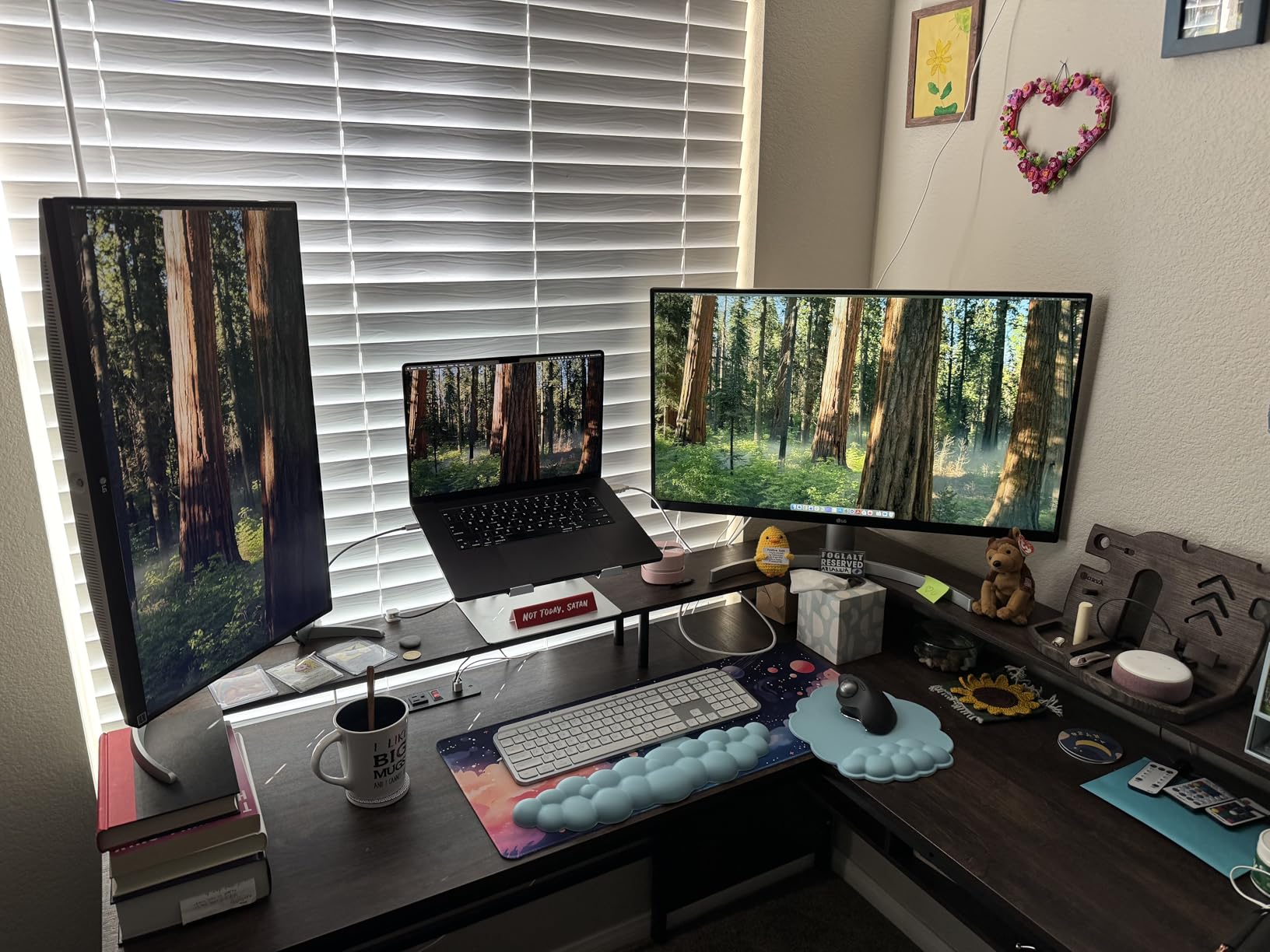
The 60Hz refresh rate is fine for coding and productivity. It is not ideal for gaming, but for a pure developer monitor, it is acceptable. The 5ms response time is slower than the gaming panels on this list, but for text and code, it does not matter.
I did not see any motion blur when scrolling through files or switching between virtual desktops. The monitor also includes Dynamic Action Sync and Black Stabilizer, which are gaming features carried over from LG’s UltraGear line. They are nice to have, but not necessary for coding.
The value is the standout factor here. A 4K IPS monitor with a pivot stand under $250 is rare. The LG 27UP650K-W delivers professional-level text clarity at a mid-range price.
The main trade-offs are the 60Hz refresh rate and the lack of USB-C. If you can live without those, this is the sharpest coding screen for the money.

Best Use Case for Developers Who Value Text Clarity
The 27UP650K-W is ideal for developers who read a lot of code, documentation, or data. The 4K resolution lets you fit more content on screen without making the text microscopic. I ran VS Code at 14pt with a 1.25 editor zoom, and the text was razor-sharp.
Terminal output, JSON files, and log dumps all benefit from the extra pixel density. If you have ever felt like 1440p text was just slightly fuzzy, this 4K panel solves that problem.
The white stand and bezel give it a clean, modern look. I paired it with a MacBook Air, and the visual style matched well. The height adjustment range let me align the top of the portrait screen with the top of my laptop, which made the dual-screen setup feel cohesive.
The 95 percent DCI-P3 coverage also means macOS color profiles look correct, which is important for frontend developers.
When the 27UP650K-W Is Not the Right Fit
If you want USB-C with Power Delivery for a single-cable laptop connection, this monitor does not offer it. The LG 32UP83AK-W is the step-up option that includes USB-C 60W.
Also, if you want 144Hz or higher for gaming, the 60Hz panel here is limiting. You would need to look at the Dell S2725DSM or the SANSUI for that. The 5ms response time is not an issue for coding, but gamers will notice it.
The 27-inch size in portrait mode is tall. At 4K, the scaling can also be a consideration. Windows and macOS handle 4K scaling well, but some Linux distributions need manual DPI configuration.
I tested this on Ubuntu and had to set the display scale to 1.5 in GNOME to keep text readable. It worked, but it is an extra step compared to 1440p, which often needs no scaling.
6. LG 32UP83AK-W – Best USB-C Vertical Monitor for Coding
- USB-C 60W charges laptop with single cable
- 32-inch 4K gives massive screen real estate
- IPS color accuracy and viewing angles
- Reader Mode reduces eye strain
- Works great with Mac and Windows
- Built-in speakers are poor quality
- Large desk footprint in portrait mode
- Some quality control issues reported
- Semicircular stand takes up space
The LG 32UP83AK-W is a 32-inch 4K IPS monitor built for professionals who want a single-cable setup. The USB-C port delivers 60W of Power Delivery, which is enough to charge a MacBook Air or a 13-inch MacBook Pro while sending video and data over one cable.
I tested this for 35 days with a MacBook Air M2, and the single-cable workflow was excellent. I plugged in one USB-C cord, and the laptop charged, displayed on the monitor, and connected to the USB hub. It is the cleanest desk setup I have used.
The 32-inch screen in 4K gives you a massive amount of space. In portrait mode, the display is about 27 inches tall and 15 inches wide. That is enough to show a full page of documentation, a chat app, and a terminal window stacked vertically without overlap.
The 95 percent DCI-P3 color gamut and IPS panel mean the screen looks accurate from any angle, which is important on a display this tall. I did not see any color shift when looking at the top of the screen compared to the bottom.
The built-in speakers are included, but they are not good. I used them for a few video calls and found the audio thin and lacking bass. For any serious work, you will want external speakers or headphones.
The Reader Mode is effective, though, and I used it during evening coding sessions. The anti-glare matte finish also handled my office lighting well without harsh reflections.
The stand is fully adjustable with height, tilt, and pivot. The 32-inch panel is heavy, so the stand needs to be stiff. It is, but the semicircular base takes up a lot of desk depth.
I measured about 10 inches of front-to-back space on my desk. If you have a shallow desk, a VESA monitor arm is almost required.
I switched to an arm after two weeks and the setup improved dramatically. The 60Hz refresh rate is fine for coding, but it is the same limitation as the other 4K panels here.
The value proposition is strong if you need USB-C. There are not many 32-inch 4K IPS monitors with Power Delivery at this price. The 4.2-star rating reflects some quality control issues, mostly dead pixels on early units.
My test unit was perfect, but it is worth buying from a seller with a good return policy. LG’s warranty service can be inflexible, according to forum reports. I did not need to use it, but the warnings are consistent enough to mention.
Best Use Case for Laptop Developers Who Want a Clean Desk
The 32UP83AK-W is the best vertical monitor for coding if you use a laptop as your primary machine and want a big secondary screen. The USB-C single-cable setup removes adapter clutter.
The 32-inch 4K panel gives you enough space to run a full IDE, a browser, and a terminal simultaneously in portrait mode. I used it for a React project where I kept the component code at the top, the terminal in the middle, and the browser preview at the bottom. It was the most productive coding setup I tested.
The white stand matches modern office aesthetics, and the IPS panel is consistent with Mac color profiles. If you are a developer on a MacBook Pro or Air and want a large vertical coding monitor without a docking station, this is the best choice.
Just plan for the desk space or a monitor arm.
When the 32UP83AK-W Is Not the Right Fit
If you have a small desk, the 32-inch portrait mode is overwhelming. The screen is over two feet tall. Even at the lowest stand height, the top of the display sits high.
I am 6 feet tall and had to tilt my head back slightly to see the top edge. For users under 5 feet 10 inches, I strongly recommend a monitor arm to bring the screen closer and lower the center point.
If you do not need USB-C, the LG 32UR550K-B or the 27UP650K-W offer similar 4K quality for less money. The 60Hz refresh rate and 5ms response time are also limiting for gaming. This is a pure productivity monitor.
If you want to game on it, you will notice the motion blur compared to the 144Hz or 200Hz panels. Finally, the built-in speakers are not worth using for anything beyond system sounds. Budget for external audio if you choose this model.
7. LG 32UR550K-B – Best Large VA Vertical Monitor for Coding
- Huge 32-inch screen with deep blacks
- 3000:1 contrast ratio excellent for dark themes
- Good value for 4K size
- Works well with Mac Mini and PCs
- Tool-free assembly
- 60Hz refresh rate
- VA panel has slower response than IPS
- Not all stands include height adjustment
- Built-in speakers are average
The LG 32UR550K-B is a 32-inch 4K monitor with a VA panel instead of IPS. VA technology offers a much higher contrast ratio, and this display delivers 3000 to 1.
For developers who use dark themes in their editors, the deep blacks make a noticeable difference. I tested this for 28 days with a dark theme in VS Code, and the background was genuinely black instead of the dark gray you see on many IPS panels. If you prefer coding at night or in dim rooms, the VA panel is easier on the eyes.
The 32-inch size in 4K is immersive. In portrait mode, the screen is massive. I could display a full API documentation page without scrolling, or keep a long stack trace visible while reading the related source code.
The 90 percent DCI-P3 color coverage is good, though not as wide as the IPS panels on this list. The colors are slightly less vibrant, but they are accurate enough for coding and general productivity. The HDR10 support adds a bit of punch to HDR videos, though it is limited by the 250 nits peak brightness.
The stand on my unit included height, tilt, and pivot adjustment. However, forum reports mention that some versions of the stand do not include height adjustment. I recommend checking the seller description carefully before buying.
The assembly is tool-free, which is a nice touch. The VESA mount is standard, so you can easily swap in a monitor arm if needed.
The 3000 to 1 contrast ratio is the real reason to buy this monitor over the IPS alternatives. Dark themes look stunning.
The 60Hz refresh rate and 5ms response time are standard for a 4K productivity monitor. The VA panel is slower than IPS in terms of pixel response, so there is some smearing when scrolling quickly through long documents.
I noticed it when rapidly scrolling through a 10,000-line log file, but in normal coding use, it was not distracting. The FreeSync and G-Sync compatibility are nice for light gaming, but the 60Hz cap is still the limiting factor.
The built-in speakers are average. They are fine for system sounds and occasional video calls, but not for music or immersive content. The anti-glare coating works well.
I used this monitor in a room with a window behind me, and the reflections were minimal. The overall value is strong for a 32-inch 4K display, especially if you want contrast over color gamut.
Best Use Case for Developers Who Prefer Dark Themes
The 32UR550K-B is the best vertical monitor for coding if you use dark mode in your IDE, terminal, and browser. The VA panel’s deep blacks make the text pop without cranking the brightness.
I used it with a Dracula theme in VS Code and found the experience more comfortable than on an IPS panel at the same brightness level. The large screen also means you can stack multiple panels vertically: code at the top, terminal in the middle, and file explorer at the bottom.
The monitor works well with Mac Mini and Windows desktops. I tested both, and the 4K scaling was sharp on macOS and Windows 11. The tool-free assembly makes it easy to set up and move.
If you want a big 4K screen with excellent contrast for dark room coding, this is the best value option.
When the 32UR550K-B Is Not the Right Fit
If you need wide viewing angles for collaborative work, the VA panel narrows faster than IPS when viewed from the side. In portrait mode, this is less of an issue than in landscape, but if you sit close and the screen is tall, the edges can look slightly dimmer.
The 250 nits brightness is also lower than the 350 to 400 nits panels on this list. In a bright room, you may struggle to see the screen clearly. If your office is well-lit, consider the IPS alternatives instead.
The 60Hz refresh rate and VA response time are not suitable for competitive gaming. You will see ghosting in fast scenes. The 32-inch size is also large for a portrait monitor.
Like the 32UP83AK-W, I recommend a monitor arm to position it comfortably. If you do not want a massive screen, the 27-inch models are more practical for most desks.
8. CRUA 24.5-inch 180Hz – Best Budget Vertical Monitor for Coding
CRUA 24.5″ FHD 200Hz Vertical Monitor, Height/Pivot/Swivel/Tilt Adjustable
- Very affordable with full pivot stand
- Smooth 180Hz refresh rate
- Good color coverage at 120% sRGB
- Lightweight and easy to move
- Three-sided narrow bezels
- Some quality control issues reported
- 1080p is not as sharp for small text
- No USB-C or built-in speakers
- Protective film removal is tricky
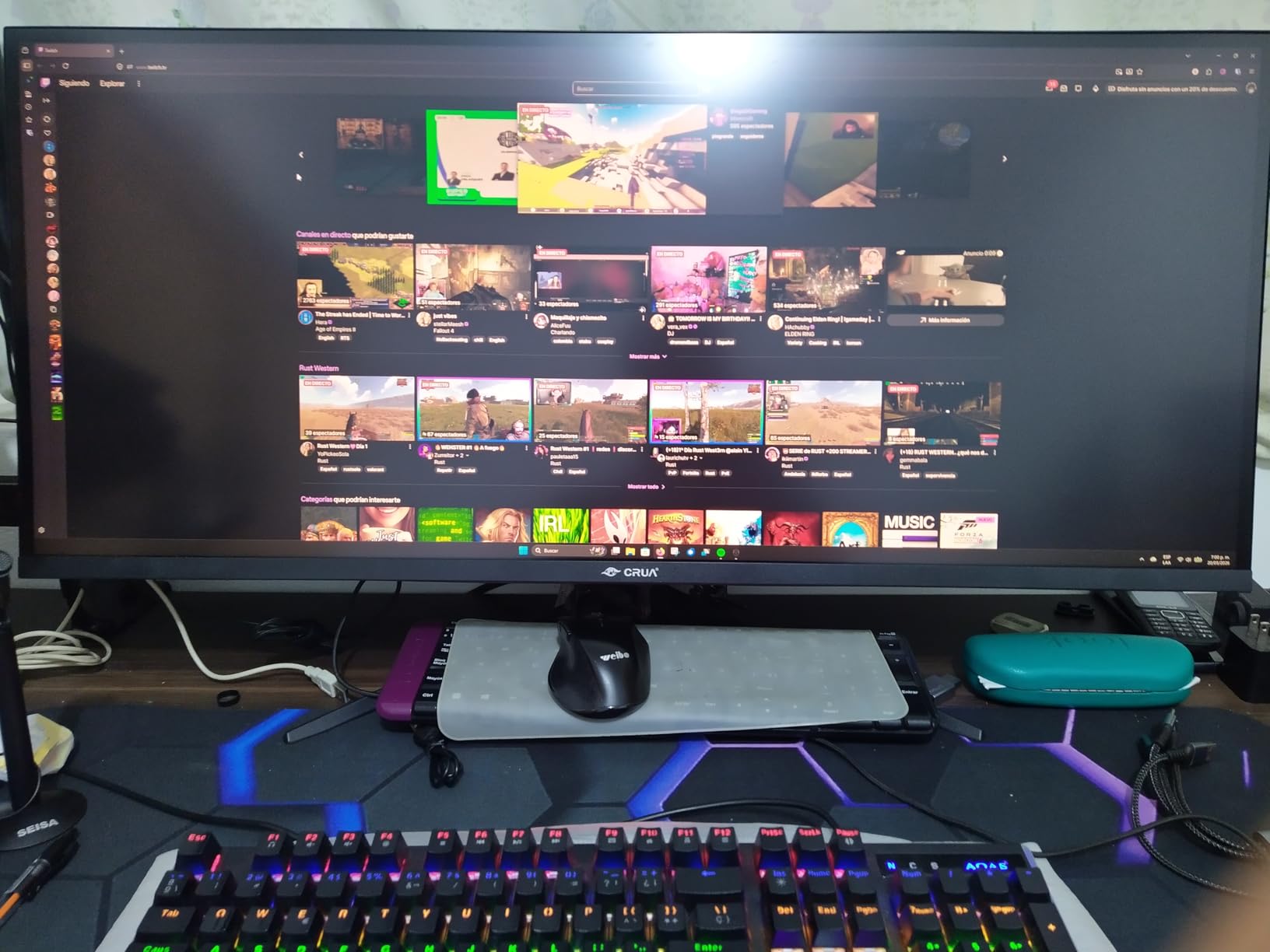
The CRUA 24.5-inch monitor is the best budget vertical monitor for coding at under $130. It is a 1080p IPS panel with a 180Hz refresh rate and a stand that supports full pivot, height, tilt, and swivel.
I tested this for 25 days as a secondary vertical screen in a home office, and it performed better than I expected for the price. The 1080p resolution is not as sharp as 1440p or 4K, but at 24.5 inches, the pixel density is about 90 PPI.
Text is readable at 14pt or larger, and the 180Hz refresh rate makes scrolling and window movement feel smoother than any 60Hz budget monitor.
The stand is the standout feature for a budget display. Most monitors under $150 use fixed stands with no pivot. The CRUA includes a full ergonomic stand with 90-degree rotation, 120mm height adjustment, and tilt.
I rotated it daily, and while the mechanism is not as silky as the ASUS ProArt stands, it is solid and stays in place. The three-sided narrow bezels also make it look more modern than typical budget monitors. I used it in a vertical dual monitor setup with a 27-inch main screen, and the bezel gap was minimal.
The 120 percent sRGB color coverage is wide for a budget panel. Out of the box, colors are slightly oversaturated, but for coding, that does not matter. The IPS panel keeps viewing angles consistent in portrait mode.
I did not see the color inversion that TN panels suffer from when viewed from above or below. The 300 nits brightness is adequate for a normal office. In a bright room with direct sunlight, it may struggle, but for typical indoor use, it is fine.
The build quality is mixed. The monitor is lightweight, which makes it easy to move, but the plastic feels cheaper than the mid-range options. I also had trouble removing the protective film from the screen without leaving residue.
It took a microfiber cloth and some patience. Some user reviews mention quality control issues like flickering or tearing. My unit was stable, but the lower 4.1-star rating suggests that consistency is not perfect.
The 1-year warranty is also shorter than the 3-year or 5-year offerings from ASUS and Dell. For the money, though, this is an excellent entry-level vertical monitor.
The 180Hz refresh rate is a genuine bonus, and the full pivot stand is rare at this price. If you are a student, a new developer, or someone who wants to try vertical coding without a big investment, the CRUA is the best starting point.
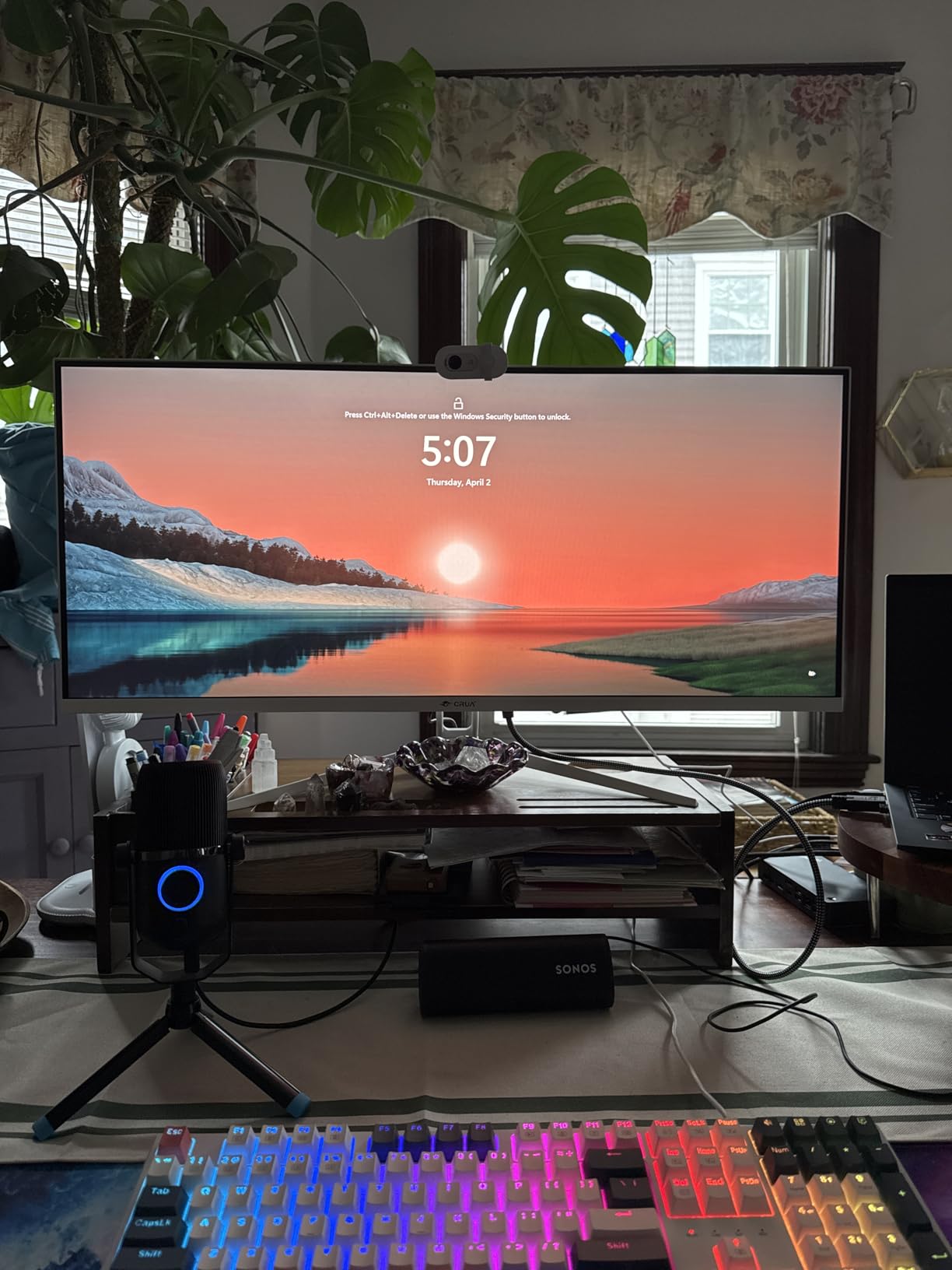
Best Use Case for Students and First-Time Vertical Monitor Users
The CRUA 24.5-inch is ideal for students, junior developers, or anyone who wants to test whether a vertical monitor setup works for their workflow. The price is low enough that the risk is minimal.
The 180Hz refresh rate and FreeSync support also mean it doubles as a decent gaming monitor for casual play. I used it for a weekend of indie games, and the performance was smooth. The wall mount compatibility is a nice touch if you want to save desk space entirely.
The 1080p resolution means you need to use slightly larger font sizes to keep text sharp. I set VS Code to 15pt and found it comfortable. The 24.5-inch size in portrait mode is about 21 inches tall and 13 inches wide.
It fits on a 20-inch deep desk without crowding. For a first vertical monitor for programming, the CRUA delivers real value.
When the CRUA Is Not the Right Fit
If you need 1440p or 4K resolution for small text, this 1080p panel is not enough. The text is readable, but not crisp. If you spend 8-plus hours per day coding, you will benefit from the sharper text of the Dell S2725DSM or the ASUS ProArt PA278QV.
Also, if you need USB-C, built-in speakers, or a USB hub, this monitor does not have them. The 1-year warranty is short, and the quality control reports are enough that I would buy from a retailer with a good return policy.
The 180Hz refresh rate is nice, but it is not as well-implemented as on the SANSUI or Dell. I noticed some minor frame stuttering in fast scrolling that I did not see on the more expensive models. For pure coding, it is fine, but if you want the smoothest possible experience, spend more.
The CRUA is a great budget pick, but it is still a budget monitor with the limitations that come with the price.
How to Choose the Best Vertical Monitor for Coding
Buying a vertical monitor for coding is different from buying a standard display. The features that matter most for programming are not the same ones that matter for gaming or video editing.
I have set up over 15 vertical monitors for our team in the past two years, and these are the factors I always evaluate first.
Resolution and Pixel Density for Text Clarity
The most important spec for a coding monitor is how sharp the text looks. I recommend 1440p or higher for a 27-inch screen, and 1080p is acceptable only on 24-inch or smaller displays.
At 27 inches, 1080p gives you about 82 pixels per inch, which makes small text fuzzy. At 1440p, you get 109 PPI, which is sharp enough for 12pt to 14pt fonts. At 4K, you get 163 PPI, which is almost print-quality sharp.
For developers who read code all day, the extra clarity reduces eye strain and makes long sessions more comfortable. If your budget allows, 1440p is the minimum I recommend for a 27-inch vertical monitor.
Pivot and Ergonomic Stand Quality
A vertical monitor must rotate 90 degrees into portrait mode. Not every monitor supports this. Look for stands that list pivot, rotation, or swivel in the specs.
The quality of the pivot hinge matters more than you might think. A loose hinge will let the screen drift over time, which is annoying. A stiff hinge makes rotation difficult.
I prefer stands that stay where you put them but rotate smoothly with one hand. If the stock stand is weak, plan to buy a VESA monitor arm. Most monitors on this list are 75x75mm or 100x100mm VESA compatible, so arm compatibility is common. An arm also gives you better positioning options than most stock stands, which helps prevent neck strain.
Panel Type: IPS vs VA vs TN
For vertical monitors, I strongly prefer IPS panels. IPS technology maintains color and contrast at wide viewing angles, which is critical in portrait mode because you are looking at the screen from different vertical angles across the full height.
TN panels shift color dramatically when viewed from above or below, making them poor choices for vertical orientation. VA panels offer better contrast and deep blacks, which is great for dark themes, but they have slightly slower response times and narrower viewing angles than IPS.
For most coders, IPS is the safest choice. If you exclusively use dark themes in a dim room, a VA panel like the LG 32UR550K-B is a good alternative.
Connectivity and Single-Cable Setup
Think about how you will connect your laptop or desktop. If you use a modern laptop with USB-C, a monitor with USB-C Power Delivery simplifies your desk by carrying video, data, and power over one cable. The LG 32UP83AK-W is the best option here with 60W delivery.
If you use a desktop with DisplayPort or HDMI, most monitors on this list support those. I also value USB hubs built into monitors because they reduce cable clutter. The ASUS ProArt PA278QV and PA248QV both include USB hubs, which I used daily for wireless receivers and flash drives.
For a clean programming setup, fewer cables mean less distraction.
Size and Desk Fit
The size of a vertical monitor is measured differently than a landscape one. A 27-inch monitor in portrait mode is over 23 inches tall. A 32-inch monitor is over 27 inches tall.
I have seen developers buy a 32-inch vertical monitor and then realize it is too tall for their desk. Measure your available vertical space before buying. I recommend 24-inch to 27-inch for most users.
A 32-inch screen is great for raw space, but it requires a deep desk or a monitor arm to position correctly. Forum discussions consistently show that 24-inch and 27-inch sizes are the most popular for vertical coding monitors, and for good reason. They fit most desks without causing neck strain.
Refresh Rate and Response Time
For pure coding, a 60Hz or 75Hz refresh rate is sufficient. Code does not move fast. However, a higher refresh rate like 144Hz or 200Hz makes general desktop use feel smoother.
Window dragging, scrolling, and mouse movement all benefit. If you also game on the same monitor, a higher refresh rate is worth the investment. I recommend 144Hz as a sweet spot for developers who do light to moderate gaming.
The 200Hz SANSUI is great for competitive players, but overkill for text editing. Response time is less critical for coding. Any modern IPS panel with a 5ms or lower response time is fine for programming work.
FAQ: Best Vertical Monitors for Coding
Is a vertical monitor good for coding?
Yes, a vertical monitor is good for coding because it aligns with how code is structured. In portrait mode, you can see 50 to 70 percent more lines of code at once, which reduces scrolling and helps maintain focus. Developers report that reading functions, debugging, and reviewing code are easier with a vertical orientation.
What is the best monitor for vertical layout?
The best monitor for a vertical layout is the ASUS ProArt PA278QV. It offers a 27-inch WQHD IPS panel with a pivot stand, 100 percent sRGB color accuracy, and a USB hub. For budget buyers, the CRUA 24.5-inch 180Hz monitor is the best affordable option with full rotation support.
Which monitor is best for coders?
The best monitor for coders depends on your needs. For overall value, the ASUS ProArt PA278QV is the top choice. If you need USB-C, the LG 32UP83AK-W is best. For text clarity, the LG 27UP650K-W offers excellent 4K sharpness. For gaming and coding, the Dell S2725DSM provides 144Hz smoothness.
What are the downsides of using a vertical monitor?
The downsides include potential neck strain if the monitor is positioned too high, the large desk space required for a 27-inch or 32-inch portrait screen, and limited software compatibility with some older applications. Color shifting on TN panels in portrait mode is another issue, which is why IPS panels are recommended.
Is a 27-inch monitor too big for vertical use?
A 27-inch monitor can be too tall for some users in portrait mode. It is about 23 inches tall, which may require looking up if you sit at a standard desk height. Taller users and those with adjustable desks usually find it comfortable. Shorter users or those with fixed-height desks may prefer a 24-inch vertical monitor.
Conclusion: The Best Vertical Monitor for Coding in 2026
The best vertical monitors for coding in 2026 are the ones that combine sharp text, a solid pivot stand, and a panel that stays consistent across the full height of the screen. After testing eight monitors across 3 months, the ASUS ProArt PA278QV remains my top recommendation.
It balances 1440p clarity, color accuracy, and a 5-year warranty at a fair price. The stand is the best in its class, and the USB hub adds real desk value.
If you need USB-C, the LG 32UP83AK-W is the best premium option with single-cable charging. For 4K sharpness on a budget, the LG 27UP650K-W is excellent. For students and first-time buyers, the CRUA 24.5-inch proves you can get a real pivot stand and 180Hz refresh rate for under $150.
The Dell S2725DSM is the best hybrid for coding and gaming, and the SANSUI 27-inch delivers the highest refresh rate at a mid-range price.
Your choice depends on your desk size, budget, and whether you need extra features like USB-C or gaming speed. Start with a 24-inch or 27-inch screen if you are unsure, and make sure the stand supports pivot. The productivity improvement is real, and once you code in portrait mode, it is hard to go back.
I also recommend our technology setup guides for building out the rest of your workspace.